Avatar Physics: Realistic Movement Guide
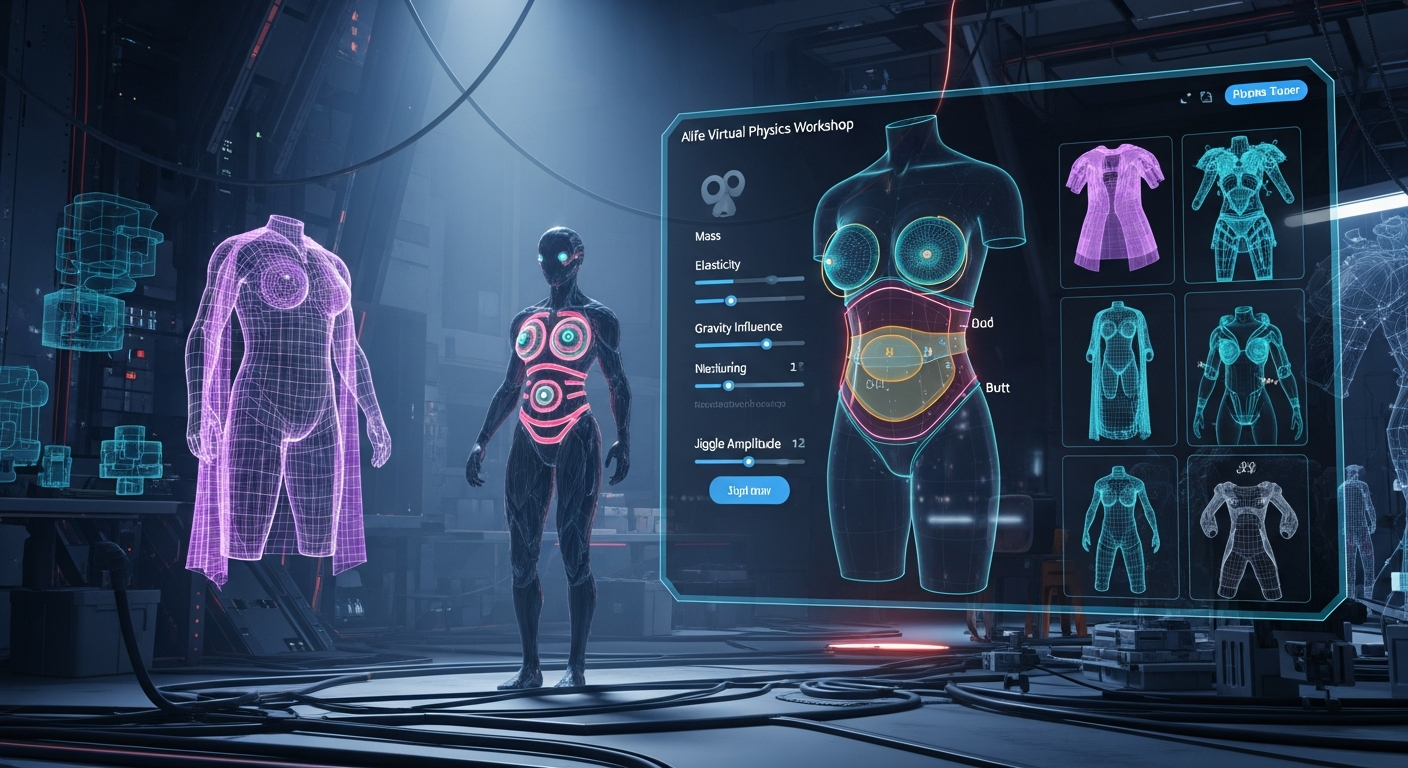
Avatar Physics: Realistic Movement Guide — Free class in Alife Virtual School
Have you ever watched an avatar in a virtual world and felt something was... off? They move stiffly, like a mannequin, breaking the illusion of a living, breathing digital person. The secret to bridging that gap and achieving true immersion lies in mastering avatar physics. This comprehensive guide, Avatar Physics: Realistic Movement Guide, is your masterclass in breathing life into your digital self. We will dive deep into the settings that control natural jiggle and sway, transforming your avatar from a static model into a dynamic, realistic presence within the Alife Virtual metaverse. This isn't just a cosmetic tweak; it's a fundamental skill for anyone serious about high-quality avatar creation and personal expression in a free 3D world.
The Alife Advantage: Create Freely, Without the Fees
In many virtual worlds, the freedom to experiment is locked behind a paywall. Before you can even begin to test advanced features like avatar physics, you're faced with upload fees for every mesh and texture, and staggering monthly costs for a private space to build and test without interruption. This stifles creativity and puts a financial barrier between you and your vision. Alife Virtual shatters that model.
We believe that a thriving virtual economy and a vibrant creative community are built on accessibility, not fees. Here, your creativity is the only currency that matters. Let's compare the cost of mastering the skills in this tutorial in Alife Virtual versus a platform like Second Life:
| Feature / Requirement | Alife Virtual Cost | Second Life (Typical Cost) |
|---|---|---|
| Private Building Sandbox (Full Region) | $0 / month. Every user gets a FREE 65,536 sqm private island. | ~$300 / month for a private region. |
| Mesh & Texture Uploads | $0. FREE and unlimited uploads for all assets. | L$10 (~$0.04) per upload. This adds up significantly during iterative testing. |
| High-Quality Starter Avatar | $0. Every member receives a FREE Pro Mesh Avatar, ready for physics customization. | Varies. Often requires purchasing a separate mesh body and head, costing $20-$50+. |
| Total Cost to Learn & Innovate | $0. for one month. | Hundreds of dollars in initial and recurring costs just for the space and ability to upload your work. |
In Alife Virtual, you have the unparalleled freedom to upload, test, refine, and perfect your physics-enabled creations without ever worrying about fees. This makes it the ultimate second life alternative for builders, designers, and creators who want to push the boundaries of what's possible in the metaverse.
What You Will Learn
By the end of this masterclass, you will be able to:
- Understand the core concepts of the avatar physics engine.
- Confidently navigate the Appearance editor to fine-tune your avatar's body physics.
- Configure realistic breast, belly, and butt physics for natural movement.
- Create your own physics-enabled wearable accessories from scratch.
- Troubleshoot common physics issues like clipping and erratic behavior.
- Apply advanced principles for creating more complex physical objects.
Prerequisites
- An Alife Virtual account (it's free!).
- The Firestorm Viewer, fully compatible with Alife Virtual.
- Basic familiarity with the Firestorm interface (moving your camera, opening menus).
- A foundational understanding of how to enter Appearance Edit mode and how to create and link basic prims.
Part 1: Configuring Your Avatar's Built-in Physics Layers
Your free Pro Mesh Avatar in Alife comes equipped with built-in physics layers. These are settings that apply a "jiggle" effect to specific parts of the body mesh in response to your avatar's movements. Mastering these sliders is the first step to achieving a lifelike appearance.
Step 1: Accessing the Physics Editor
- Right-click your avatar and select Appearance > Edit Shape.
- A new window will open. On the left, ensure the Body tab is selected.
- Now, look for a tab or sub-section within the Body settings labeled Physics. Click on it.
You should now see a series of sliders. These control the physics for the three main areas: Breasts, Belly, and Butt. Let's break down what each one does.
Step 2: Understanding the Physics Parameters
While the exact names can vary slightly between viewer versions, the core functions remain the same. These sliders work together to create a final effect, so small adjustments can have a big impact.
| Parameter | Function | Effect of High Value | Effect of Low Value |
|---|---|---|---|
Breast Bounce |
Controls the overall "bounciness" or elasticity of the breasts when moving. This is the primary slider for jiggle. | Exaggerated, springy, "jello-like" movement. | Subtle, firm movement or no movement at all. |
Breast Gravity |
Simulates the effect of gravity, controlling how much the breasts "hang" or sag downwards. It also affects how quickly they settle after a movement. | Heavier, more pronounced downward pull. Slower to settle. | Perkier, lighter appearance. Quicker to settle. |
Breast Cleavage |
This slider controls the movement on the Z-axis, essentially how much the breasts move towards or away from each other. | More side-to-side movement and separation during motion. | Breasts move more as a single unit with less separation. |
Belly Bounce |
Controls the elasticity and jiggle of the stomach and lower abdomen area. | Pronounced jiggle in the belly area, especially during running or jumping. | A very firm or toned appearance with minimal movement. |
Butt Bounce |
Controls the overall bounciness and movement of the glutes. | Significant jiggle and sway when walking or dancing. | A firm, athletic appearance with very little movement. |
Step 3: Finding Your Perfect Balance
There is no single "correct" setting. The goal is to match the physics to the desired body type and style of your avatar. Here are some starting points to experiment with:
- Subtle & Realistic: Start with all sliders around 20-35. This adds a hint of natural movement without being distracting. It's a great baseline for most avatars.
- Athletic & Toned: Keep
Bouncesliders low (0-15) andGravityslightly higher (20-40) to simulate dense muscle. - Soft & Curvy: Increase the
Bouncesliders (40-65) andGravity(50-70) for a softer, heavier effect. - Hyper-Stylized/Anime: Push the
Bouncesliders higher (70-100), but be cautious. This can easily look unnatural or comical if overdone.
Action: Move your avatar as you adjust the sliders. Walk, run, and jump. If you have a dance HUD, use it! Observe how the body reacts to different motions. Remember to hit Save when you are happy with the results.
Pro Tip: Less is MoreThe most common mistake beginners make is setting the bounce values to 100. This results in a chaotic, distracting "jello" effect that looks amateurish. High-quality, realistic avatars almost always use subtle physics. Start low and only increase the values until you see a gentle, believable reaction to movement.
Part 2: Creating Your First Physics-Enabled Wearable
Now that you've mastered the body's physics, let's apply those principles to objects you can wear. This technique is used for everything from dangling earrings and necklaces to flowing hair and capes. We'll create a simple, two-link chain to hang from your avatar's hand.
Step 1: Build the Object
- Find a clear space on your FREE private island to build.
- Right-click the ground and choose Build > Build. Select the Torus shape.
- Rez a Torus prim on the ground. In the Object tab of the edit window, resize it to look like a chain link. Let's make it small, perhaps 0.05m on all axes. This will be our Root Prim.
- Now, create a second, identical Torus. Position it so it links through the first one. This will be our Physics Prim.
Step 2: Link the Objects Correctly
- This is the most crucial step. You must select the child prim(s) first, and the root prim last.
- Click on the Physics Prim (the bottom link).
- Hold down Shift and click on the Root Prim (the top link). You should now have both selected, with the Root Prim highlighted in yellow.
- Press Ctrl + L or go to Tools > Link. The two links should now be one object, with a single blue outline.
Step 3: Enable Physics Properties
- With the linked object selected, check the box at the top of the edit window that says Edit Linked Parts.
- Select only the Physics Prim (the bottom link).
- Go to the Features tab in the edit window.
- You'll see a checkbox for Physics. Check it. The prim will immediately fall to the ground, which is normal! This confirms the physics engine has taken control of it.
- Below the checkbox, you'll see a dropdown for Physics Shape Type. For most wearables,
Convex Hullis the best choice. It creates a simplified invisible "shell" around the object for the physics engine to calculate, which is much more efficient than thePrimsetting.
Common Mistake: The Root Prim ProblemNever enable physics on the root prim of an object you intend to attach to your avatar. The root prim is the anchor point. If it has physics enabled, the entire object will simply fall off your avatar and drop to the ground. Only child prims in a linkset should have the physics property enabled.
Step 4: Attach and Test
- Uncheck Edit Linked Parts.
- Right-click your two-link chain object and select Take to move it into your inventory.
- Find the object in your inventory, right-click it, and select Wear. It will likely attach to your right hand by default.
- Now, walk and move your arm. You should see the bottom link swing and dangle realistically from the top link! Congratulations, you've just created a physics-enabled attachment.
Advanced Applications & Concepts
Once you've mastered a simple chain, the possibilities are endless. The same principles apply to more complex creations:
- Physics-Enabled Hair: Create long ponytails or braids where each segment (or every few segments) is a child prim with physics enabled. This creates beautiful, flowing movement as you walk and turn.
- Flowing Capes and Skirts: This is more advanced and involves creating a "chain" of invisible, weighted prims linked to the visible fabric to guide its movement.
- Scripted Physics (LSL): For ultimate control, you can use LSL scripting functions like
llSetKeyframedMotionorllSetPhysicsMaterialto dynamically change an object's physical properties, creating effects like fluttering flags or bouncy antennae. This is a topic for a future Open Simulator development class!
Practice Exercise
To solidify your skills, complete the following challenge on your free Alife Virtual island:
- Create a set of dangling earrings.
- The stud or hook that attaches to the ear will be the Root Prim.
- Create at least two additional linked prims (beads, charms, etc.) that hang below the stud. These will be your Physics Prims.
- Experiment with the
Mass,Friction, andRestitution (Bounciness)settings in the Physics tab for your physics-enabled prims to see how it changes their behavior. - Attach the earrings to your avatar's skull attachment points and test their movement.
Frequently Asked Questions (FAQ)
- 1. Why isn't my physics attachment working? It's just stiff.
- The most common reasons are: 1) You forgot to check the Physics box in the Features tab for the child prims. 2) You enabled physics on the root prim instead of the child prims. 3) You haven't linked the parts together correctly (remember: child first, root last).
- 2. Can other people see my avatar's physics movements?
- Yes. Your physics settings are saved with your avatar's shape and worn attachments. Other users' viewers will render the movements based on the settings you have defined, allowing everyone in the Alife Virtual metaverse to see your dynamic, realistic avatar.
- 3. Does using a lot of physics cause lag?
- It can. Physics calculations require processing power. While modern computers handle it well, overly complex physics objects or having hundreds of physics avatars in one place can impact performance. This is why using
Convex Hullfor the Physics Shape Type is so important—it's an optimization. For body physics, the impact is minimal. Always strive for the effect you want with the simplest setup possible. - 4. Can I turn off physics if it's lagging my computer?
- Yes. In the Firestorm viewer, you can go to Preferences > Graphics > General and lower or disable Avatar Physics. This is a client-side setting and will stop your computer from rendering the physics of other avatars, which can improve framerates in crowded areas.
- 5. What's the difference between avatar body physics and object physics?
- Avatar body physics (breast, belly, butt) is a special feature of the avatar mesh itself, controlled by sliders in the Appearance editor. Object physics is a property applied to individual prims, allowing them to react to gravity and avatar movement. You use object physics to create things like hair and jewelry that then react to the movement of the avatar body.
Your Creative Sandbox Awaits
You now possess the knowledge to transform your digital presence. You've seen how to add subtle realism to your avatar's body and how to build complex, dynamic accessories that react to your every move. And you've learned that in Alife Virtual, the only limit to this creative exploration is your own imagination—not your wallet.
Stop paying to create. Stop being penalized for experimenting. It's time to join a metaverse built by creators, for creators.
🎓 Ready to Practice In-World?
Get your FREE island and practice everything you just learned — no credit card, no monthly fees.
Claim Your Free Island Now →No credit card required · Takes 2 minutes · Your island is FREE for one month