CLASS 56: Bakes on Mesh (BOM) for Clothing Designers
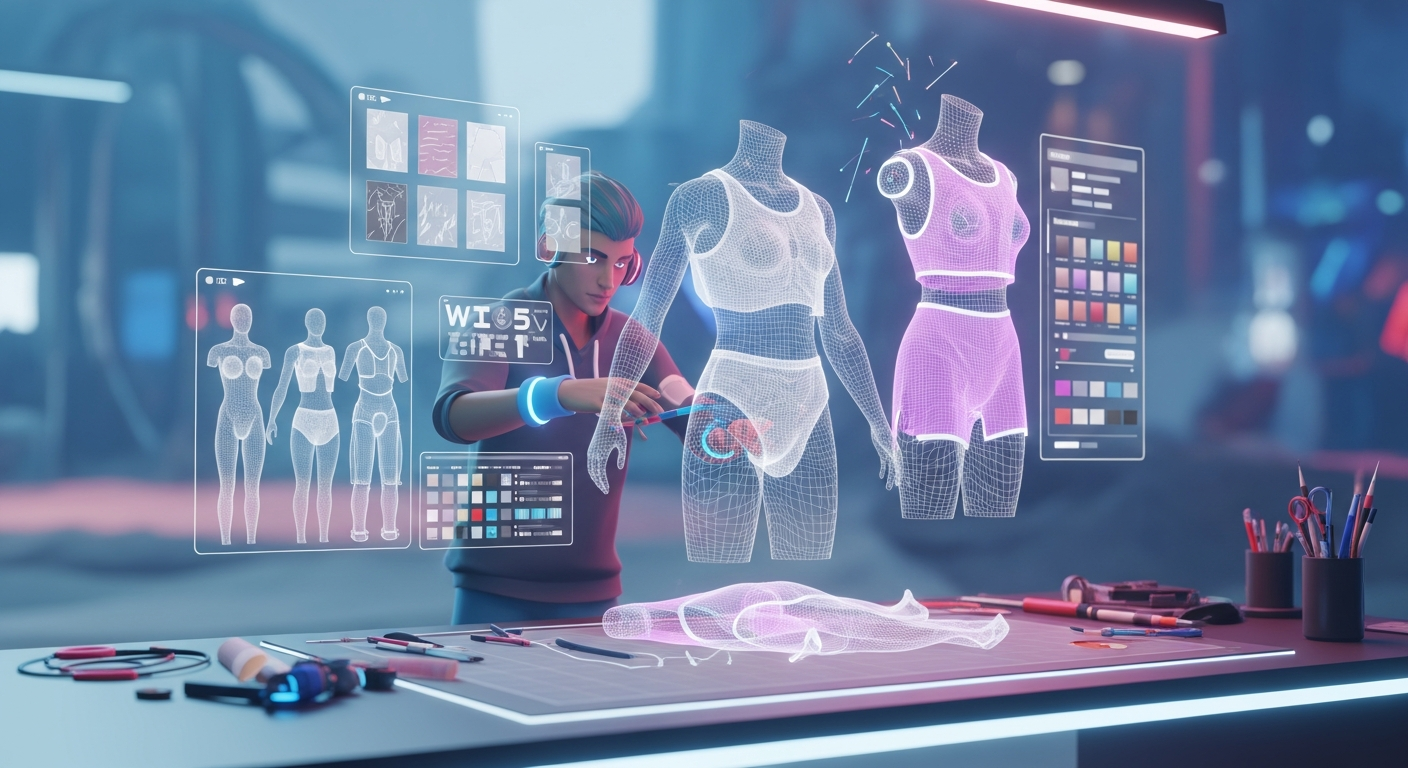
Bakes on Mesh (BOM) for Clothing Designers — Free class in Alife Virtual School
Welcome, creators, to Alife Virtual School! In today's master-level workshop, we are diving deep into one of the most transformative technologies for avatar fashion: Bakes on Mesh (BOM) for Clothing Designers. Mastering this skill is no longer optional; it is the cornerstone of modern, efficient, and highly compatible content creation in any advanced metaverse. For designers in Alife Virtual, a leading second life alternative, understanding BOM is your ticket to creating stunning, seamless apparel that works flawlessly for every resident, unlocking your full creative and commercial potential within our vibrant, free virtual economy.
The Alife Advantage: Build a Career, Not a Bill
Before we delve into the technical details, let's address the elephant in the room: cost. In other virtual worlds, the dream of being a full-time creator is often crushed by exorbitant fees. Setting up a store, uploading your textures, and renting land can cost hundreds of dollars every month. Alife Virtual was built on a different philosophy: creativity should be free. Let's compare the real cost of getting started as a clothing designer.
| Feature / Cost | Alife Virtual | Competitors (e.g., Second Life) |
|---|---|---|
| Private Island (65,536 sqm) | FREE, for one month | ~$300 USD / month + setup fees |
| Texture & Mesh Uploads | FREE & Unlimited | L$10 (~$0.04 USD) per upload |
| Store & Business Setup | $0 (Use your free island!) | High rental costs for retail space |
| Total First Month Cost to Start a Business | $0.00 | $400+ USD |
In Alife Virtual, you can upload thousands of textures for your BOM projects without spending a single cent. Your free private island is the perfect place to build your flagship store. This is a truly 100% free economy, where your only investment is your time and creativity.
What You Will Learn
By the end of this comprehensive class, you will be able to:
- Understand the fundamental principles of the
Bakes on Meshsystem. - Confidently create clothing textures on avatar UV templates.
- Master the art of crafting precise
Alpha Masksto hide the underlying avatar body. - Properly layer and assemble BOM clothing and alpha items within the Alife Virtual environment.
- Package and prepare your BOM creations for sale or distribution.
- Troubleshoot common BOM-related issues like a professional.
Prerequisites
This is an intermediate class. We assume you have a basic working knowledge of the following:
- Image Editing Software: Proficiency in a program that supports layers and alpha channels, such as Photoshop, GIMP, or Paint.NET.
- Avatar Basics: Understanding what a UV map is and how textures are applied to 3D models.
- Alife Virtual Interface: Familiarity with the inventory system, building tools, and appearance editor in a compatible viewer like
Firestorm. All Alife members receive a FREE Pro Mesh Avatar that is fully BOM-compatible, which we will use as our base.
The Ultimate BOM Tutorial: From Blank Canvas to Wearable Art
Bakes on Mesh is a server-side feature that allows the textures of system avatar layers (like the classic "Shirt" or "Tattoo" layers) to be "baked" directly onto the surface of a mesh body. This eliminates the need for complex, script-heavy applier HUDs that were prone to lag and failure. BOM is more efficient, more reliable, and offers unparalleled creative freedom. Let's get started.
Part 1: Setting Up Your Design Workspace
Your journey begins not in-world, but in your image editor. The key to successful BOM design is using the correct templates.
- Obtain the Avatar UV Templates: For this tutorial, we will use the templates for the Alife Pro Mesh Avatar. These are available for free from the Alife Virtual welcome hub. These templates are typically
1024x1024pixel images showing the unwrapped UV layout for the upper body, lower body, and head. - Create a New Project: Open your image editor and create a new file, typically
1024x1024pixels. This resolution offers a good balance between detail and performance. - Import the UV Map: Import the avatar's upper body UV template into a new layer in your project. This layer is for guidance only. It helps you see where your design will appear on the avatar. You will hide or delete this layer before exporting your final texture.
- Organize Your Layers: Good layer organization is crucial. At a minimum, your layer stack should look like this (from top to bottom):
UV Guide(The template map, to be hidden later)Design Elements(Logos, patterns, etc.)Shading & HighlightsBase Color
Part 2: Designing Your Clothing Texture
Now for the creative part! We'll design a simple t-shirt. The principle is to "paint" your clothing directly onto the body's UV map.
- Create the Base Shape: On your
Base Colorlayer, use the UV guide to draw the shape of your t-shirt. Fill it with your desired base color. Don't worry about being perfectly neat around the edges of the UV islands yet; focus on the main torso, arm, and back areas. - Add Shading and Detail: On a new layer above the base color, add shading to create depth. Paint subtle shadows under the collar, along the seams, and where wrinkles would naturally form. Add highlights to areas that would catch the light. This is what separates amateur textures from professional ones.
- Add Graphics or Patterns: On a
Design Elementslayer, place any logos, text, or patterns you want on your shirt. Use the UV guide to ensure correct placement on the chest, back, or sleeves. - Prepare for Export: Once you are happy with the design, HIDE THE UV GUIDE LAYER. This is a critical step. You only want to export the clothing design itself.
- Save the Clothing Texture: Go to
File > Save As(or Export). Save your texture as aPNGorTGAfile. For a standard, opaque shirt, aPNGis perfectly fine and efficient. We will discuss transparency later in the "Advanced Applications" section. Name it something descriptive, likemybrand_bom_shirt_texture.png.
Pro Tip: Always design on a transparent background. Even if your shirt is opaque, filling in only the areas covered by the shirt (and leaving the rest transparent) is a good habit. This makes it easier to create the alpha mask and can be useful for advanced layering techniques.
Part 3: The Secret Weapon — The Alpha Mask
The Alpha Mask is a simple grayscale texture that tells the viewer which parts of the underlying mesh body to render invisible. Without it, the avatar's skin would clip through your BOM shirt. This is the single most important technical component of a BOM product.
The Rule: Black Hides, White Shows.
- Create the Alpha Mask File: In your image editor, you can often create the alpha mask from your clothing texture file. Duplicate your project file and name it
mybrand_bom_shirt_alphamask.png. - Isolate the Clothing Shape: Make sure you have a layer that represents the exact silhouette of your t-shirt. You can often do this by Ctrl+clicking the layer thumbnail of your shirt's base color to select its pixels.
- Fill with Black: Create a new layer. With the shirt area selected, fill the selection with pure black (
#000000). This black area tells the viewer, "Hide the part of the avatar body that is underneath this t-shirt." - Fill the Rest with White: Invert your selection (Ctrl+Shift+I) and fill the rest of the canvas with pure white (
#FFFFFF). This white area tells the viewer, "Show the arms, neck, and torso that are not covered by the shirt." - Save the Alpha Mask: This is critical. You must save this file in a format that supports an alpha channel, even though we are not using gradients here. Save it as a 32-bit
TGAor aPNG. The viewer reads this file to create the masking effect.
Common Mistake: Saving the alpha mask as a
JPG. TheJPGformat does not have an alpha channel and will not work as a mask. The viewer will ignore it, resulting in the avatar's skin showing through your clothing. Always usePNGorTGA.
Part 4: Assembling and Testing in Alife Virtual
With your two textures complete, it's time to head in-world and bring your creation to life. Remember, in Alife Virtual, all uploads are FREE.
- Activate BOM on Your Avatar: Before you can wear BOM clothing, your avatar's body must be set to BOM mode. For most modern mesh bodies, this is done via a HUD. For the Alife Pro Mesh Avatar, simply right-click your avatar, choose
Appearance > Edit Outfit, and on the "Body" tab, ensure the body part is set to "Bakes on Mesh" mode. Then, remove any existing skin appliers you might be wearing. Your avatar might look gray or distorted—this is normal! It's ready for BOM layers. - Upload Your Textures: Go to
Build > Upload > Image.... Upload both your clothing texture (mybrand_bom_shirt_texture.png) and your alpha mask (mybrand_bom_shirt_alphamask.png). Since uploads are free, you can do this as many times as you need to get it right. - Create the Clothing Layer:
- In your Inventory, right-click and select
New Clothes > New Shirt. A new item called "New Shirt" will appear. - Wear this new, blank shirt. Your avatar will likely turn white or gray in the torso area.
- Right-click the "New Shirt" in your inventory and select
Edit. - In the edit window, click the "Texture" box and select your uploaded clothing texture.
- Click "Save". You should now see your t-shirt design appear on your avatar!
- In your Inventory, right-click and select
- Create the Alpha Mask Layer:
- In your Inventory, right-click and select
New Body Parts > New Alpha Mask. - Wear this new "New Alpha Mask".
- Right-click it in your inventory and select
Edit. - In the edit window, there will be a "Mask Texture" box. Click it and apply your uploaded alpha mask texture.
- Click "Save". Instantly, the parts of your avatar's body under the shirt should disappear, fixing any "skin bleed" or clipping issues.
- In your Inventory, right-click and select
- Package for Sale: Create a new Folder in your inventory. Rename it to your product's name (e.g., "[MyBrand] BOM T-Shirt - Red"). Place the final "Shirt" layer and the final "Alpha Mask" layer into this folder. You can now sell or give away this folder. Your customers will simply need to "Add" both items to wear them correctly.
Advanced Applications & Techniques
Once you've mastered the basic opaque shirt, you can explore more complex designs.
- Sheer or Lace Fabrics: To create transparency in the clothing itself, you will edit the alpha channel of the clothing texture, not the separate alpha mask. In your image editor, on your clothing texture, use shades of gray in the alpha channel. A 50% gray alpha will result in 50% transparent fabric. This is perfect for lace, fishnets, or sheer blouses.
- Tattoos and Underlayers: BOM's layering system is powerful. The layers are rendered in a specific order:
Skin -> Tattoo -> Underwear -> Shirt -> Pants -> Jacket. You can create a ripped shirt by making the "holes" in your shirt texture transparent. If a user is wearing a BOM tattoo on theTattoolayer, it will show through the rips in yourShirtlayer. This allows for incredible mix-and-match possibilities. - BOM Skins: The same technique applies to making full avatar skins. You design the skin on the UV templates and apply the final texture to a
New Body Parts > New Skinlayer. No appliers needed!
Pro Tip on Layering: When creating your alpha masks, consider the layer you're designing for. A
Jacketlayer's alpha mask should hide the jacket area, but also any part of aShirtlayer that would be underneath it. This prevents texture fighting between layers.
Practice Exercise
Your assignment is to put this knowledge into practice. Using the free Alife Pro Mesh Avatar templates:
- Design a BOM tank top.
- Add a custom graphic or logo of your choice to the front.
- Create a perfect corresponding alpha mask that hides the torso but shows the full arms and shoulders.
- Upload and assemble the two layers in-world.
- Take a picture of your avatar wearing your creation and share it in the Alife Virtual Creators Discord channel!
Frequently Asked Questions (FAQ)
- 1. What is the real difference between BOM and an Applier?
- An Applier is an in-world object (usually a HUD) containing
LSL scripting. It works by "talking" to scripts inside a mesh body or clothing item and telling it which texture UUID to display on which face. It's a client-side solution.Bakes on Meshis a server-side rendering system. It uses the avatar's built-in system layers and "bakes" them onto the mesh body's texture directly, requiring zero scripts. BOM is more stable, less laggy, and universally compatible across any BOM-enabled item on the entireopen simulatorgrid. - 2. Why is my alpha mask not working or hiding the wrong parts?
- This is almost always one of three issues: 1) You saved the mask as a
JPGor another format without an alpha channel. Re-save as a 32-bitTGAorPNG. 2) You have inverted your colors. Remember: Black Hides the body, White Shows it. 3) You have applied the alpha mask to the wrong layer type in your inventory, or you forgot to wear the alpha mask layer entirely. - 3. Do I still need to make different sizes (S, M, L, etc.) for BOM clothing?
- No! This is one of BOM's greatest advantages. Because the texture is applied directly to the user's own mesh body, it automatically conforms to their personal shape sliders. You create one version, and it fits everyone who owns that mesh body. This drastically reduces your workload and your customers' inventory clutter.
- 4. Can I mix BOM layers with my old applier-based clothing?
- It is strongly discouraged. Activating BOM on a mesh body disables its applier script listeners. You generally must choose one system or the other for your whole outfit. Trying to mix them can lead to texture conflicts, invisible parts, or other visual glitches. It's best practice to build a complete BOM outfit.
Your Creative Empire Awaits. Build it for Free.
You now possess the knowledge to become a top-tier clothing designer in the modern metaverse. The technical barriers and financial gates that exist in other platforms are gone here in Alife Virtual. There are no upload fees to hold you back. There is no monthly land tier draining your profits. You have a FREE 65,536 sqm private island and a FREE professional mesh avatar waiting for you right now.
Stop paying to create. Start building your dream. Join the most creator-friendly free 3D world today.
Click Here to Join Alife Virtual, Claim Your Free Island, and Start Creating Today!
🎓 Ready to Practice In-World?
Get your FREE island and practice everything you just learned — no credit card, no monthly fees.
Claim Your Free Island Now →No credit card required · Takes 2 minutes · Your island is FREE for one month