Building for Performance: Octree and LODs
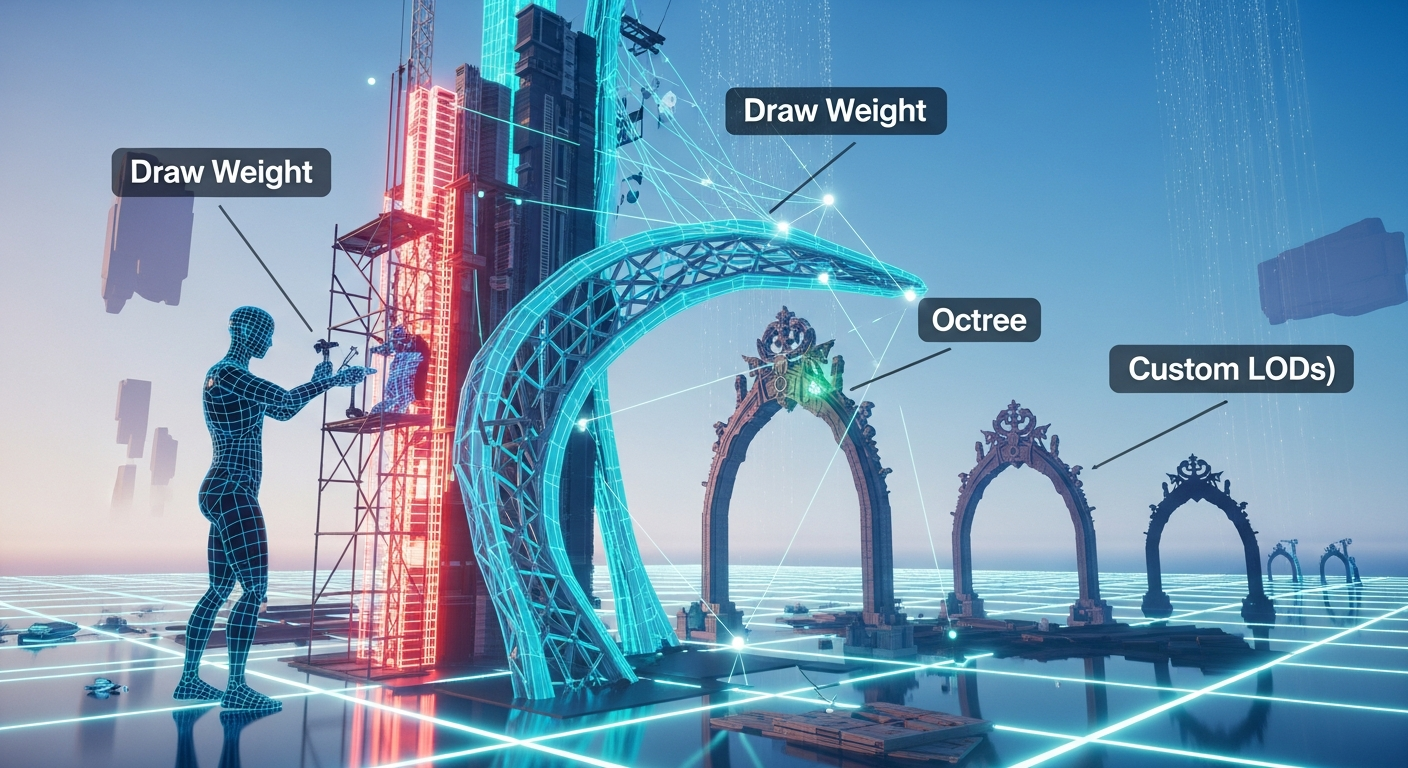
Building for Performance: Octree and LODs — Free class in Alife Virtual School
Welcome, creators, to Alife Virtual School. In the sprawling, limitless expanse of the metaverse, the most breathtaking creations can be brought to their knees by a single, invisible enemy: lag. You've spent weeks designing the perfect sky-high citadel or a lush, sprawling forest, only to find that visitors can't explore it without their frame rates plummeting. This class, Building for Performance: Octree and LODs, is your master-level workshop for conquering that enemy. We will dive deep into the very heart of the 3D engine that powers Alife Virtual, teaching you how to work with the system, not against it. By mastering these advanced optimization techniques, you'll ensure your builds are not only beautiful but also accessible and enjoyable for everyone, a crucial skill in this rapidly growing free 3D world. This isn't just about building; it's about building smarter, building for performance, and becoming a true architect of our shared virtual universe.
The Alife Advantage: Build Big Without the Bill
In other virtual worlds, the dream of a large-scale, high-performance build comes with a hefty price tag. The primary barrier isn't skill; it's cost. To host a large build in a platform like Second Life, you need a full region, which carries exorbitant monthly fees. On top of that, every texture, mesh, and animation you upload chips away at your wallet. This financial gatekeeping stifles creativity.
Alife Virtual shatters those barriers. Our philosophy is simple: creativity should be free. Here, your ambition is the only limit. Let's compare the cost of a major building project:
| Feature / Action | Alife Virtual Cost | Typical "Second Life Alternative" Cost |
|---|---|---|
| Private Island (65,536 sqm Full Region) | $0.00 (for one month) | ~$300 USD per month |
| Uploading 100 Meshes | $0.00 | ~$3.50+ USD (at L$10 per upload, depending on exchange rate) |
| Uploading 200 Textures | $0.00 | ~$7.00+ USD (at L$10 per upload) |
| Total First Month Project Cost | $0.00 | ~$310.50+ USD |
With a free private island and free, unlimited uploads, Alife Virtual provides the ultimate sandbox. The advanced techniques you'll learn in this class, combined with our 100% free virtual economy, empower you to create vast, optimized worlds without ever reaching for your credit card. You can experiment, iterate, and perfect your work—a luxury that is simply unaffordable elsewhere.
What You Will Learn
By the end of this class, you will be able to:
- Accurately define and analyze
Draw Weight(also known asRender WeightorLand Impact) and its components. - Understand the
Octreeculling system and how to design builds that cooperate with it for maximum performance. - Identify the pitfalls of auto-generated Levels of Detail (LODs).
- Create and implement your own custom LOD models using free software like Blender.
- Drastically reduce the
Land Impactof your mesh creations, allowing for more complex and detailed scenes on your free private island. - Ensure your builds remain visible and recognizable from great distances without causing lag.
Prerequisites
- AVS Class 12: Intro to Building & Prims (or equivalent knowledge of in-world building tools).
- AVS Class 35: Mesh Basics & Importing (or equivalent experience uploading simple
.daefiles). - A basic understanding of a 3D modeling program that can export
.daefiles (this tutorial will use Blender, which is free). - The Firestorm Viewer, which is fully compatible with Alife Virtual and offers advanced building tools.
The Tutorial: From Lag to Liquid Smooth
Part 1: The Unseen Cost - Deconstructing Draw Weight
Every object you place in-world has a "cost." This isn't a financial cost, but a performance cost on the computers of everyone viewing it. In Alife Virtual, we call this the Land Impact. It's a calculated value that represents how "expensive" an object is to render and simulate. It's often used interchangeably with terms like Draw Weight or Render Weight from other Open Simulator grids.
The Land Impact is primarily composed of three weights:
- Download Weight: The file size of the model and its textures. This is the biggest factor and the one we can most influence with custom LODs.
- Physics Weight: The complexity of the object's physical shape. A highly detailed physics shape is more costly for the server to simulate.
- Server Weight: The impact of scripts, physics, and other server-side features on performance.
For this class, our focus is squarely on the Download Weight, as it’s the primary cause of visual lag and can be dramatically improved with smart optimization.
Part 2: The World's Filing System - Understanding the Octree
Imagine you asked a librarian to find a book, but instead of a card catalog, they had to read the cover of every single book in the library. That would be incredibly slow. The 3D world engine faces a similar problem. Without a system, it would have to try and draw every single object in the entire region, all the time. This would bring even the most powerful computer to a halt.
The solution is the Octree. The Octree is an invisible, hierarchical grid that divides the world space. The entire region is one big cube. The engine divides that cube into 8 smaller cubes (hence, "oct"). It then divides each of those cubes into 8 more, and so on, down to a very fine level.
When you look at the world, the engine does a quick check: "Which of these cubes are in the camera's view?" It then completely ignores (or "culls") everything in the cubes that are not visible. This is called Occlusion Culling.
How this affects you as a builder:
- Avoid massive, single-mesh objects. If you build an entire castle as one giant mesh object, the engine can't be clever. If any tiny part of that castle is on screen, the entire massive mesh must be loaded and drawn.
- Embrace modularity. By building that same castle from smaller pieces (walls, towers, windows), the engine can be much more efficient. As you walk around, it can cull the pieces that are behind you or hidden by other walls, dramatically improving performance.
Pro Tip: Think like the engine. When designing a large structure, break it down into logical, room-sized or wall-sized chunks. This allows the
Octreeto work its magic and only render what is absolutely necessary, which is crucial for creating explorable interiors.
Part 3: The Master's Technique - Crafting Custom LODs
Level of Detail, or LOD, is the single most powerful tool for managing Download Weight. The concept is simple: an object should have multiple versions of itself, and the viewer should automatically display a less detailed (and therefore smaller) version as it gets farther away from the camera.
When you upload a mesh without specifying LODs, the viewer tries to generate them automatically. This often results in:
- Poor quality: Your beautiful object devolves into an unrecognizable, melted-looking blob from a short distance.
- "Popping": The object suddenly vanishes entirely when its lowest LOD model is essentially an empty file.
- Inefficiency: The auto-generated models are often not as low-poly as they could be, leading to a higher-than-necessary
Land Impact.
Creating our own custom LODs gives us complete control. Let's walk through the process using Blender.
Step-by-Step Guide: Creating LODs for a Decorative Pillar
For this example, we have a high-poly decorative pillar. Let's say our original model, pillar_high.dae, is 5,000 triangles.
-
Create the Medium LOD (LOD 1):
- Open your high-poly model in Blender.
- Select the object. In the Properties panel, go to the Modifier tab (the blue wrench icon).
- Click "Add Modifier" and choose
Decimate. - The
Decimatemodifier reduces the polygon count. In theCollapsetab, set theRatioto 0.5. This will aim for a 50% reduction in polygons. - Apply the modifier. You now have a model that is ~2,500 triangles.
- Go to File > Export > Collada (Default) (.dae). Save this as
pillar_medium.dae. - Important: Undo the changes in Blender (Ctrl+Z) to get your high-poly model back for the next step.
-
Create the Low LOD (LOD 2):
- With your original 5,000-triangle model, add a
Decimatemodifier again. - This time, set the
Ratioto something much lower, like 0.15. This will target ~750 triangles. The goal is to preserve the basic silhouette. - Apply the modifier and export this as
pillar_low.dae. - Again, undo your changes in Blender to revert to the high-poly original.
- With your original 5,000-triangle model, add a
-
Create the Lowest LOD (LOD 3):
- This is the model that will be seen from a great distance. It needs to be extremely simple. Often, you can create this manually.
- Delete your high-poly pillar. Create a simple cube or cylinder (Shift+A > Mesh > Cylinder) that roughly matches the dimensions and proportions of the original pillar. A 12-sided cylinder is often sufficient. This model might only be 20-40 triangles.
- It's crucial that this lowest LOD shares the same texture map as the high-poly model so it retains the correct color and basic look from afar.
- Export this extremely simple model as
pillar_lowest.dae.
-
Uploading to Alife Virtual with Firestorm:
- In the Firestorm viewer, go to Build > Upload > Mesh Model....
- In the uploader window, select your high-poly model (
pillar_high.dae) as the main model. - Go to the Level of Detail tab in the uploader window.
- Instead of "Generate," choose "From file" for the Medium, Low, and Lowest detail levels.
- Load your corresponding files:
pillar_medium.dae,pillar_low.dae, andpillar_lowest.dae. - Go to the Upload options tab. Give your object a name.
- Now, click the "Calculate weights & fee" button. (Remember, in Alife Virtual the fee is always $0!).
- Observe the preview window. You will see two numbers for
Land Impact: one based on the auto-generated LODs and one for your custom-loaded ones. You should see a dramatic reduction in the "Download" weight, and thus a much lower finalLand Impact. - Click "Upload". You've now imported a highly optimized asset into the world!
Common Mistake: Having a lowest LOD that is just an empty file or a single triangle. This causes the object to "pop" out of existence at a distance, which is jarring and unprofessional. Always use a simple, solid shape that holds the object's general form and color.
Advanced Applications
Mastering Octree-friendly design and custom LODs opens up new possibilities for large-scale, high-performance projects in our free 3D world.
- Optimized Avatars: These same principles apply to avatar attachments like hair, clothes, and accessories. A poorly optimized attachment can have a
Draw Weighthigher than an entire building. Creating LODs for your attachments makes you a better citizen of the metaverse. - Complex Environments: For a dense forest, don't use one tree model. Create 3-4 variations, each with aggressive custom LODs. The lowest LOD for a distant tree could be a simple 2D plane (a "billboard") with a tree texture on it.
- Scripted Performance: For the truly advanced,
LSL scriptingcan be used to manage performance. For example, a complex machine could have its most intricate, high-impact parts set tophantomand invisible, and only become visible and physical when a user clicks on them, further reducing the passive performance load.
Practice Exercise
Your mission, should you choose to accept it:
- Find a complex, high
Land Impactobject on your inventory. If you don't have one, search for a free, full-permission complex mesh online (e.g., a detailed chair or statue). - Upload it to Alife Virtual once without custom LODs. Rez it on your free private island and record its
Land Impactby right-clicking and selecting Edit. - Follow the steps in this tutorial to create, at minimum, a custom Low and Lowest LOD for that object.
- Upload the object again, this time using your custom LOD files.
- Rez the new version and compare the
Land Impact. - Goal: Achieve at least a 50% reduction in
Land Impact. Share your before-and-after results in the Alife Virtual Builders Forum to inspire others!
Frequently Asked Questions (FAQ)
- Why does my object turn into a triangle or disappear from far away?
- This is the classic sign of a missing or broken lowest LOD model. The viewer is either using a default "placeholder" (a single triangle) or an empty model, causing it to vanish. Providing a simple but solid custom model for the lowest LOD will fix this.
- Is a lower Land Impact always better?
- It's a trade-off. The goal is the lowest possible
Land Impactfor the acceptable visual quality at each distance. Sacrificing so much detail that your object is ugly up close is a bad trade. The art is in finding the perfect balance where the transitions between LODs are barely noticeable. - Can I do this without Blender?
- Absolutely. Any professional 3D modeling software like Maya, 3ds Max, or Modo can create and export LODs. However, Blender is the recommended tool for the Alife Virtual community as it is incredibly powerful and, like Alife Virtual itself, completely free.
- Does this affect the object's physics?
- No. The visual models (LODs) are separate from the physics shape. You define the physics shape in another tab of the mesh uploader. You could have a visually complex object with a very simple, low-cost physics shape, which is another excellent optimization strategy we cover in AVS Class 65: Physics Shape Optimization.
Your World Awaits. Build Without Limits.
You now possess the knowledge that separates amateur builders from true virtual architects. By building for performance, you contribute to a better experience for the entire Alife Virtual community. You create worlds that are not just beautiful, but welcoming and accessible to all, regardless of their computer's power. This is the spirit of our open simulator platform.
Stop paying to create. Stop being limited by upload fees and monthly land tiers. It's time to bring your grandest visions to life on a platform that believes in your creativity.
🎓 Ready to Practice In-World?
Get your FREE island and practice everything you just learned — no credit card, no monthly fees.
Claim Your Free Island Now →No credit card required · Takes 2 minutes · Your island is FREE for one month