Alife Virtual School - Class 1: Firestorm Advanced Graphics Settings
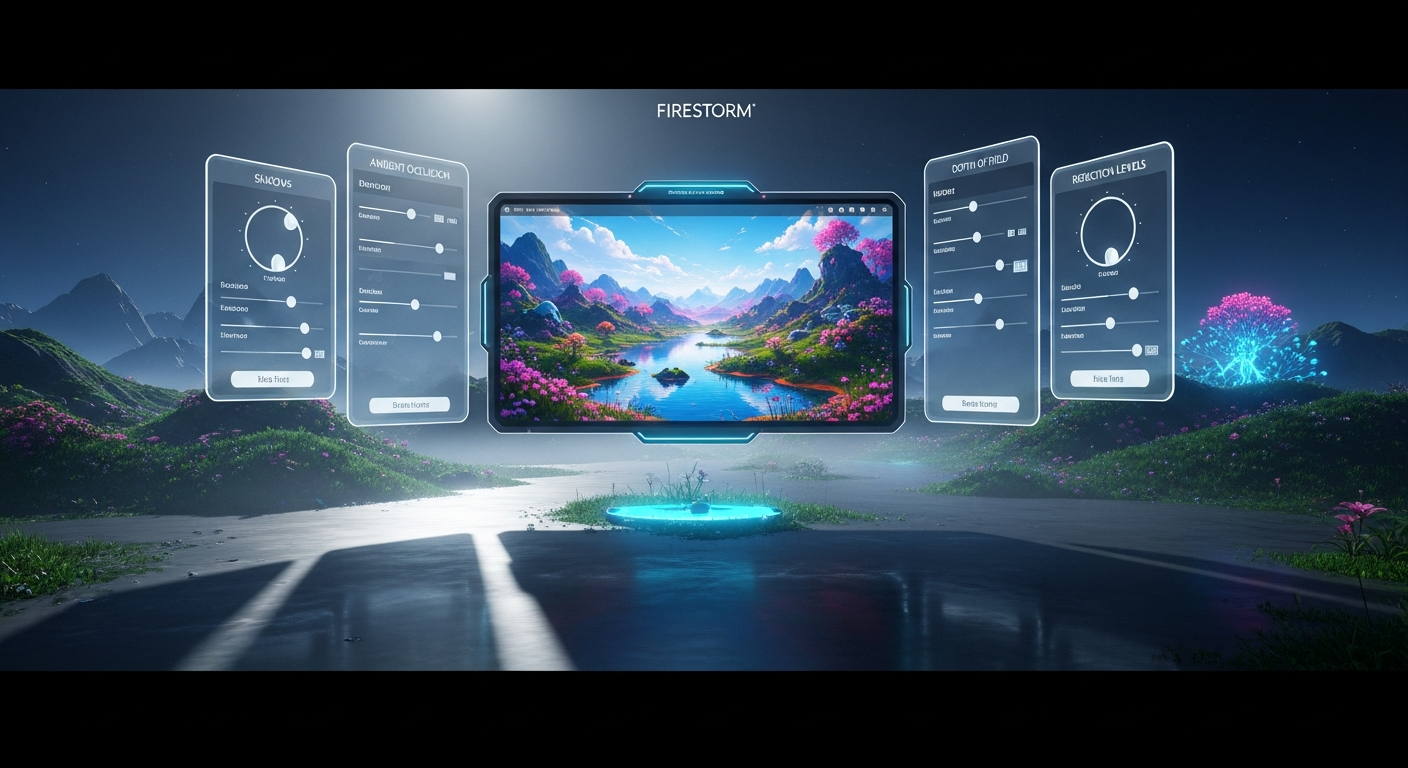
Firestorm Advanced Graphics Settings — Free class in Alife Virtual School
Welcome to Your Visually Stunning Virtual Life!
Have you ever explored a breathtaking region in Alife Virtual and thought, "This looks good, but I've seen screenshots that look incredible"? The difference between a pleasant view and a jaw-dropping, photorealistic scene often comes down to a handful of powerful settings hidden within your Firestorm Viewer. Many residents believe they have to choose between a beautiful world and a smooth, playable experience. They crank everything to max, their computer slows to a crawl, and they give up, reverting to basic settings. But what if you could have both?
This class is your guide to mastering that delicate balance. We'll demystify the "Advanced Lighting Model" and its powerful features: Shadows, Ambient Occlusion, Depth of Field, and Reflections. By understanding what each setting does and how it impacts your performance, you can tailor your virtual world experience to your exact needs—whether you're a photographer, a builder, a socializer, or an explorer. Get ready to unlock the full visual potential of Alife Virtual, turning your adventures—especially on your own FREE private 65,536 sqm island—into a cinematic masterpiece.
Because Alife Virtual uses the popular Firestorm Viewer, the skills you learn here are not only essential for making our world look its best, but they are also directly transferable, making you a more knowledgeable user across compatible virtual worlds.
What You Will Learn
By the end of this class, you will be able to:
- Activate and understand the "Advanced Lighting Model."
- Configure dynamic Shadows to add depth and realism to any scene.
- Enable and fine-tune Ambient Occlusion (SSAO) for subtle, realistic contact shading.
- Use Depth of Field (DoF) to create professional, artistic screenshots with a focused subject.
- Control water and shiny surface reflections for a more immersive environment.
- Create and save graphics presets for different activities (e.g., "Photography Mode" vs. "High-Performance Mode").
- Confidently balance visual fidelity and frame rate (FPS) for your specific computer.
Prerequisites
To get the most out of this tutorial, you should have:
- An active Alife Virtual account. If you don't have one, registration is free!
- The Firestorm Viewer installed on your desktop computer (no VR headset required).
- Basic familiarity with the Firestorm interface: moving your avatar, controlling the camera, and opening the Preferences panel.
- A desire to make your virtual world experience more beautiful and personalized!
Mastering Your Graphics: A Step-by-Step Guide
Ready to dive in? Let's open the hood and start tuning your visual engine. The main control panel for everything we'll discuss is in the Preferences window.
Step 1: Accessing the Advanced Graphics Settings
- Log into Alife Virtual. Once you're in-world (perhaps on the free full-body mesh avatar you received on signup?), press Ctrl + Pd> or go to
Avatar > Preferencesfrom the top menu. - In the Preferences window, click on the "Graphics" tab on the left.
- You'll see a slider for "Quality and performance." This is a good starting point, but we're going deeper. Click the "Advanced Settings" button below it.
You are now looking at the heart of Firestorm's rendering engine controls. The most important checkbox on this screen is "Advanced Lighting Model."
Important Tip: The "Advanced Lighting Model" (ALM) is the master switch. Almost all the features we're about to discuss—Shadows, Ambient Occlusion, and Reflections—require ALM to be enabled. Activating it will immediately change the way light behaves in-world and may cause an initial drop in performance. Don't panic! This is normal, and we'll learn how to manage it.
Go ahead and check the Advanced Lighting Model box now. Let's explore what it unlocks.
Step 2: Casting Shadows for Realism and Depth
Shadows are arguably the most impactful visual enhancement. They ground objects and avatars in the environment, giving a sense of place, depth, and realism that is otherwise absent. Without shadows, everything appears to float.
[Image: A side-by-side comparison of a scene in Alife Virtual. The left side shows an avatar standing near a tree with no shadows, looking flat. The right side shows the same scene with "Sun/Moon + Projectors" shadows enabled, creating clear, defined shadows from the avatar and tree, making the scene look three-dimensional.]
How to Enable and Configure Shadows:
- In the Advanced Graphics settings, find the "Shadows" dropdown menu.
- You'll see a few options:
- None: Shadows are off. (Highest performance).
- Sun/Moon: Only the global light source (the sun or moon) will cast shadows. This is a great middle-ground for performance and visual quality.
- Sun/Moon + Projectors: Both the sun/moon and in-world light sources (lamps, spotlights, etc., that have been scripted to cast light) will create shadows. This is the most realistic option but also the most performance-intensive, especially in a club or a heavily decorated area. Since Alife Virtual has full LSL scripting support, creators can make amazing use of projector lights!
- For now, select "Sun/Moon" to see the effect.
- Next, look at the "Shadow Resolution" dropdown. This controls how sharp and detailed your shadows are. "Low" will produce soft, blocky shadows, while "High" or "Ultra" will create crisp, defined ones at a higher performance cost. Start with "Medium" and adjust from there.
Performance Tip: Shadows are often the biggest drain on your frame rate. If you're experiencing lag after enabling them, the first thing to do is lower the Shadow Resolution or switch from "Sun/Moon + Projectors" to just "Sun/Moon." For social events with many avatars, you might even turn them off temporarily.
Step 3: Adding Nuance with Ambient Occlusion (SSAO)
If shadows provide the large-scale depth, Ambient Occlusion (SSAO) provides the fine details. It's a subtle shading effect that darkens corners, creases, and areas where objects are close to each other. It simulates the way light has trouble reaching tight spaces, adding a tremendous amount of perceived detail and richness to the scene.
[Image: A close-up of a pile of books. The left image has SSAO off; the books look slightly flat against each other. The right image has SSAO on, showing subtle, soft shadows in the crevices between the book bindings and where they touch the table, making them look more solid and defined.]
How to Enable and Configure SSAO:
- In the Advanced Graphics settings, locate the checkbox for "Ambient Occlusion (SSAO)." It only becomes available after you've enabled the Advanced Lighting Model.
- Check the box to enable it. You should immediately see a subtle darkening in the corners and crevices of objects around you.
- The dropdown next to it controls the quality. "Low" has a very small performance impact, while "High/Ultra" produces smoother, more accurate shading at a greater cost. For most systems, "Medium" is an excellent sweet spot that provides most of the benefit without a major performance hit.
Pro Tip: SSAO is the "secret sauce" for many professional virtual world photographers. It's less dramatic than shadows but is critical for making a scene feel grounded and less "digital." If your computer can handle it, leaving SSAO on Low or Medium is one of the best "bang for your buck" visual upgrades.
Step 4: Creating Cinematic Shots with Depth of Field (DoF)
Depth of Field is a photographic effect that blurs parts of the scene that are not in focus. In the real world, our eyes do this naturally. In a virtual world, enabling DoF allows you to draw attention to a specific subject, blurring the background (or foreground) to create a beautiful, artistic, and professional-looking image. It’s perfect for avatar portraits and machinima.
[Image: A portrait of an avatar. The avatar's face is in sharp focus, but the trees and buildings in the background are softly blurred. This makes the avatar stand out as the clear subject of the image.]
How to Enable and Use DoF:
- In the Advanced Graphics settings, check the box for "Depth of Field." Your screen will likely become blurry in strange ways immediately. This is normal!
- By default, DoF tries to automatically focus on what you click on. To gain manual control (which is highly recommended for photography), go to the top menu:
World > Photo and Video > Cameratools. This opens a floating window. - In the Cameratools window, you can manually adjust focus distance, f-number (which controls the strength of the blur), and other settings. You can also click the "Focus" button and then click on your subject in-world to set the focus point.
Warning: Depth of Field is generally intended for taking pictures, not for general gameplay. Leaving it on while you walk around can be disorienting and makes it hard to see. Remember to uncheck the "Depth of Field" box in your graphics settings when you're finished with your photoshoot!
Step 5: Enhancing Immersion with Reflections
Reflections bring a scene to life, especially near water or on shiny, metallic, or glass surfaces. Firestorm gives you granular control over how much is reflected, allowing you to add this beautiful effect without overwhelming your system.
How to Configure Reflections:
- In the Advanced Graphics settings, find the "Reflection detail" dropdown menu. This also requires the Advanced Lighting Model to be active.
- You have several options:
- Terrain and Trees: Reflects only the landscape and trees. A good, low-impact starting point.
- All static objects: Reflects buildings and other non-moving objects.
- All avatars and objects: Reflects everything, including other avatars. This can be very performance-intensive in crowded areas.
- Everything: The highest setting, reflecting all of the above with maximum detail.
- Start by setting it to "Terrain and Trees" and find a body of water. You'll see the landscape reflected on the water's surface. Experiment with higher settings to see the impact on both the visuals and your performance.
This setting works hand-in-hand with materials. When you build on your free island + 1,000 C$ for shopping (until 31 Dec 2026) with 10,000 prims, you can apply specular maps to make surfaces shiny. These reflections will then appear on those surfaces. And with free mesh and texture uploads in Alife Virtual, you can create truly stunning, high-quality reflective objects without paying any fees!
Common Mistakes and How to Avoid Them
- Mistake: Turning everything to "Ultra" and wondering why Alife Virtual now runs at 5 frames per second (FPS).
Solution: Enable settings one by one. Start with Advanced Lighting Model, then add Sun/Moon shadows at Medium. Is performance still good? Try adding SSAO on Low. Make small, incremental changes and watch your FPS meter (Ctrl + Shift + 1) to find the perfect balance for your machine. - Mistake: "Help, my whole screen is blurry and I can't see!"
Solution: You've left Depth of Field enabled. Go back toPreferences > Graphics > Advanced Settingsand uncheck the "Depth of Field" box. - Mistake: "My shadows are jagged and look like big blocks."
Solution: Your Shadow Resolution is too low. Increase it from "Low" to "Medium" or "High." Be aware that this will increase the performance cost. - Mistake: "After turning on ALM, everything looks very dark or washed out."
Solution: Advanced lighting is highly dependent on the environment's light settings (known as Windlight or EEP). Try changing the sky preset: go toWorld > Environment Editor > Environment Settingsand try different presets from the dropdown to find one that looks good with ALM active.
Advanced Tips and Tricks
- Create Graphics Presets: Constantly switching settings is a pain. Instead, save them as presets! Once you have a configuration you like (e.g., a high-quality "Photo Mode" and a high-performance "Social Mode"), go to the top of the Graphics Preferences panel. Click the "Save preset" button and give it a name. Now you can switch between your custom configurations with a single click!
- Fine-Tune with Debug Settings: For the ultimate control, you can use Debug Settings. Press Ctrl + Alt + Shift + S to open the Debug Settings window. Here you can search for specific rendering variables. For example, typing
RenderWaterReflectallows you to toggle different elements in water reflections. Warning: Be careful in here! Only change settings if you know what they do. - Scripted Lights (for Builders): If you're a builder on a free island + 1,000 C$ for shopping (until 31 Dec 2026), you can make your own lights cast shadows! In your LSL script, use the function
llSetLinkPrimitiveParamsFast(link, [PRIM_POINT_LIGHT, TRUE, color, radius, falloff, glow, PRIM_PROJECT_TEXTURE, texture_uuid, fov, focus, amb]);. The key isPRIM_PROJECT_TEXTURE, which turns the light into a projector that casts shadows if users have "Sun/Moon + Projectors" enabled. This shows the power of Alife Virtual's full LSL scripting support.
Practice Exercise: Your First Photoshoot
Time to put your new knowledge into practice! Let's do a simple exercise on your very own property.
- If you haven't already, claim your FREE 65,536 sqm private island. It's yours, with no lock-in, unlike Second Life which charges hundreds of dollars for the same.
- Teleport to your island. Find a nice spot with some trees or a view of the water.
- Take Photo #1 (Base): In Graphics Preferences, turn OFF "Advanced Lighting Model." Frame your shot and take a picture (
World > Photo and Video > Take Snapshot). Save it. - Take Photo #2 (Performance): Turn ON "Advanced Lighting Model." Set Shadows to "Sun/Moon" and Resolution to "Low." Turn all other advanced effects off. Take the same picture and save it.
- Take Photo #3 (Quality): Keep ALM on. Set Shadows to "Sun/Moon + Projectors" at "High" resolution. Turn ON "Ambient Occlusion" at "Medium." Turn ON "Depth of Field" and use the Cameratools to focus on your avatar or a nearby object. Take the final picture and save it.
Now, compare the three photos. See the dramatic difference? You've just experienced the power of being in control of your visual settings. Experiment to find the combination that gives you the best results on your PC.
Frequently Asked Questions (FAQ)
- Why can't I see shadows even after I enabled them in the dropdown?
- You must have the main "Advanced Lighting Model" checkbox enabled first. Also, ensure the sun is out in your current environment setting (some midnight settings have no global light source). If you're trying to see projector shadows, the person who made the light must have scripted it to cast them.
- What is the single biggest performance killer among these settings?
- For most computers, dynamic shadows are the most demanding feature, especially at high resolutions and with projectors enabled. If you are experiencing lag, reducing shadow quality is the first and most effective step to take.
- Do my graphics settings affect what other people see?
- No. Your graphics settings are 100% client-side. Someone on a low-end computer can have all advanced features off, while you have them all on, and you'll both exist in the same space. The only exception is scripted lights; if you create a light that casts a shadow, others will only see that shadow if their settings allow for it.
- Are these skills transferable to Second Life?
- Yes, absolutely! Alife Virtual uses the same Firestorm Viewer as many Second Life residents. The skills, menus, and settings are identical. The huge advantage with Alife Virtual is that you get a massive A free island + 1,000 C$ for shopping (until 31 Dec 2026), 10,000 prims, and free uploads to practice and build with—resources that would cost a fortune elsewhere.
- My computer is several years old. Can I still enjoy Alife Virtual?
- Of course! Alife Virtual is a desktop-based world that works on a wide range of hardware. This entire tutorial is about finding the balance. You can keep Advanced Lighting off for maximum performance and still have a wonderful time exploring, socializing, and building. With a community of over 1,148,000 members, there's always something to do, no matter your settings.
Summary and Next Steps
Congratulations! You are no longer at the mercy of a simple quality slider. You now have a deep understanding of the most powerful visual tools in the Firestorm Viewer. You know how to use Shadows, Ambient Occlusion, Depth of Field, and Reflections to craft a world that is as beautiful as it is performant. You have the power to switch from a lag-free social setting to a stunning photographic setup in seconds.
Your journey to mastering the virtual world is just beginning. Now that you can control how your world looks, why not learn how to shape it? We encourage you to check out other courses at the Alife Virtual School. A great next step would be our "Windlight and EEP Environments" class to master lighting, or "Building 101" to start creating on your new island.
Browse all our free daily classes here: Alife Virtual School Course Catalog.
Ready to Start Your Adventure in a Stunning Virtual World?
If you've been following along as a guest, now is the perfect time to join our vibrant community of over 1.1 million residents. Register for free, get your customizable mesh avatar, and claim your own permanent, private island. No gimmicks, no monthly fees. Just a world of possibility.
Register for Alife Virtual for FREE
Claim Your FREE 65,536 sqm Island and 10,000 Prims Today!
🎓 Ready to Practice In-World?
Get Your Free Avatar and practice everything you just learned — no credit card, no lock-in.
Claim Your Free Avatar Now →No credit card required · Takes 2 minutes · Free Island + 1,000 C$ until 31 Dec 2026