CLASS 39: Home Points, Landmarks, and Teleport Systems
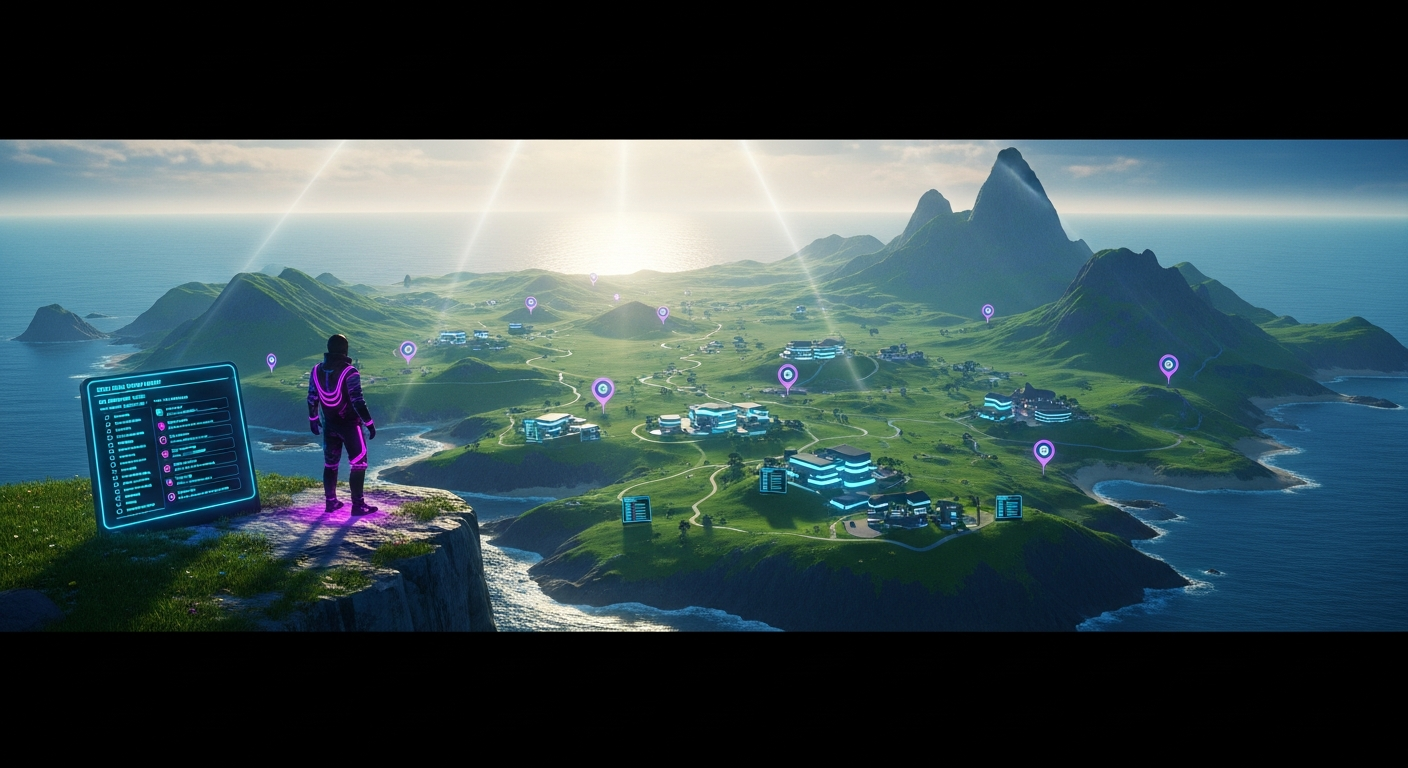
Home Points, Landmarks, and Teleport Systems — Free class in Alife Virtual School
Welcome, creators and pioneers of the metaverse! In the sprawling digital landscape of Alife Virtual, the ability to navigate instantly and guide others with precision is not just a convenience—it's a superpower. Mastering Home Points, Landmarks, and Teleport Systems is fundamental to transforming your free private island from an empty plot into a dynamic, engaging, and easily accessible experience. This class will equip you with the essential skills to control movement, save your favorite locations, and build sophisticated teleportation networks for your visitors. As a premier free 3D world and a powerful Second Life alternative, Alife Virtual empowers you to build without limits, and that journey begins with mastering the art of travel.
The Alife Advantage: Creation Without Cost
In many virtual worlds, the dream of building complex experiences is often gated by significant real-world costs. On other platforms, obtaining enough land to require a teleport system can cost hundreds of dollars per month, and every script or texture you upload nibbles away at your wallet. Alife Virtual shatters these barriers. We believe in a truly free 3D world where your creativity is the only currency that matters. Let's compare the costs:
| Feature | Alife Virtual | Other Platforms (e.g., Second Life) |
|---|---|---|
| Private Island (Region) | 100% FREE (65,536 sqm Full Region, for one month) | $200 - $349+ per month |
| Content Uploads (Textures, Mesh, Scripts) | 100% FREE & Unlimited | ~L$10 (~$0.04) per upload |
| Building a Teleport Hub | Completely Free. Build as many as you need on your free land with free uploads. | Requires paid land and incurs fees for every texture and script used. |
This commitment to a 100% free economy means you can follow this entire tutorial, from creating a simple landmark to scripting a multi-point teleport hub, without spending a single cent. This is the freedom to truly experiment, learn, and build.
What You Will Learn
Upon completing this class, you will be able to:
- Set and use your personal "Home" location for instant return travel.
- Create, manage, and organize a library of Landmarks (LMs) to your favorite spots.
- Understand and use public teleport boards found throughout Alife Virtual.
- Build a simple, no-script teleporter using an object's content inventory.
- Write a basic but powerful LSL (Linden Scripting Language) script to create a custom teleporter.
- Implement a robust teleport system on your island to guide visitors seamlessly.
Prerequisites
- An active Alife Virtual account.
- The Firestorm Viewer installed and configured for Alife Virtual.
- Basic avatar movement (walking, flying, and camera controls).
- Familiarity with the inventory window and basic object creation (rezzing a prim).
Part 1: Personal Navigation — Mastering Your Movement
Before you can guide others, you must first master your own ability to traverse the grid. These tools are your personal navigation toolkit, saving you immense time and effort.
1.1 Set Your Home Point: Your Digital Hearth
Your "Home" position is the single most important location you can set. It's your default spawn point, your safe haven, and your instant escape route. When you log in, or if you need to teleport home from anywhere in the world, this is where you will arrive.
How to Set Your Home Point:
- Travel to the exact spot on your island where you want to set your home. This might be the front door of your house, a welcome area, or a scenic viewpoint.
- Position your avatar precisely where you want to arrive. The home point saves your avatar's exact X, Y, and Z coordinates.
- From the top menu bar in your Firestorm viewer, navigate to
World>Set Home to Here. - A confirmation dialog will appear. Click
OK.
That's it! Your home point is now set. To test it, teleport to another location (or walk far away) and then use the menu option World > Teleport Home or press the keyboard shortcut CTRL + SHIFT + H. You should instantly appear at your designated spot.
Pro Tip: Set your home point in an open area, not inside a wall or complex object. If you change your build, your home point might become obstructed. Remember to update it periodically as your island evolves.
1.2 Create Landmarks: Your Personal Address Book
While you can only have one Home point, you can have unlimited Landmarks (often abbreviated as LMs). Think of a Landmark as a digital bookmark for any location in the metaverse. You can create them for friends' homes, cool shops, public sandboxes, or different points of interest on your own large island.
How to Create a Landmark:
- Go to the location you want to save.
- From the top menu, click
World>Create Landmark Here. - A new Landmark object will be created in your inventory, inside the
Landmarksfolder. - Your inventory window will open, and the new LM will be highlighted, ready for renaming. By default, it will be named after the region and coordinates. Give it a descriptive name like "Mountain Peak Observatory" or "Coastal Beach Cafe".
How to Use a Landmark:
- Open your inventory (CTRL + I).
- Navigate to the
Landmarksfolder. - Find the Landmark you wish to visit and double-click it.
- A location profile window will open. Click the
Teleportbutton. You will be instantly transported to the saved location.
1.3 Organize Your Landmarks for Maximum Efficiency
As you explore, you will accumulate dozens, if not hundreds, of landmarks. A messy landmark folder is an inefficient one. Take the time to organize it.
- In your inventory, right-click on the
Landmarksfolder. - Select
New Folder. - Create categories that make sense to you. Examples: "My Island Spots," "Friends' Homes," "Shopping," "Art Galleries," "Sandbox & Infohubs."
- Simply drag and drop your landmarks from the main folder into your new, organized sub-folders.
This simple organizational habit will make finding your desired location a breeze, turning your inventory into a powerful, personalized travel guide.
Part 2: Public Navigation — Guiding Your Visitors
Now that you've mastered personal travel, it's time to build systems for others. On your sprawling 65,536 sqm free island, visitors will need help getting around. A good teleport system is a sign of a thoughtful and professional host.
2.1 Understanding Public Teleport Boards
You've likely seen these in welcome areas or infohubs. They are objects—often posters, signs, or elaborate consoles—with pictures and text. When you click on a specific part of the object, you are instantly teleported to that location. These are the most common form of in-world public transport, and you are about to learn how to build your own.
2.2 The "No-Script" Teleporter: A Simple & Clever Trick
Before diving into LSL scripting, let's build a functional teleporter using a simple, built-in game mechanic. This method is perfect for quick, single-destination transport.
- Create a Landmark: First, create a Landmark for the destination, as described in Part 1.2. Make sure it's in your inventory.
- Rez a Prim: Right-click the ground and choose
Build(orCreate). A simple cube (a "prim") will appear. This will be your teleporter object. You can style it, texture it, or use any shape you like. - Edit the Prim: Right-click your new prim and select
Edit. The build tools will appear. - Set Object Properties: In the build window, go to the
Generaltab.- Give the object a descriptive name (e.g., "TP to Main Store").
- Crucially, for the
When Left-Clickedoption, selectSit on Targetfrom the dropdown menu.
- Add the Landmark: Now, go to the
Contenttab in the build window. Drag the Landmark you created in step 1 from your inventory and drop it directly into theContentarea of the prim.
You're done! Now, when anyone clicks your object, the Sit on Target action will try to sit them on the object inside—the Landmark. Since you can't "sit" on a landmark, the viewer interprets this as a command to teleport to the location stored within it. It's a clever, script-free way to create a teleporter!
Common Mistake: Forgetting to set the prim's click action to
Sit on Target. If you leave it onTouch, clicking the object will do nothing. This is the most common point of failure for this method.
2.3 Scripting Your First Teleport System with LSL
The no-script method is great, but for true power and flexibility, we turn to LSL (Linden Scripting Language). LSL is the event-driven scripting language used in Alife Virtual and other Open Simulator grids. It allows objects to interact with the world and with avatars. Don't be intimidated; we'll start with a simple, copy-paste-friendly script.
This script will create a teleporter that reads its destination from the object's description field. This makes it incredibly easy to update or duplicate.
Step 1: Obtain Your Destination Coordinates
A script needs a precise vector—an <X, Y, Z> coordinate—to function. Here’s how to get it:
- Go to your desired destination spot.
- From the top menu, navigate to
World>Region Details. - A window will pop up. In the
Generaltab, you'll see your currentLocationcoordinates (e.g., 128.5, 130.2, 25.0). - Copy these three numbers down. They are your target. For best results, use whole numbers or one decimal place (e.g.,
128, 130, 25).
Step 2: Create the Teleporter Prim and Script
- Rez a prim that will serve as your teleporter button or pad.
- Right-click the prim, select
Edit, and go to theContenttab. - Click the
New Scriptbutton. A new script asset named "New Script" will appear inside the prim's contents. - Double-click this new script to open the LSL editor.
Step 3: Add and Configure the LSL Script
Delete all the default text in the script editor window. Copy and paste the following code exactly as it appears:
// Alife Virtual School - Basic Teleporter Script
// This script teleports a user to the coordinates stored in the object's description.
// Format for Description: <X, Y, Z>  (e.g., <128, 128, 25>)

default
{
    state_entry()
    {
        // Set a hover text to show the object is ready.
        // The \n creates a new line.
        llSetText("Click to Teleport", <1.0, 1.0, 1.0>, 1.0);
    }

    touch_start(integer total_number)
    {
        // This event runs when someone clicks (touches) the prim.

        // Get the destination vector from the prim's description field.
        vector vDestination = (vector)llGetObjectDesc();

        // Check if the destination is not the zero vector, which means the description might be empty or invalid.
        if (vDestination != ZERO_VECTOR)
        {
            // Get the key (unique ID) of the avatar who clicked.
            key id = llDetectedKey(0);

            // Request permission to teleport the avatar.
            // This is a crucial security and consent step.
            llRequestPermissions(id, PERMISSION_TELEPORT);
        }
        else
        {
            // If the description is empty or invalid, notify the owner.
            llOwnerSay("Teleporter error: Please set valid coordinates in the object's Description field. Format: <X, Y, Z>");
        }
    }

    run_time_permissions(integer permissions)
    {
        // This event runs after the user responds to the permission request.
        if (permissions & PERMISSION_TELEPORT)
        {
            // If permission was granted, teleport the user.
            // We get the destination again, just to be safe.
            vector vDestination = (vector)llGetObjectDesc();
            key id = llDetectedKey(0); // This is not ideal here, better to store it. For a simple script, it works.
                                      // A more robust script would store the key from touch_start.

            // Get the key of the avatar who triggered the touch event
            key toucher = llDetectedKey(0);

            // Teleport the avatar who touched the prim.
            llTeleportAgent(toucher, llGetRegionName(), vDestination, ZERO_VECTOR);
        }
    }
}
- Click the
Savebutton. The script will compile. If there are no errors, the editor window can be closed. - Now, back in the prim's
Editwindow, go to theGeneraltab. - In the
Descriptionfield, enter the coordinates you copied earlier, formatted as a vector. For example:<128, 130, 25>. Be sure to include the angle brackets.
Your scripted teleporter is now active! The prim should display the floating text "Click to Teleport." When a user clicks it, they will receive a pop-up asking for permission to be teleported. Once they accept, they will be whisked away to the coordinates you specified.
Pro Tip: You can create an entire teleport hub with this single script. Just copy the prim (hold SHIFT and drag it) to duplicate it. For each new copy, simply change the coordinates in its
Descriptionfield to a new destination. You can build a network of dozens of teleporters in minutes!
Advanced Applications & Further Learning
What you've learned today is the foundation. As you grow more comfortable with LSL scripting, you can create even more impressive systems:
- Multi-Destination Teleporters: Use the
llDialogfunction to present a menu of choices to the user when they click an object, allowing a single prim to offer multiple destinations. - Cross-Region Teleporters: The
llTeleportAgentfunction can take a region name as an argument, allowing you to build teleporters that transport users across the entire Alife Virtual grid.
- - Automated Tour Guides: Create a series of teleporters that are linked. When a user arrives at one point, they can click a "Next" button that takes them to the next stop on a pre-defined tour of your island.
- Security Integration: Combine your teleport script with a script that checks if a user is on an access list or a member of a certain group before allowing them to teleport.
Practice Exercise: Build Your Island Tour Hub
It's time to put your new skills to the test on your free private island.
- Designate 3 Key Locations:
- Location A: The Landing Point. This should be near where you set your Home point.
- Location B: Your Primary Creation. The front of your main house, gallery, or store.
- Location C: A Scenic View. The best viewpoint on your island (a mountain top, a beach, a waterfall).
- Create a Teleport Hub: At your Landing Point, rez three prims. Label them clearly (e.g., using textures or floating text) for each of the three locations.
- Implement the LSL Script: Use the LSL script method from section 2.3 for all three prims.
- Get the coordinates for each of the 3 locations.
- Place the script in each prim.
- Set the correct destination vector in each prim's
Descriptionfield.
- Test Your System: Click each teleporter to ensure it takes you to the correct destination. Ask a friend to visit your island and try it out!
Frequently Asked Questions (FAQ)
- 1. Why does my teleporter sometimes say "Couldn't teleport to destination"?
- This can happen for a few reasons. The most common are: the destination coordinates are invalid (e.g., below ground or outside the region boundaries), the destination region is offline, or you're trying to teleport to a region that doesn't allow direct teleports from outsiders.
- 2. Can I teleport another avatar without them clicking on anything?
- No. For privacy and consent reasons, functions like
llTeleportAgentrequire the target user to grant permission. You cannot forcibly move another user. This prevents griefing and is a core security feature of the Open Simulator platform. - 3. How is an Alife Virtual teleporter different from a Second Life teleporter?
- Functionally, the LSL scripts are nearly identical, thanks to our shared Open Simulator foundation and Firestorm Viewer support. The key difference is the context and cost. In Alife Virtual, the land you're building on is free, the prims you use are free, and the scripts you upload are free. This encourages experimentation and large-scale projects that would be prohibitively expensive elsewhere.
- 4. You mentioned a
vector. What is that in LSL? - A
vectoris a fundamental data type in LSL used to store a set of three numbers, typically representing a position or a color. For position, it's formatted as<X, Y, Z>, representing a point in 3D space. For color, it's<R, G, B>, representing Red, Green, and Blue values. - 5. Can my teleporter look like something other than a simple cube?
- Absolutely! The prim is just a container for the script. You can use any prim shape, link multiple prims together, or even use a custom mesh object that you've uploaded (for free!). You can texture it, make it glow, or add particle effects to create a visually stunning teleporter that matches the theme of your island.
Your Journey Starts Now. Join Alife Virtual.
You have just learned a skill that is essential to creating a world-class experience in the metaverse. The power to control movement and guide visitors is now in your hands. But this is just the beginning. In Alife Virtual, this power isn't locked behind a paywall. It's given to you, along with a FREE 65,536 sqm private island, a FREE professional mesh avatar, and FREE unlimited uploads.
Stop dreaming about the worlds you want to build and start building them today. Join a thriving community of creators in a true Second Life alternative that values creativity over cash.
Click Here to Claim Your Free Island and Begin Your Adventure in Alife Virtual!
🎓 Ready to Practice In-World?
Get your FREE island and practice everything you just learned — no credit card, no monthly fees.
Claim Your Free Island Now →No credit card required · Takes 2 minutes · Your island is FREE for one month