Class 6: Particle Effects and Beam Tools in Firestorm
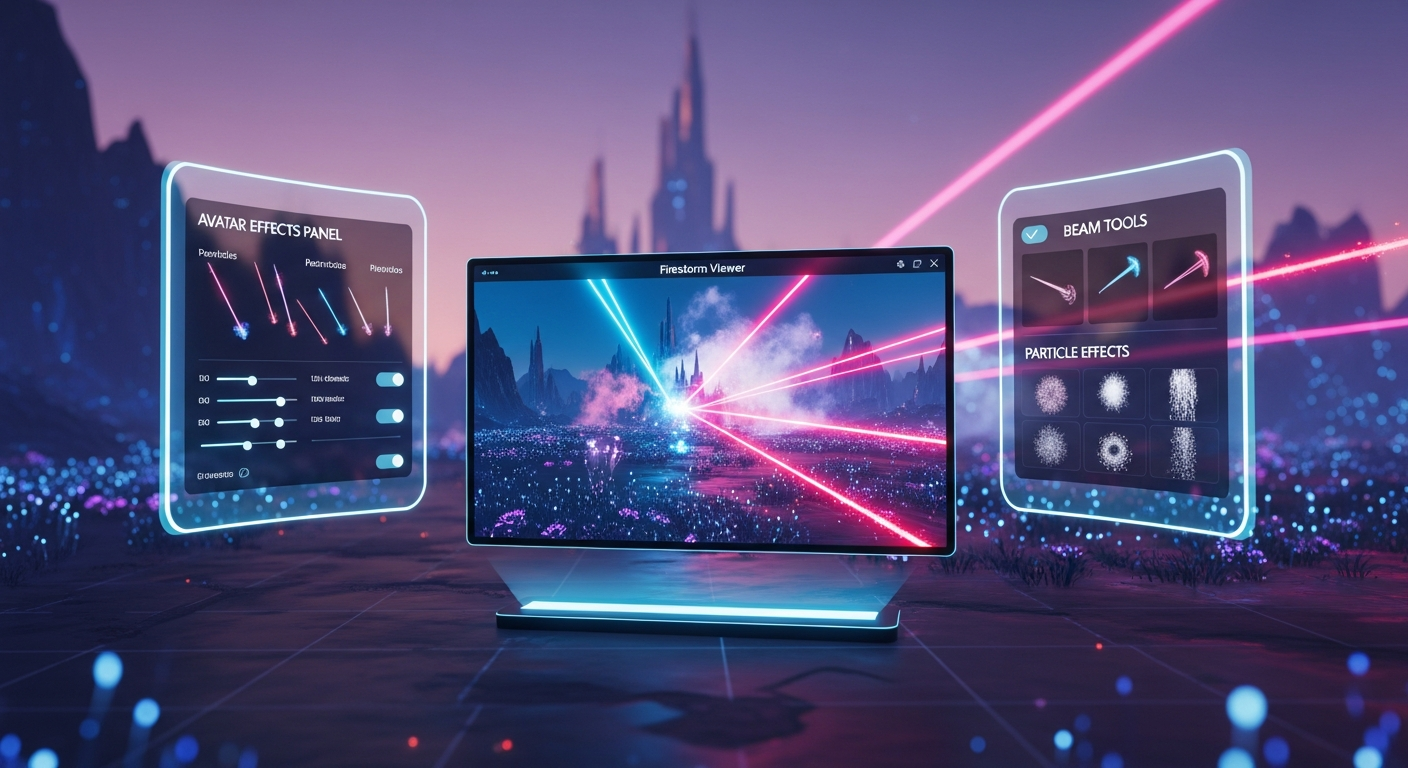
Particle Effects and Beam Tools in Firestorm — Free class in Alife Virtual School
Welcome, student, to Class 6 at the Alife Virtual School! Today, we’re diving into one of the most exciting and visually dynamic aspects of creating in a virtual world: particles and beams. Have you ever seen an avatar with a magical, glowing trail? Or a sci-fi weapon that fires a brilliant laser? Or perhaps you've wandered into a forest filled with shimmering fireflies and low-lying mist? These are all created with particle and beam effects, and by the end of this class, you'll know exactly how to make them yourself.
Mastering these tools is about more than just flash and sizzle. It's about adding life, personality, and atmosphere to your creations. It’s how you turn a static build into a living environment and an ordinary avatar into an extraordinary character. In Alife Virtual, where you have the freedom to create anything you can imagine on your own FREE 65,536 sqm private island, particle effects are an essential skill for making your corner of the world truly unique. Best of all, since Alife Virtual uses the popular Firestorm Viewer, every skill you learn here is directly transferable and valuable across the metaverse.
What You Will Learn
In this comprehensive beginner's tutorial, you will master the fundamentals of in-world effects. By the end of this session, you will be able to:
- Create a basic particle system using a simple LSL script.
- Understand and customize key particle parameters like color, size, glow, and pattern.
- Use the built-in Firestorm Beams tool to create targeted light effects like lasers or tractor beams.
- Apply and customize ambient effects directly to your avatar using the Avatar Effects Panel.
- Combine these tools to create unique effects like glowing trails and simple interactive objects.
Prerequisites
This is a beginner-level class, but you’ll need a few things to get started. Don't worry, everything is free!
- An Alife Virtual Account: If you don't have one, you can register for free and join over 1,148,000 other residents.
- The Firestorm Viewer: Alife Virtual uses the same powerful viewer as Second Life. Make sure you have it installed.
- Basic Viewer Skills: You should be comfortable moving your avatar, using your camera, and interacting with objects.
- A Place to Build: All Alife Virtual members can claim your free avatar with a generous 10,000 prims. This is the perfect sandbox for you to practice without any distractions or land fees. (For comparison, a similar island in Second Life costs over $199/mo!)
Part 1: The Magic of Particles - Your First Glowing Trail
Let's start with the most versatile effect: the particle system. A particle system is an engine that generates and controls many small 2D images (particles) to simulate phenomena like fire, smoke, magic spells, or water spray. We'll control it using LSL (Linden Scripting Language), the same powerful scripting language used in Second Life. Don't be intimidated; we'll start simple!
Step 1: Create a Prim
First, you need an object to hold our particle script. This object is called a "prim" (primitive).
- Find a clear spot on a free island + 1,000 C$ for shopping (until 31 Dec 2026).
- Press Ctrl + B on your keyboard, or go to the
Buildmenu at the top of your screen and selectBuild. Your mouse cursor will change into a magic wand. - Click on the ground to "rez" (create) a default plywood cube. This is our prim.
Step 2: Create a New Script
Now, we'll place a script inside the prim's contents.
- Right-click the cube you just created and choose
Edit. - In the edit window, click the
Contenttab. - Click the
New Scriptbutton. This will create a new script asset named "New Script" inside the prim. - Double-click the "New Script" asset to open the LSL script editor.
Step 3: The Basic Particle Script
The script editor will open with some default code. Delete all of it and replace it with the code below. This script will create a simple, continuous stream of glowing white particles.
// My First Particle Script - Alife Virtual School

default
{
    state_entry()
    {
        // This function starts the particle system as soon as the script runs.
        llParticleSystem([
            // *** PATTERN and MOVEMENT ***
            PSYS_SRC_PATTERN, PSYS_SRC_PATTERN_EXPLODE, // How particles are born. Other options: DROP, ANGLE, ANGLE_CONE.
            PSYS_PART_START_SCALE, <0.1, 0.1, 0.0>,   // Starting size (X, Y, Z is unused).
            PSYS_PART_END_SCALE, <0.5, 0.5, 0.0>,     // Ending size. Particles will grow.
            PSYS_PART_MAX_AGE, 2.0,                    // How long each particle lives, in seconds.
            PSYS_SRC_MAX_AGE, 0.0,                     // How long the emitter runs (0.0 = forever).
            PSYS_SRC_BURST_RATE, 0.1,                  // Time between bursts of particles.
            PSYS_SRC_BURST_PART_COUNT, 5,              // Number of particles per burst.
            PSYS_SRC_ACCEL, <0.0, 0.0, 0.5>,          // Acceleration (e.g., gravity or lift). This gives them a gentle lift.

            // *** COLOR and APPEARANCE ***
            PSYS_PART_START_COLOR, <1.0, 1.0, 1.0>,   // Starting color (R, G, B). <1,1,1> is white.
            PSYS_PART_END_COLOR, <0.0, 0.5, 1.0>,     // Ending color. They will fade to a light blue.
            PSYS_PART_START_ALPHA, 1.0,                // Starting transparency (1.0 = fully visible).
            PSYS_PART_END_ALPHA, 0.0,                  // Ending transparency (0.0 = fully invisible). They will fade out.
            PSYS_PART_FLAGS, (PSYS_PART_GLOW_PART | PSYS_PART_INTERP_COLOR_MASK | PSYS_PART_INTERP_SCALE_MASK) // Special properties. This makes them glow and transition color/size.
        ]);
    }
}
Step 4: Save and See the Magic!
Click the Save button at the bottom of the script editor. If there are no errors, the script will compile, and you should immediately see a stream of glowing particles rising from your cube!
Congratulations, you've just created your first particle effect! Now, let's understand what we just did.
Understanding the Particle Script Parameters
The llParticleSystem() function is the heart of our script. It takes a list of rules that define how the particles behave. Below is a breakdown of the most important parameters you'll want to change. Experiment by changing the values in your script, saving it, and seeing what happens.
| Parameter | What It Does | Example Value |
|---|---|---|
PSYS_SRC_PATTERN |
The shape of the emission. EXPLODE sends them in all directions. DROP makes them fall. ANGLE_CONE creates a focused jet. |
PSYS_SRC_PATTERN_DROP |
PSYS_PART_START_SCALE |
The initial size of each particle as a vector <X, Y, Z>. Z is ignored. | <0.05, 0.05, 0.0> (for smaller particles) |
PSYS_PART_MAX_AGE |
The lifespan of a particle in seconds. Higher values mean they travel farther before disappearing. | 5.0 (for a longer trail) |
PSYS_SRC_BURST_RATE |
The time, in seconds, between each burst of new particles. Lower numbers mean a denser effect. | 0.01 (for a very dense stream) |
PSYS_SRC_ACCEL |
A vector <X, Y, Z> that applies constant acceleration. A negative Z value simulates gravity. | <0.0, 0.0, -1.0> (to make particles fall) |
PSYS_PART_START_COLOR |
The RGB color when the particle is born. Values are from 0.0 to 1.0. | <1.0, 0.0, 0.0> (for pure red) |
PSYS_PART_END_ALPHA |
The final transparency (alpha) of the particle before it dies. 0.0 is invisible. | 1.0 (to make particles pop out of existence instead of fading) |
PSYS_PART_FLAGS |
Special visual properties. PSYS_PART_GLOW_PART is essential for that "glowing" look. PSYS_PART_WIND_MASK makes particles affected by region wind. |
(PSYS_PART_GLOW_PART | PSYS_PART_WIND_MASK) |
Pro Tip: To find the right RGB values for your colors, use an online color picker tool! Just find a color you like, get its RGB values (usually 0-255), and divide each by 255 to get the 0.0-1.0 value needed for LSL. For example, a nice orange might be RGB(255, 165, 0), which becomes <1.0, 0.64, 0.0> in LSL.
Part 2: Wielding Power - The Firestorm Beam Tool
Beams are different from particles. Instead of thousands of small images, a beam is a single, continuous texture stretched between two points. They are perfect for lasers, force fields, and magical connections. Firestorm has a fantastic built-in tool for creating and visualizing beams.
Step 1: Open the Beam Tool
In the top menu bar, navigate to World > Effects > Beams.... A new window titled "Beams" will appear on your screen. This tool allows you to create temporary beams for testing and configuration.
[Image: The Firestorm Beams tool window showing fields for Source, Target, Color, Alpha, and Length.]
Step 2: Configuring Your Beam
The Beams tool has several key fields:
- Source: The start point of the beam. You can type in an avatar or object's UUID, or click "Me" to use your own avatar's position.
- Target: The end point of the beam. This also uses a UUID.
- Color: The color of the beam. Click the color swatch to open a picker.
- Alpha: The transparency of the beam (0-100).
- Length: The length of the beam in meters, used if no Target is specified.
Let's try it. Rez a new cube a few meters away from you. Right-click it, select Edit, and in the "General" tab of the edit window, copy its UUID key (a long string of letters and numbers). Now, in the Beams tool:
- Click the "Me" button for the Source.
- Paste the cube's UUID into the Target field.
- Pick a bright red color.
- Set the Alpha to 100.
- Click the
Createbutton.
You should now see a solid red beam stretching from your avatar to the cube! You can click Stop in the Beams tool to remove it.
Making a Simple Beam "Weapon"
The Beams tool is for testing. To make a beam permanent or interactive, we need another script. Let's make a prim that fires a beam when you touch it.
- Rez two prims: a small sphere (our "weapon") and a larger cube (our "target").
- Place a new script in the sphere. Delete the default code and paste this in:
// Simple Beam Weapon Script - Alife Virtual School

key targetUUID = "PASTE_YOUR_TARGET_CUBE_UUID_HERE"; // IMPORTANT!

default
{
    touch_start(integer total_number)
    {
        // When touched, create a beam from this object to the target.
        llBeam(llGetPos(), llList2Vector(llGetPrimitiveParams([PRIM_POSITION]), 0), <1.0, 0.0, 0.0>, 1.0, 0.1, 0.1, 0.2, 0.0, 1.0);

        // Let's get the position of the target prim to make the beam accurate
        list targetParams = llGetPrimitiveParams([targetUUID], [PRIM_POSITION]);
        vector targetPos = llList2Vector(targetParams, 0);

        // llBeam(source, target, color, alpha, start_size, end_size, duration, start_offset, end_offset)
        llBeam(llGetPos(), targetPos, <1.0, 0.0, 0.0>, 1.0, 0.1, 0.1, 0.5, 0.0, 1.0);
    }
}
- Crucially: Edit your target cube, copy its UUID, and paste it into the script, replacing
"PASTE_YOUR_TARGET_CUBE_UUID_HERE". - Save the script. Now, click the sphere. A red beam will flash between the sphere and the cube for half a second!
Tip: In Alife Virtual, all texture and mesh uploads are completely free. This is a huge advantage over Second Life, where every upload costs L$. You can create a custom texture for your beam or a detailed mesh for your weapon and upload it without spending a dime, giving your creations a truly professional look.
Part 3: Ambient Effects with the Avatar Effects Panel
What if you want a simple effect on your avatar without any scripting? Firestorm has you covered with the Avatar Effects panel. This is perfect for creating a personal aura, a cloud of smoke, or leaving a trail of fairy dust.
Step 1: Access the Panel
From the top menu, go to Me > Effects. This will open the "Effects" window, which lists several built-in particle effects.
Step 2: Exploring the Presets
You will see a list of pre-made effects like "Fairy Dust," "Smoke," and "Sparks." Simply check the box next to one to enable it. Try "Fairy Dust" – you should see a lovely trail of glowing particles following your avatar as you move. This is a great, easy way to add some flair to your look, especially on your free full-body mesh avatar provided by Alife Virtual.
Step 3: Customizing Your Own Effect
The real power comes from creating your own.
- In the Effects window, click the
+button at the bottom to create a new effect. - Give your effect a name, like "My Blue Aura."
- Select your new effect from the list to see its properties on the right.
- Texture: This is the image used for each particle. Click the box to choose a texture. You can use default library textures. A good default is the "Particle" texture (a soft white dot).
- Color & Alpha: Set the start and end colors and transparency, just like in our LSL script. Let's make it start as a light blue and fade to invisible.
- Rate & Count: Control how many particles are born and how often.
- Radius: How far from your avatar the particles can spawn.
Play with these settings until you have a soft, glowing blue aura. Once you're happy, just keep the checkbox next to it ticked, and the effect will stay active on your avatar wherever you go!
Common Mistakes and How to Avoid Them
- "My particles are invisible!"
Check yourPSYS_PART_START_ALPHAandPSYS_PART_END_ALPHAvalues. If they are both 0.0, the particles will be transparent. Also, ensure your particle size (PSYS_PART_START_SCALE) isn't zero. Finally, make sure you are not in wireframe mode (Ctrl+Shift+R). - "My script gives me a syntax error!"
LSL is picky! The most common errors are a missing semicolon;at the end of a line, a misplaced comma,in a list, or mismatched brackets[], parentheses(), or angle brackets<>. LSL is also case-sensitive, sollParticleSystemis correct, butllparticlesystemis not. - "My beam is pointing to the wrong place or into the ground!"
This almost always means the target UUID is incorrect or you're using the wrong function to get a position. Double-check that you've copied the correct UUID for your target object. For moving objects, you need more advanced scripting to constantly update the target position.
Advanced Tips and Tricks
Feeling confident? Here are a few ideas to take your skills to the next level.
- Ribbon Particles: In your LSL script, try setting the pattern to
PSYS_SRC_PATTERN_ANGLE_CONEand adding the flagPSYS_PART_FOLLOW_SRC_MASK. This will create a smooth "ribbon" trail that follows the prim, perfect for sword slashes or vehicle trails. - Scripted Textures: You can animate the texture on your particles using the
llSetTextureAnimfunction. This can create effects like flickering flames or pulsating energy. - Attaching to Your Avatar: Right-click the prim containing your particle script, select
WearorAttach To, and choose a body part (like "Right Hand" or "Chest"). The effect will now move with you! This is how most particle auras and handheld effects are made. - Performance Matters: Particles can cause lag if overused. A high
PSYS_SRC_BURST_PART_COUNTand a lowPSYS_SRC_BURST_RATEwill generate many particles. Be mindful of this, especially in public areas. On your own private island, you have more freedom to experiment!
Practice Exercise: Create Your Own Ambient Environment
It's time to put your new knowledge into practice! This exercise combines everything we've learned.
- Go to your free island + 1,000 C$ for shopping (until 31 Dec 2026) in Alife Virtual.
- Find a nice spot and create a simple scene, perhaps with a few trees or rocks.
- Task 1: Fireflies. Create a prim, place it in your scene, and write a particle script to simulate fireflies. Hint: Use a low burst count, a long particle age, a slow, random acceleration, and a glowing yellow color that blinks on and off (by changing alpha).
- Task 2: Ground Mist. Create another prim, stretch it to be large and flat, and place it just above the ground. Write a particle script to create a slow-moving, low-lying mist. Hint: Use a white texture, low alpha, slow speed, and a slight negative Z acceleration to keep it on the ground.
- Task 3: Personal Aura. Use the Avatar Effects panel (
Me > Effects) to create a custom glowing aura for your avatar that matches the mood of your scene.
When you're done, you'll have transformed a simple spot into a magical, atmospheric environment!
Frequently Asked Questions (FAQ)
- 1. What's the main difference between particles and beams?
- Particles are thousands of individual small images used to simulate fluidic, chaotic effects like smoke, fire, or sparkles. Beams are a single, stretched texture between two points, ideal for static, linear effects like lasers or ropes of light.
- 2. Can I use my own custom images for particles?
- Absolutely! You can upload your own textures for use in particle systems. A huge benefit of Alife Virtual is that all uploads (textures, meshes, animations) are completely free, unlike Second Life which charges for every upload. This saves you a tremendous amount of money and encourages creative freedom.
- 3. Are particle effects very laggy? Will they slow down my computer?
- They can be, if not used carefully. The "lag" from particles is determined by the total number of particles being rendered at once (the "count") and their transparency (overdraw). A script that generates thousands of particles per second will be much laggier than one generating a few hundred. Always be mindful of performance and test your effects.
- 4. I learned this in Alife Virtual. Will this knowledge work in Second Life?
- Yes, 100%. Alife Virtual uses the same Firestorm viewer and the exact same LSL scripting language as Second Life. Every skill, function, and technique you learn in our free daily classes is directly transferable, making your time here a valuable investment in your virtual world skills.
Summary and What's Next
You've done it! You've taken your first steps into the dazzling world of particle effects. You've learned how to script a particle system from scratch, wield the Firestorm beam tool, and customize your avatar's appearance with ambient effects. These are fundamental building blocks that will serve you well in almost any creative project you undertake in Alife Virtual.
Continue to experiment on your island. Try combining different particle flags, using different textures, and triggering your effects with scripts. The more you practice, the more intuitive it will become.
In our next classes, we'll explore more advanced scripting, building techniques, and avatar customization. Be sure to browse the full curriculum at the Alife Virtual School to see what's coming up.
Claim Your Free World in Alife Virtual!
Ready to build without limits? If you haven't already, now is the perfect time to join the Alife Virtual community. Every member receives a full 65,536 sqm private island, with no lock-in. You get 10,000 prims to build with, a free premium mesh avatar, and free uploads. It's the ultimate creative sandbox, and it works on any desktop computer—no VR headset required.
Register Your Free Account Today
and
Claim Your Free Avatar
We can't wait to see the amazing effects you create in-world!
🎓 Ready to Practice In-World?
Get Your Free Avatar and practice everything you just learned — no credit card, no lock-in.
Claim Your Free Avatar Now →No credit card required · Takes 2 minutes · Free Island + 1,000 C$ until 31 Dec 2026