Particle System Mastery
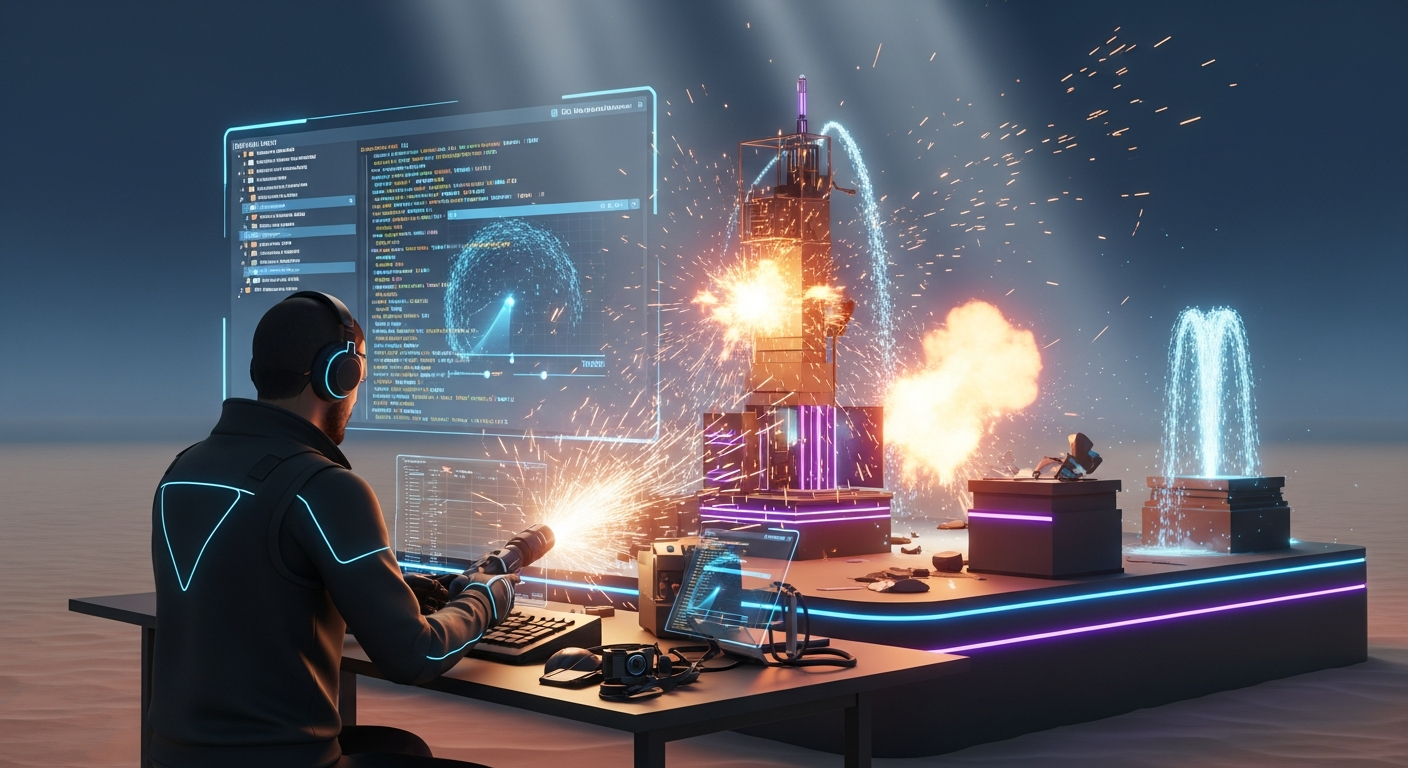
Particle System Mastery — Free class in Alife Virtual School
Look around you. The crackling flames of a fireplace, the gentle mist rising from a waterfall, the shimmering sparkles on a magical gown—these are the details that transform a static scene into a living, breathing world. In Alife Virtual, and any thriving metaverse, this magic is often powered by particles. Welcome to Alife Virtual School's definitive guide to Particle System Mastery, where you will learn to wield one of the most powerful tools in the Linden Scripting Language (LSL): llParticleSystem. This class will elevate your building and scripting skills from intermediate to expert, allowing you to create dynamic, immersive experiences that captivate visitors and define your personal brand in our free 3D world.
Mastering LSL scripting for particles is more than a technical skill; it's an art form that brings your digital creations to life. Whether you're building a cyberpunk city, a fantasy forest, or a bustling nightclub, particles provide the ambient effects and spectacular moments that make your environment unforgettable. As a leading Second Life alternative and a robust Open Simulator platform, Alife Virtual provides the ultimate canvas for your creativity, all within a completely free virtual economy.
The Alife Advantage: Create Without Cost
In other virtual worlds, advanced creation is often locked behind a paywall. The very land you build on and the assets you use come with significant real-world costs. In Alife Virtual, we believe creativity should be free. Let's compare the cost of becoming a particle-crafting expert here versus the leading competitor, Second Life.
| Feature / Cost Factor | Alife Virtual | Second Life |
|---|---|---|
| Private Island (Your "Lab") | FREE 65,536 sqm Full Region, for one month. No tiers, no fees. | ~$300 USD per month for a full region. |
| Custom Particle Textures | FREE Unlimited Uploads for textures, mesh, sounds, etc. | L$10 (~$0.04 USD) per texture upload. This adds up quickly when experimenting. |
| Avatar Attachments | Start with a FREE Pro Mesh Avatar, ready for custom particle attachments. | Requires purchasing a mesh avatar and body, often costing thousands of L$. |
| Overall Economy | A 100% free virtual economy. Build, script, and learn without financial pressure. | A complex economy where land and asset costs are a constant consideration. |
The conclusion is simple: Alife Virtual is the only platform where you can truly master a skill like particle systems without spending a single dollar. Your only investment is your time and creativity.
What You Will Learn
- The complete structure and syntax of the
llParticleSystem()function in LSL. - How to define particle behavior using a list of rules and parameters.
- To create realistic fire, smoke, and water effects from scratch.
- To design magical effects like sparkles, auras, and explosion bursts.
- How to optimize your particle systems for performance to avoid causing lag.
- To use custom textures to create unique and branded particle effects.
- How to attach particles to avatars and objects.
Prerequisites
- Alife Virtual Account: You need an account to practice in-world. Join now for free!
- Basic Building Skills: You should know how to create and edit prims.
- LSL Fundamentals: You should understand variables, lists, events (especially
state_entryandtouch_start), and how to add a script to an object. Our "LSL 101" class is a great primer. - Firestorm Viewer: Alife Virtual is fully compatible with Firestorm, the most popular viewer for grid-based metaverses. Download it here.
The Core of Creation: Deconstructing llParticleSystem
At the heart of all our effects is a single, powerful LSL function: llParticleSystem(list rules). This function takes one argument: a list containing pairs of parameters and their values. Think of it as giving a set of instructions to a tiny, invisible particle cannon attached to your object.
To turn the particles on, you call the function with your list of rules. To turn them off, you call it with an empty list: llParticleSystem([]);.
The magic is all in the rules list. This list is a series of `[parameter, value]` pairs. For example: [PSYS_PART_MAX_AGE, 5.0, PSYS_PART_START_COLOR, <1,0,0>]. Let's break down the most essential parameters you'll be using.
Key Particle System Parameters
This table will be your bible. Bookmark it, print it, commit it to memory. Understanding these parameters is the key to unlocking your creative potential.
| Parameter | Description | Value Type |
|---|---|---|
PSYS_PART_FLAGS |
Controls the behavior of particles (e.g., interpolation, wind, gravity). This is a combination of bitmasked flags. | integer |
PSYS_SRC_PATTERN |
Defines the shape from which particles are emitted (e.g., drop, explode, angle). | integer |
PSYS_SRC_TEXTURE |
The UUID key of a texture in the object's inventory to use for the particles. Use "" for the default square. | string (UUID) |
PSYS_PART_MAX_AGE |
The maximum lifetime of a particle in seconds. | float |
PSYS_SRC_MAX_AGE |
The lifetime of the particle system itself in seconds. Use 0.0 for a continuous effect. | float |
PSYS_PART_START_SCALE / PSYS_PART_END_SCALE |
The particle's size at birth and death. Values are interpolated if the right flag is set. | vector |
PSYS_PART_START_COLOR / PSYS_PART_END_COLOR |
The particle's color at birth and death. | vector (RGB, <1,1,1> is white) |
PSYS_PART_START_ALPHA / PSYS_PART_END_ALPHA |
The particle's transparency at birth and death (0.0 = transparent, 1.0 = opaque). | float |
PSYS_SRC_BURST_RATE |
The time in seconds between bursts of particles. | float |
PSYS_SRC_BURST_PART_COUNT |
The number of particles to create in each burst. | integer |
PSYS_SRC_ACCEL |
A constant acceleration applied to particles (e.g., gravity <0,0,-9.8>). | vector |
PSYS_SRC_ANGLE_BEGIN / PSYS_SRC_ANGLE_END |
Defines the cone of emission for angle patterns. | float (Radians) |
Now, let's put these parameters into practice with step-by-step examples.
Step-by-Step Tutorial: Forging Effects with Code
For these examples, you'll need to be in-world in Alife Virtual. Create a simple cube prim, then go to the "Content" tab of the edit window and create a "New Script". Paste the code into the script window and save. The effect should start immediately.
Example 1: The Classic Campfire
Let's create a realistic, crackling fire. This effect relies on upward movement, a color change from bright yellow/white to dark red/black, and fading transparency.
default
{
    state_entry()
    {
        // Define the list of rules for our fire effect
        list fireRules = [
            // --- BEHAVIOR FLAGS ---
            // Interpolate color, alpha, and scale. Particles move towards their target.
            PSYS_PART_FLAGS, PSYS_PART_INTERP_COLOR_MASK | PSYS_PART_INTERP_SCALE_MASK | PSYS_PART_WIND_MASK | PSYS_PART_EMISSIVE_MASK,

            // --- EMISSION PATTERN ---
            // Emit particles from the surface of the prim.
            PSYS_SRC_PATTERN, PSYS_SRC_PATTERN_EXPLODE,

            // --- PARTICLE LIFETIME ---
            PSYS_PART_MAX_AGE, 2.5, // Each particle lasts up to 2.5 seconds

            // --- EMISSION TIMING ---
            PSYS_SRC_MAX_AGE, 0.0, // The system runs for one month
            PSYS_SRC_BURST_RATE, 0.05, // Create a burst every 0.05 seconds
            PSYS_SRC_BURST_PART_COUNT, 8, // 8 particles per burst
            PSYS_SRC_BURST_RADIUS, 0.3, // Emit within a 0.3m radius

            // --- SPEED & ACCELERATION ---
            PSYS_SRC_BURST_SPEED_MIN, 0.1, // Minimum starting speed
            PSYS_SRC_BURST_SPEED_MAX, 0.8, // Maximum starting speed
            PSYS_SRC_ACCEL, <0.0, 0.0, 0.5>, // Slight upward acceleration

            // --- SCALE (SIZE) ---
            PSYS_PART_START_SCALE, <0.1, 0.1, 0.0>, // Start small
            PSYS_PART_END_SCALE, <0.4, 0.4, 0.0>,   // End larger

            // --- COLOR ---
            PSYS_PART_START_COLOR, <1.0, 1.0, 0.8>, // Start bright yellow-white
            PSYS_PART_END_COLOR, <0.8, 0.2, 0.0>,   // End fiery red-orange

            // --- ALPHA (TRANSPARENCY) ---
            PSYS_PART_START_ALPHA, 1.0, // Start fully opaque
            PSYS_PART_END_ALPHA, 0.1    // Fade out almost completely
        ];

        // Start the particle system!
        llParticleSystem(fireRules);
    }

    // Add a touch event to turn it on and off
    touch_start(integer total_number)
    {
        // Check if the system is currently running (we'll use a simple flag in the object description)
        if (llGetObjectDesc() == "ON")
        {
            llParticleSystem([]); // Turn it off
            llSetObjectDesc("");
            llSay(0, "Fire extinguished.");
        }
        else
        {
            state_entry(); // Re-run the state_entry to turn it on
            llSetObjectDesc("ON");
            llSay(0, "Fire started.");
        }
    }
}
Save this script. Now you can touch the prim to toggle the fire on and off! Experiment by changing the PSYS_PART_START_COLOR to a blueish tint for a magical flame.
Example 2: Billowing Smoke
We can easily adapt our fire script to create smoke. Smoke is generally slower, wider, and grayer, and it should be affected by the region's wind.
// ... inside state_entry() ...
list smokeRules = [
    // We want wind, interpolation, and to follow the source prim if it moves
    PSYS_PART_FLAGS, PSYS_PART_INTERP_COLOR_MASK | PSYS_PART_INTERP_SCALE_MASK | PSYS_PART_WIND_MASK | PSYS_PART_FOLLOW_SRC_MASK,

    PSYS_SRC_PATTERN, PSYS_SRC_PATTERN_ANGLE_CONE,

    PSYS_PART_MAX_AGE, 8.0, // Smoke lingers longer

    PSYS_SRC_MAX_AGE, 0.0,
    PSYS_SRC_BURST_RATE, 0.5, // Slower bursts
    PSYS_SRC_BURST_PART_COUNT, 10,
    PSYS_SRC_BURST_RADIUS, 0.1,

    PSYS_SRC_BURST_SPEED_MIN, 0.1,
    PSYS_SRC_BURST_SPEED_MAX, 0.3, // Smoke moves slowly
    PSYS_SRC_ACCEL, <0.0, 0.0, 0.15>, // Very gentle upward drift

    // Smoke expands significantly
    PSYS_PART_START_SCALE, <0.5, 0.5, 0.0>,
    PSYS_PART_END_SCALE, <2.0, 2.0, 0.0>,

    // Gray-scale colors
    PSYS_PART_START_COLOR, <0.7, 0.7, 0.7>,
    PSYS_PART_END_COLOR, <0.2, 0.2, 0.2>,

    // Smoke starts semi-transparent and fades completely
    PSYS_PART_START_ALPHA, 0.5,
    PSYS_PART_END_ALPHA, 0.0,

    // Emit in a wide cone upwards
    PSYS_SRC_ANGLE_BEGIN, 0.2, // Radians
    PSYS_SRC_ANGLE_END, 0.5    // Radians
];

llParticleSystem(smokeRules);
Notice the key changes: longer age, slower speed, wider scale, and gray colors. The PSYS_PART_WIND_MASK is crucial here, as it will make the smoke drift realistically in the direction of the region's wind.
Example 3: Magical Sparkle Trail
This is perfect for wands, avatar attachments, or highlighting a special object. It's characterized by bright, emissive particles that fade quickly.
// ... inside state_entry() ...
list sparkleRules = [
    // Emissive makes it glow, follow source is great for attachments
    PSYS_PART_FLAGS, PSYS_PART_EMISSIVE_MASK | PSYS_PART_FOLLOW_SRC_MASK | PSYS_PART_INTERP_COLOR_MASK,

    PSYS_SRC_PATTERN, PSYS_SRC_PATTERN_DROP, // Drop pattern works well for trails

    // Use a custom texture for a better sparkle shape!
    // Upload a "sparkle" or "flare" texture and paste its UUID here.
    // PSYS_SRC_TEXTURE, "YOUR_TEXTURE_UUID_HERE",

    PSYS_PART_MAX_AGE, 0.8, // Sparkles are short-lived

    PSYS_SRC_MAX_AGE, 0.0,
    PSYS_SRC_BURST_RATE, 0.02,
    PSYS_SRC_BURST_PART_COUNT, 3,

    // No velocity, just "drip" from the prim
    PSYS_SRC_BURST_SPEED_MIN, 0.0,
    PSYS_SRC_BURST_SPEED_MAX, 0.0,

    // No acceleration, they just exist and fade
    PSYS_SRC_ACCEL, <0,0,0>,

    PSYS_PART_START_SCALE, <0.05, 0.05, 0.0>,
    PSYS_PART_END_SCALE, <0.01, 0.01, 0.0>, // Shrink to nothing

    // Bright, magical colors
    PSYS_PART_START_COLOR, <0.8, 0.8, 1.0>, // Light blue
    PSYS_PART_END_COLOR, <0.5, 0.0, 1.0>,   // Purple

    PSYS_PART_START_ALPHA, 1.0,
    PSYS_PART_END_ALPHA, 0.0
];

llParticleSystem(sparkleRules);
Common Mistakes & Pro Tips
Pro Tip: The Power of Custom Textures
The single most impactful change you can make to a particle system is using a custom texture with
PSYS_SRC_TEXTURE. The default particle is a white square. By uploading a texture with transparency (like a puff of smoke, a lens flare, or a snowflake), you can create incredibly detailed effects. Remember, in Alife Virtual, texture uploads are 100% free and unlimited, so you can experiment endlessly without cost. A good particle texture is often a soft-edged, grayscale image on a transparent background, saved as a PNG.
Common Mistake: The "Lag Bomb"
It's easy to get carried away and create a system that emits thousands of particles per second. This will cause immense lag for everyone around you, including yourself. Keep your
PSYS_SRC_BURST_PART_COUNTandPSYS_SRC_BURST_RATEreasonable. A good rule of thumb is to aim for the lowest number of particles that still achieves your desired visual effect. A system emitting 50-100 particles at any given moment is usually fine; a system emitting 2000 is a problem.
Pro Tip: Dynamic Control
Don't just set your particles in
state_entry()and forget them. Use other events! For an explosion, trigger a short-lived, high-burst particle system inside atouch_startevent. UsellSetTimerEvent()to periodically change the color of the particles (PSYS_PART_START_COLOR) to create a rainbow effect. The possibilities are endless when you combine particle systems with other LSL functions.
Common Mistake: Forgetting to Clean Up
If you have a particle system that runs on an object, and that object is deleted or the script is reset, the particle system might continue running until you relog. It's good practice to always include a way to turn it off, like the
touch_starttoggle in our first example or by callingllParticleSystem([]);in astate_exit()event.
Advanced Applications
Once you've mastered the basics, you can combine them to create truly complex and impressive displays:
- Weather Systems: Create a large, invisible prim high in the sky and have it emit rain (long, thin, blue/transparent particles with gravity) or snow (using a snowflake texture and adding wind/turbulence).
- Explosions: Use
PSYS_SRC_PATTERN, PSYS_SRC_PATTERN_EXPLODEwith a very shortPSYS_SRC_MAX_AGE(e.g., 0.2 seconds) and a high particle count. Trigger this on an event for a powerful burst effect. - Water Features: For a fountain, use a cone emitter pointing up with gravity pulling the particles back down. For a waterfall, use a wide, flat prim emitting particles downwards with a "mist" particle system at the base. -Avatar Auras: Attach an invisible prim to your avatar's chest or spine. Use the sparkle script, but change the pattern and flags to create a gentle, pulsing aura that follows you everywhere.
Practice Exercise: The Enchanted Waterfall
Your assignment is to put your new skills to the test. Find a cliff on your free private island and create an enchanted waterfall.
- Create a wide, flat prim at the top of the cliff for the water source.
- Write a script that emits blue-to-white particles downwards. They should have strong downward acceleration (gravity).
- Create a second prim at the base of the waterfall.
- Write a script for this second prim that creates a "mist" effect—wide, slow-moving, white, semi-transparent particles that linger.
- Bonus: Use a custom "splash" or "foam" texture (which you can upload for free!) for the mist particles to give them a more realistic look.
Frequently Asked Questions (FAQ)
- Q: How many particles are too many for performance?
- A: There's no hard number, as it depends on particle size, transparency, and viewer settings. However, a single object generating more than 200-300 particles at once is generally considered excessive. Strive for efficiency; a few well-designed particles are better than a thousand boring ones.
- Q: Can I use my own image for a particle?
- A: Absolutely! This is what the
PSYS_SRC_TEXTUREparameter is for. Upload your image (PNG with transparency works best), copy its UUID, and place it in your script. In Alife Virtual, this is a completely free action, unlike other platforms. - Q: Why do my particles disappear when I walk far away?
- A: This is due to the viewer's render distance settings. Particles are not rendered beyond a certain range to save performance. This is normal and expected behavior in all 3D virtual worlds.
- Q: How do I make particles glow in the dark?
- A: Use the
PSYS_PART_EMISSIVE_MASKflag in yourPSYS_PART_FLAGSparameter. This tells the viewer to render the particle at full brightness, regardless of the region's lighting. It's perfect for fire, magic, and neon effects.
Your World Awaits. Build it in Alife Virtual.
You now hold the knowledge to paint with light, sculpt with smoke, and animate your world in ways you never thought possible. This level of creative freedom, without financial barriers, is the core of the Alife Virtual experience. Why pay hundreds of dollars a month for a digital canvas when a better, freer alternative exists?
Join Alife Virtual today. Claim your FREE full-region private island, start uploading your assets for FREE, and join a community of creators who are building the future of the metaverse. Your journey to mastery has just begun.
Click Here to Join Alife Virtual for FREE and Claim Your Island!
🎓 Ready to Practice In-World?
Get your FREE island and practice everything you just learned — no credit card, no monthly fees.
Claim Your Free Island Now →No credit card required · Takes 2 minutes · Your island is FREE for one month