CLASS 52: PBR Materials Workflow: Substance Painter to Alife
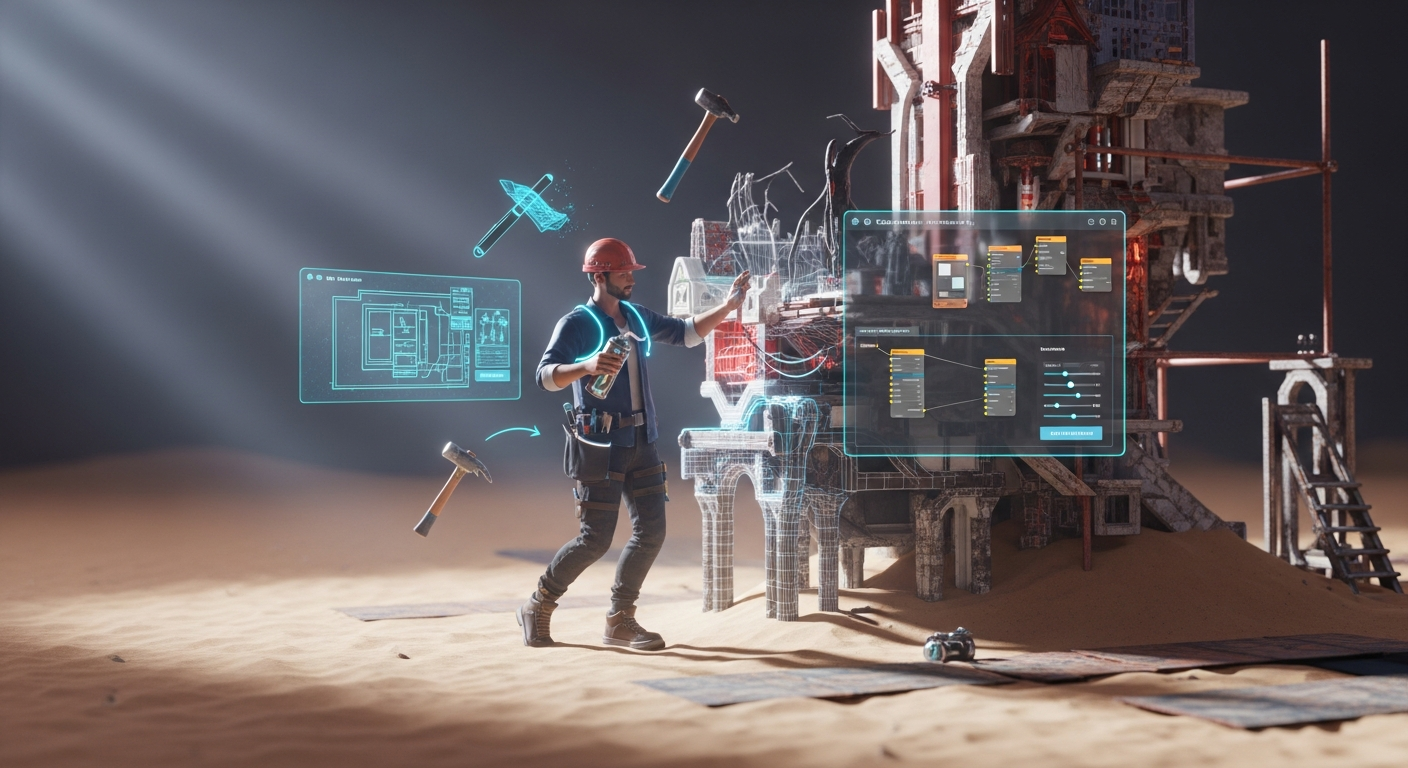
PBR Materials Workflow: Substance Painter to Alife — Free class in Alife Virtual School
Welcome, creators, to Alife Virtual School. In the ever-evolving landscape of the metaverse, the line between amateur and professional content is drawn with light, shadow, and texture. The secret to crafting truly breathtaking, photorealistic objects and environments lies not just in the geometry of your mesh, but in the sophisticated materials that cover its surface. This advanced workshop is your guide to mastering the PBR Materials Workflow: Substance Painter to Alife, a critical skill for any serious builder looking to elevate their creations from simple prims to AAA-quality assets within our free 3D world.
In this comprehensive tutorial, we will demystify the process of using Adobe Substance Painter, the industry-standard texturing software, to create stunning Physically Based Rendering (PBR) materials. You will learn the complete pipeline, from setting up your project and texturing your model to exporting the precise texture maps Alife Virtual requires and assembling them in-world for a flawless, professional result. This is the workflow used by game developers and VFX artists worldwide, and today, you'll learn to harness its power to make your mark on the Alife virtual economy.
The Alife Advantage: Creating Without Compromise
Before we dive into the technical details, it's crucial to understand why learning this skill in Alife Virtual is a game-changer. In other platforms, like Second Life, the cost of experimentation can be staggering. Every texture upload, every mesh iteration, and the very land you build on comes with a fee. This financial friction stifles creativity and punishes learning. Alife Virtual, a true Second Life alternative, removes these barriers completely.
Let's compare the cost of mastering this advanced PBR workflow:
| Feature / Activity | Alife Virtual | Legacy Platforms (e.g., Second Life) |
|---|---|---|
| Land for Building | FREE 65,536 sqm Private Island, for one month. | $200 - $300+ per month for a comparable region. |
| Texture & Mesh Uploads | FREE & UNLIMITED. Iterate and perfect your materials as many times as you need. | ~L$10 per texture/mesh upload. A single PBR material set (3-4 maps) costs L$30-L$40 per object. This adds up incredibly fast. |
| Learning & Experimentation | 100% Free. Mistakes cost nothing. Your creativity is the only currency. | Costly. A failed export or a wrong texture map means wasted real-world money. |
In Alife, you have the freedom to follow this tutorial, make mistakes, re-export, and perfect your technique without ever worrying about fees. This is the cornerstone of our 100% free economy—empowering creators to build the future of the metaverse without financial constraints.
What You Will Learn
Upon completing this masterclass, you will be able to:
- Understand the core principles of the PBR Metallic/Roughness workflow.
- Properly set up a new project in Substance Painter for use with Alife Virtual.
- Bake essential mesh maps (like Normal and Ambient Occlusion) from a high-poly model to a low-poly model.
- Utilize layers, smart materials, and generators in Substance Painter to create realistic textures.
- Create a custom export preset to generate the specific texture maps required by Alife's material system.
- Correctly assemble your exported PBR maps (Diffuse, Normal, and Specular) in-world using the Firestorm Viewer for a photorealistic result.
Prerequisites
This is an Advanced class. We assume you have a foundational knowledge of 3D content creation. Please ensure you have the following before you begin:
- An Alife Virtual account and the Firestorm Viewer installed.
- A license for (or trial version of) Adobe Substance Painter.
- A 3D modeling application (e.g., Blender, Maya, 3ds Max).
- A 3D model ready for texturing. It must be properly UV unwrapped. For best results, have both a low-poly version (for in-world use) and a high-poly version (for baking details).
- Basic familiarity with navigating the Firestorm build/edit menu.
Step-by-Step Tutorial: From Substance Painter to Alife Virtual
Let's begin the deep dive. For this example, we'll imagine we're texturing a simple sci-fi crate. We have crate_low.fbx (our game-ready model) and crate_high.fbx (our detailed sculpt).
Phase 1: Project Setup in Substance Painter
The first step is to create a project that is correctly configured for our PBR workflow.
- Open Substance Painter and go to
File > New. - In the New Project window, click the Select button and choose your low-poly model file (e.g.,
crate_low.fbx). - Set your Document resolution.
2048is a good standard for hero props;1024is great for general assets. You can change this later. - For Normal Map format, ensure OpenGL is selected. Alife (via Firestorm) uses the OpenGL standard. This is a critical step!
- Click OK to create the project. Your 3D model will appear in the viewport.
Phase 2: Baking Mesh Maps
This is where we transfer the rich detail from our high-poly model onto our efficient low-poly model's texture maps. This process generates the core data that Substance Painter's smart materials rely on.
- In the Texture Set Settings window, find and click the Bake Mesh Maps button.
- A new baking window will appear. In the High Definition Meshes section, click the small document icon and select your high-poly model file (e.g.,
crate_high.fbx). - Set your Output Size to match your project resolution (e.g.,
2048). - In the list of maps on the left, you primarily need Normal, Ambient Occlusion, and Curvature. These are the workhorses for realistic material generation. You can leave the others selected as they can also be useful.
- Leave most settings at their default for your first attempt. You may need to adjust the Max Frontal Distance and Max Rear Distance if you have projection errors, but the default "by mesh name" matching usually works well if your models are named correctly (e.g.,
crate_lowandcrate_high). - Click Bake Selected Textures. Substance Painter will now "bake" the details. When it's finished, you'll see your low-poly model in the viewport suddenly appear much more detailed.
Phase 3: The Art of Texturing
Now for the creative part. Substance Painter works with layers, much like Photoshop. We'll build our material from the ground up.
- Base Material: Start by finding a base material in the Shelf. Let's search for "Steel" and drag the
Steel Paintedmaterial onto our layer stack. This will be our foundation. You can adjust its color and properties in the Properties panel. - Adding Wear and Tear: We want to add some scratches and expose the bare metal underneath.
- Create a new Fill Layer above the painted steel layer.
- In the Properties for this new Fill Layer, set the color to a dark metallic grey, increase the
metallicslider to 1, and set theroughnessto a mid-range value (e.g., 0.4). This is our bare metal. - Right-click the bare metal layer and select Add black mask. The layer will disappear.
- Right-click the black mask and select Add generator.
- In the generator's properties, click the Generator button and select something like
Metal Edge Wear. - Instantly, the generator will use your baked Curvature and AO maps to intelligently place wear and tear on the edges of your crate, revealing the "bare metal" layer underneath. Tweak the generator's sliders to get the exact look you want.
- Adding Grime: Create one more Fill Layer at the top for dirt. Set its color to a dark brown, make its
metallic0, and itsroughnesshigh (e.g., 0.8). Add a black mask and a new generator, this time choosing aDirtgenerator. This will use the Ambient Occlusion map to place dirt in the crevices.
Pro Tip: Always work from the base material up. Think about how an object is constructed and how it would weather in the real world. Metal base -> Primer -> Paint -> Scratches -> Dirt -> Grime. This layered approach is the key to photorealism.
Phase 4: Exporting for Alife Virtual
This is the most technically precise step. Alife, like many Open Simulator based worlds, uses a PBR system where the Metallic and Roughness maps are packed into the Green and Blue channels of a single texture file, which is then loaded into the "Specular" slot in-world.
We must create a custom export preset to do this automatically.
- Go to
File > Export Textures(or press Ctrl + Shift + E). - Go to the Output templates tab. In the list, find the "PBR Metallic Roughness" preset and click it to duplicate it. Let's name our new preset "Alife PBR (Met/Rough)".
- We now need to configure this new preset. We need three maps:
- Base Color (Diffuse): This is usually already set up. It should be an
RGBmap taking its input fromBaseColor. - Normal: This should be an
RGBmap taking its input fromNormal OpenGL. - Specular (Packed Map): This is the one we need to create. Click the "+" icon and choose RGB to create a new output map.
- Drag the name to rename it to
$textureSet_Specular. - From the "Input maps" on the right, find Metallic. Drag and drop it onto the G channel button of your new map. Select "Grayscale" when prompted.
- Find Roughness. Drag and drop it onto the B channel button. Select "Grayscale".
- The R channel should be black. Drag the
RGBbutton from the "Constant color" section at the bottom right onto the R channel and set its color to black.
- Drag the name to rename it to
- Base Color (Diffuse): This is usually already set up. It should be an
- Your "Alife PBR (Met/Rough)" preset is now ready! Go back to the Settings tab.
- Choose an output directory.
- Set the Output template to your new "Alife PBR (Met/Rough)" preset.
- Ensure the file type is PNG. Click Export.
You will now have three files in your output folder: YourTextureSet_BaseColor.png, YourTextureSet_Normal.png, and YourTextureSet_Specular.png.
Phase 5: Assembling the PBR Material in Alife
With our perfectly crafted maps, it's time to bring our asset to life in our free 3D world.
- Log into Alife Virtual with your Firestorm Viewer. Go to your FREE private island.
- Rez your low-poly model (
crate_low.daeor.fbx). - Upload your three texture maps:
BaseColor,Normal, andSpecular. Thanks to Alife's FREE unlimited uploads, this costs you nothing. - Right-click your object and choose Edit.
- In the edit window, go to the Texture tab.
- Click the radio button for Materials.
- You will see three texture slots: Diffuse (Color), Normal, and Specular.
- Click the texture box for Diffuse, find your uploaded
BaseColormap, and apply it. - Click the texture box for Normal, find your uploaded
Normalmap, and apply it. Your object will gain depth. - Click the texture box for Specular, find your uploaded
Specular(Met/Rough packed) map, and apply it. This is where the magic happens.
- Click the texture box for Diffuse, find your uploaded
- Crucial Final Settings:
- Set the Glossiness slider to 0. This is vital. The glossiness is now being controlled by the Roughness information in your specular map's blue channel.
- Set the Environment slider to 100. This allows the metallic parts of your object to reflect the sky and environment.
- Leave the "Shininess" dropdown on
None.
Step back and admire your work. Your object should now have photorealistic material properties, with metallic parts reflecting the environment and rough parts appearing dull. You have successfully completed the professional PBR workflow!
Common Mistakes and Pro Tips
Mistake #1: Inverted Normals. If your object's lighting looks strange and inverted, you likely exported with the DirectX Normal format instead of OpenGL. Go back to Substance Painter and re-export using the correct format.
Mistake #2: Flat or overly shiny materials. If your material looks uniformly shiny or flat, you forgot to set the Glossiness slider to 0 and the Environment slider to 100 in the Firestorm material editor. This hands control over to your texture maps.
Pro Tip: Texel Density. For professional results, maintain a consistent texel density across all assets in a scene. This means the texture resolution is proportional to the object's size on screen. Use a Texel Density checker tool in your 3D app or Substance Painter to ensure uniformity and high-quality results.
Pro Tip: Use a good default Sky. PBR materials rely on reflecting their environment. For best results while working, set a good default sky preset in Alife that has varied colors and clouds. Go to
World > Sun > Environment Editorand choose a preset like "Naboo" to see your reflections pop.
Advanced Applications
Once you've mastered this for single objects, you can expand your skills:
- Architectural Visualization: Create a full library of materials (concrete, glass, steel, wood) and apply them to a large-scale build on your free Alife island.
- Avatar Attachments: Use this exact workflow to create hyper-realistic clothing, armor, and accessories for your free pro mesh avatar.
- Dynamic Materials with LSL: For the ultimate level of interaction, you can use LSL scripting to dynamically swap material properties. Imagine a car that gets dirtier over time or a surface that becomes wet in the rain. Using
llSetLinkPrimitiveParamsFastwith thePRIM_FULLBRIGHT,PRIM_SHINY, andPRIM_BUMP_SHINYparameters, you can script changes to your materials in response to triggers, creating a truly dynamic experience.
Practice Exercise
Time to get your hands dirty. Your assignment is to texture a basic object from start to finish.
- Rez a simple default prim, like a cube or a cylinder, on your Alife island.
- Export it as a
.daefile (Build > Object > Save as DAE). This will be your low-poly model. - Take this model through the entire workflow detailed above. Since you don't have a high-poly, you can skip the baking step (or just bake the basic maps like AO from the low-poly itself).
- In Substance Painter, challenge yourself to create a "worn, painted wood" material. Use a wood base, a paint layer on top, and use a generator with a black mask to create chips and wear that reveal the wood grain underneath.
- Export your three maps, upload them to Alife for free, and apply them to the prim.
Frequently Asked Questions (FAQ)
- Why do my PBR materials look different in Alife than in Substance Painter's viewport?
- The final look is highly dependent on the in-world lighting and environment (skybox). Substance Painter uses high-dynamic-range images (HDRI) for its lighting, which can be more detailed than a virtual world's sky. The key is to get it looking great within the context of Alife's environment. Adjust your sun and sky settings to see how the material reacts to different lighting conditions.
- Can I use this workflow for my own custom mesh avatar?
- Absolutely! The process is identical. Your avatar's body, clothing, and attachments are all meshes that can be textured in Substance Painter. This is how professional avatar creators achieve stunningly realistic looks.
- What is the difference between the Metallic/Roughness and Specular/Glossiness PBR workflows?
- They are two ways to describe the same physical principles. Metallic/Roughness is the modern industry standard used by Substance Painter, Unreal Engine, and Unity. Alife's material system is flexible and can interpret our packed Met/Rough map correctly when loaded into the Specular slot, effectively using the modern workflow.
- Do I absolutely have to use Substance Painter?
- While Substance Painter is the industry leader, other PBR texturing applications like Quixel Mixer or ArmorPaint exist. The core principles remain the same: you must create a Base Color, a Normal (OpenGL), and a packed map where Metallic is in the Green channel and Roughness is in the Blue channel.
Your Creative Freedom Awaits in Alife Virtual
You now possess the knowledge to create assets that rival those in high-end video games. The barrier to entry is no longer technical skill, and thanks to Alife Virtual, it's certainly not financial. Imagine building an entire cyberpunk city, a photorealistic enchanted forest, or a line of hyper-detailed products for the virtual economy, all without spending a dime on land or uploads.
This is the power of a truly free metaverse. This is the promise of Alife Virtual.
Ready to build without limits? Join our growing community of creators and claim your free for one month island today.
🎓 Ready to Practice In-World?
Get your FREE island and practice everything you just learned — no credit card, no monthly fees.
Claim Your Free Island Now →No credit card required · Takes 2 minutes · Your island is FREE for one month