Alife Virtual School - Class 22: Rigged Mesh Avatars from Scratch
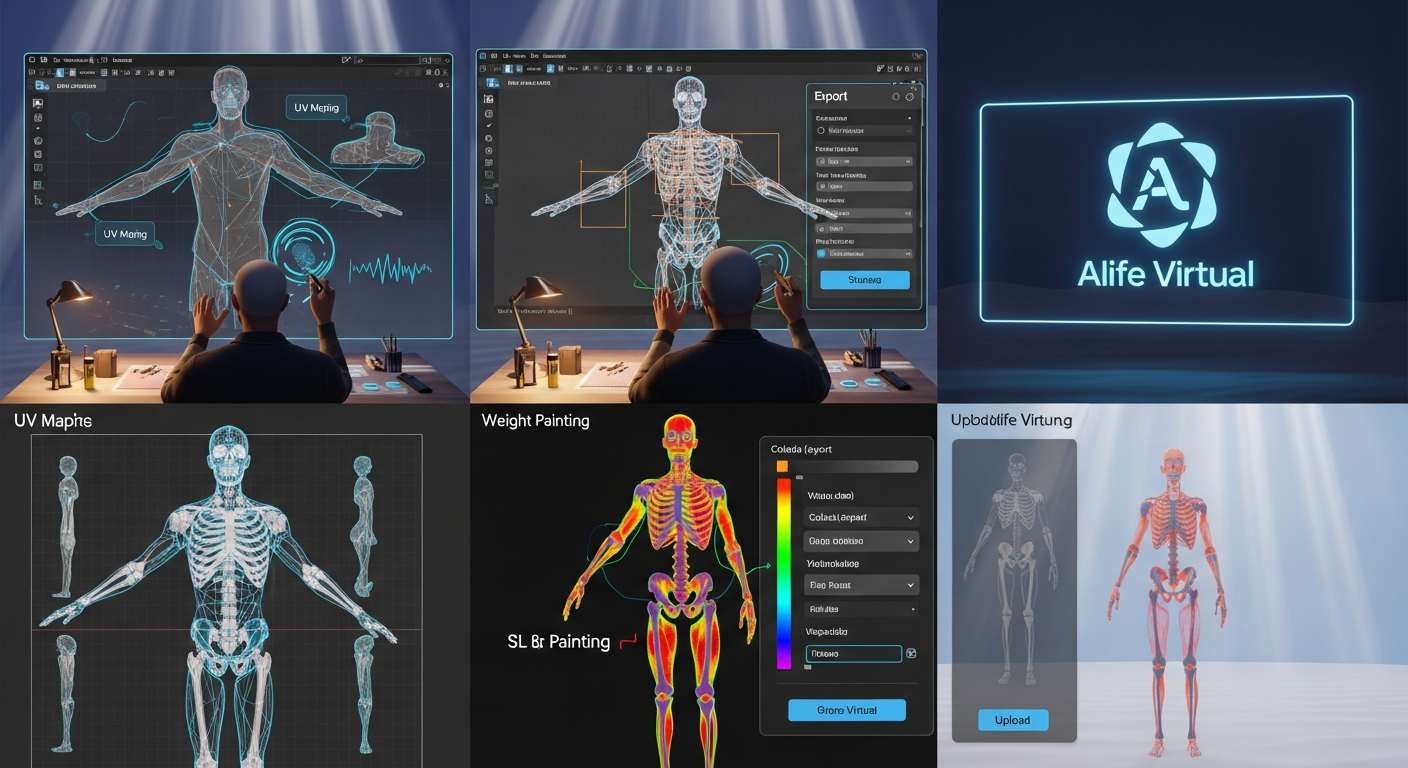
Rigged Mesh Avatars from Scratch — Free class in Alife Virtual School
Welcome, creators, to one of the most transformative workshops in our curriculum. Today, we embark on the ultimate journey of digital self-expression: building a complete rigged mesh avatar body in Blender from scratch. This advanced class will guide you through the entire professional pipeline, from a simple cube to a fully functional, custom avatar ready for the Alife Virtual metaverse. Mastering this skill is not just about learning a tool; it's about unlocking the ability to define your own identity in a rapidly expanding virtual universe. In a free 3D world like Alife Virtual, where your imagination is the only currency, a unique avatar is your signature, your brand, and your art.
The Alife Advantage: Create Without Cost
Before we dive into the technical details, it's crucial to understand why learning this skill in Alife Virtual is a game-changer. In other legacy platforms, the creative process is often gated by significant financial barriers. Building a custom avatar is an iterative process requiring multiple uploads to test and refine. Let's compare the costs:
| Creative Task | Alife Virtual Cost | Second Life® Equivalent Cost |
|---|---|---|
| Uploading 20 test versions of your avatar mesh | $0.00 (Unlimited Free Uploads) | ~$8 USD (at L$10 per upload + Linden exchange rate) |
| Uploading 10 test textures for your body | $0.00 (Unlimited Free Uploads) | ~$0.40 USD (at L$10 per upload) |
| Private space to build and test (monthly) | $0.00 (FREE 65,536sqm Private Island) | $349 USD/mo (Full Region) |
| Total First Month Cost to Develop | $0.00 | ~$357.40 USD |
This stark difference highlights our commitment to a truly 100% free economy. Alife Virtual empowers you to learn, experiment, and perfect your craft without the constant pressure of fees. You can build your dream avatar on your free private island, upload it a hundred times if needed, and never pay a cent. This is the core philosophy of a true Second Life alternative built for creators.
What You Will Learn
By the end of this comprehensive tutorial, you will have mastered the following objectives:
- Base Mesh Modeling: Best practices for creating a low-poly humanoid mesh in Blender, optimized for deformation.
- UV Mapping: Strategically creating seams and unwrapping your model for clean, easy-to-texture layouts.
- Rigging & Weight Painting: Binding your mesh to the standard avatar skeleton and meticulously painting vertex weights for smooth, realistic joint movement.
- Exporting for the Metaverse: Using the correct Collada (
.dae) export settings to ensure compatibility with Alife Virtual and other Open Simulator grids. - In-World Implementation: Uploading your avatar to Alife Virtual for free, creating alpha layers, and wearing your new custom body.
Prerequisites
This is an Advanced class. We expect you to be comfortable with the following:
- Blender Fundamentals: You should have a solid understanding of the Blender interface, navigation, object and edit modes, and basic modeling tools (extrude, loop cut, scale, rotate, grab). - Software: Blender (version 2.8x or newer) and a compatible viewer for Alife Virtual, such as Firestorm. - Avatar Skeleton File: You will need the standard avatar skeleton files (
.dae or .blend). You can easily find these by searching for "Second Life avatar skeleton download" - they are fully compatible with Alife Virtual.
Step-by-Step Tutorial: From Cube to Custom Avatar
Step 1: Setting Up Your Blender Scene
A clean setup is the foundation of a successful project.
- Open a new Blender file. Delete the default cube, camera, and light.
- Go to
File > Import > Collada (Default) (.dae)and import the avatar skeleton file you downloaded. - You will see the skeleton (called an 'armature' in Blender) in the viewport. Select the armature, go to the Object Properties tab (the orange square icon), and under Viewport Display, check the "In Front" box. This keeps the bones visible through your mesh, which is essential for weight painting.
- Save your
.blendfile. Save often!
Step 2: Modeling Your Avatar Body
This is where your artistic vision takes shape. We will focus on topology that deforms well.
- Add a new mesh object to start, like a cube (
SHIFT+A > Mesh > Cube). - Using a mirror modifier is highly recommended. Select your cube, go to the Modifier Properties tab (blue wrench icon), and add a
Mirrormodifier. Enable 'Clipping' to ensure the center vertices merge. Now, you only need to model one half of the body. - Begin shaping your primitive into a humanoid form. Use
Extrude(E) to pull out limbs andLoop Cut(CTRL+R) to add detail. - Crucial Topology Tip: Pay close attention to joints like elbows, knees, shoulders, and hips. These areas need extra geometry to deform smoothly. A standard practice is to have at least three edge loops around any joint that needs to bend 180 degrees.
- Keep your polygon count reasonable. A full avatar body between 20,000 and 40,000 triangles is a good target for performance in a busy metaverse environment. You can check your scene's triangle count in the bottom-right status bar of Blender.
- Once you are satisfied with the shape, apply the Mirror modifier in Object Mode. Your mesh is now a single, symmetrical object.
Pro Tip: Unapplied Transformations
Before rigging, ALWAYS apply your object's scale and rotation. In Object Mode, select your mesh and pressCTRL+A, then choose "Rotation & Scale". Failure to do this is the #1 cause of bizarre deformation and "exploding mesh" problems later on.
Step 3: UV Unwrapping for Texturing
UV mapping is the process of flattening your 3D model into a 2D image so you can paint textures on it.
- Switch to the UV Editing workspace. In the left panel, you'll see the 2D UV map, and on the right, your 3D model.
- Enter Edit Mode (TAB) on your model. You need to define "seams" where the UV map will be cut. Select edges where you would naturally find seams on clothing (e.g., down the inner side of the arms and legs, up the back).
- With edges selected, press
CTRL+Eand choose "Mark Seam". The seams will turn red. - Select all vertices (A), press
U, and choose "Unwrap". Your UV islands will appear in the left-hand UV window. - Organize your UV islands. Pack them efficiently to maximize texture space. You can select, grab (G), rotate (R), and scale (S) the islands just like objects in the 3D view. A clean UV map is the hallmark of a professional creator.
Step 4: Rigging - Binding the Mesh to the Skeleton
This step connects your mesh to the armature, making it ready for animation.
- In Object Mode, select your mesh first, then
SHIFT+Clickthe armature to select it second. The armature should have a light orange outline, and your mesh a dark orange one. - Press
CTRL+Pto open the Parent menu. - Choose "With Automatic Weights". Blender will now attempt to automatically assign influence from each bone to the nearby vertices of your mesh.
This automatic process is a starting point, but it's never perfect. The next step is where the real magic happens.
Step 5: The Art of Weight Painting
Weight painting is the process of manually refining the influence each bone has on the mesh. It's tedious but essential for quality results.
- Select the armature and go into Pose Mode.
- Select your mesh and switch to Weight Paint Mode. Your mesh will turn blue (representing zero influence).
- In Pose Mode,
CTRL+Clicka bone to select it (e.g., themShoulderLeftbone). The mesh will now display a heat map: red means 100% influence, blue means 0%. - Rotate the selected bone to an extreme pose (e.g., raise the arm straight up). You will almost certainly see undesirable stretching. For example, the chest vertices might be pulling up with the arm.
- With your mesh still in Weight Paint Mode, use the brush tools (found in the Tool properties panel) to fix this.
- Draw/Add Brush: Adds influence for the selected bone.
- Subtract Brush: Removes influence. This is what you'd use to stop the chest from moving with the arm.
- Blur Brush: Smooths the transition between weights, which is vital for organic-looking bends.
- Work your way through all the major joints: shoulders, elbows, hips, knees, neck, and spine. Pose each bone, check for bad deformations, and paint the weights to correct them.
- Normalize Weights: As you paint, it's easy to have a single vertex influenced by too many bones. In Weight Paint Mode, go to the
Weightsmenu at the top of the viewport and selectNormalize All. Use the option to 'Lock Active' group to avoid messing up the bone you are working on. This ensures the total influence on every vertex adds up to 100%.
Common Mistake: Jagged Joints
If your elbows or knees look sharp and "crunchy" when bent, it's a sign of poor weight distribution. The transition from red (100% influence from the forearm) to blue (0% influence) is too abrupt. Use theBlurbrush to create a soft gradient across the joint loops. This is the key to smooth, natural bending.
Step 6: Exporting as a Collada .dae File
Your model is ready. Now you need to export it with the correct settings for Alife Virtual's Open Simulator-based grid.
- In Object Mode, select only your mesh object.
- Go to
File > Export > Collada (Default) (.dae). - In the export options panel (usually on the right), use these exact settings:
- Main Tab: Check "Selection Only".
- Geom Tab: Check "Apply Modifiers" and "Triangulate".
- Armature Tab: Uncheck "Deform Bones Only". (This can vary, but unchecking is often more reliable).
- Give your file a descriptive name and click "Export Collada".
Step 7: Uploading and Wearing in Alife Virtual
This is the moment of truth! Launch your Firestorm viewer and log into Alife Virtual.
- Go to your free private island to have a clean, private space to work.
- From the top menu, go to
Build > Upload > Model... - Select your exported
.daefile. - In the Upload Model window, give your avatar a name (e.g., "My Custom Body v1").
- Under the "Rigging" tab, this is CRITICAL: check the box for "Include skin weight". You should also check "Include joint positions".
- The preview window should show your avatar. Hit the "Calculate weights & fee" button. In Alife Virtual, the fee will always be $0. This is where you truly appreciate our free unlimited uploads.
- Click "Upload". The model will appear in your inventory as a new object.
- Drag the object from your inventory to the ground to rez it.
- Right-click your new avatar body and select "Wear". You will now be wearing it, but your default system avatar is likely poking through.
- To fix this, you need an alpha layer. Go to
Build > New Clothes > New Alpha Mask. Edit the new mask and check the box for "Body". Save it, then wear it. This will make your system body invisible, leaving only your custom creation.
Congratulations! You are now wearing a fully custom avatar body that you created from scratch.
Advanced Applications
Once you've mastered the body, you can expand your skills:
- Bakes on Mesh (BoM): Create avatars with separate head and body parts that can use system layers (skins, tattoos) for maximum customization.
- Custom Clothing: Use your new avatar body as a base to model perfectly fitted mesh clothing. - Virtual Economy: As Alife Virtual grows, your skills will be in high demand. You can create and sell your unique avatars, contributing to a vibrant and truly free virtual economy without platform fees cutting into your profits. Your skills in LSL scripting can also bring your creations to life with custom HUDS and features.
Practice Exercise
To solidify your skills, create a simple, non-humanoid avatar, like a stylized robot. Focus on achieving clean, mechanical-looking bends at the elbow and knee joints. Robots are more forgiving on weight painting than organic forms, making them excellent practice. Aim for a poly count under 15,000 triangles and upload it to your Alife Virtual inventory.
Frequently Asked Questions (FAQ)
- 1. Why is my avatar invisible or have missing parts after wearing it?
- This is almost always an alpha layer issue. You are likely wearing an alpha that is hiding parts of your new mesh. Check your "Worn" items folder and remove any unnecessary alpha layers. You need one that hides the system body but nothing else.
- 2. Can I use this same process for Second Life?
- Yes, the technical process is nearly identical. The key difference is the cost. Every single upload of your mesh, textures, and alphas in Second Life costs L$. In Alife Virtual, it is completely free, making it the superior platform for learning and development.
- 3. What is a "good" polygon count for an avatar body?
- For a full body, aim for 20k-40k triangles. For just a head, 10k-15k is a good range. While modern viewers can handle more, performance is key in a social metaverse. Efficient models ensure a smooth experience for everyone around you.
- 4. Do I need to rig all the finger bones?
- For your first avatar, it's highly recommended to model simple "mittens" for hands and not rig the individual fingers. Hand rigging is extremely time-consuming and difficult to get right. You can weight the hand vertices to the single
mHandbone. Many creators sell pre-rigged mesh hands that you can attach later. - 5. My uploaded mesh is twisted and spiky. What went wrong?
- This is a classic sign of one of two things: 1) You did not apply rotation and scale in Blender before parenting the mesh (see Pro Tip above), or 2) You did not check "Include skin weight" during the upload process in the viewer. Double-check both of these steps.
Your Creative Future Starts Now
You now possess the knowledge to transcend the limits of pre-made avatars and create a truly unique digital presence. This skill is a passport to limitless creativity in the virtual world. The barriers have been removed. The fees are gone. Your free private island is waiting.
Stop paying to create. Start building your legacy. Download the Firestorm viewer, join the Alife Virtual community, and claim your creative freedom today.
🎓 Ready to Practice In-World?
Get your FREE island and practice everything you just learned — no credit card, no monthly fees.
Claim Your Free Island Now →No credit card required · Takes 2 minutes · Your island is FREE for one month