CLASS 2: RLV and RLVa for Creators
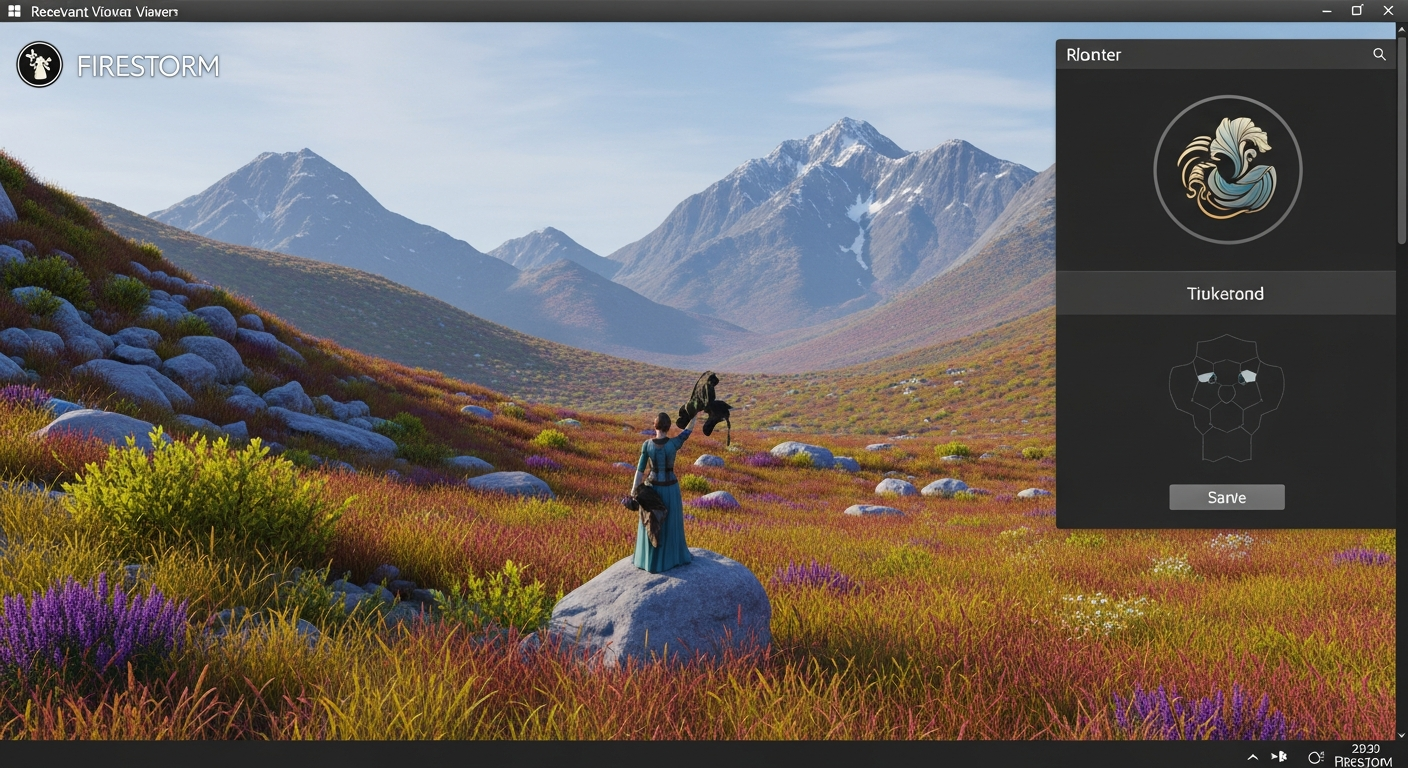
RLV and RLVa for Creators — Free class in Alife Virtual School
Unlock Immersive Experiences in Alife Virtual
Have you ever explored an escape room in Alife Virtual and wondered how it prevented you from teleporting out? Or sat on a roleplay throne that automatically detached your AO and gave you a regal pose? The magic behind these immersive, experience-driven items is a powerful tool called RLV, and mastering it is your next step to becoming a pro creator.
In the bustling, creative world of Alife Virtual, RLV (Restrained Love Viewer) and its modern implementation, RLVa, are the keys to building objects that don't just sit there—they interact with the user on a fundamental level. They allow you, the creator, to guide a user's experience by controlling camera angles, managing attachments, restricting movement, and much more. This isn't just for roleplay; it's for creating tutorials, building interactive art, designing complex vehicles, and crafting unforgettable adventures. Since Alife Virtual uses the same Firestorm viewer and LSL scripting language as Second Life, every skill you learn here is a powerful, transferable asset.
This class will demystify RLVa, transforming it from a complex acronym into a practical tool in your creator's toolkit. We'll move beyond basic building and scripting and dive into the world of experience design. Ready to make your creations come alive?
What You Will Learn
By the end of this class, you will be able to:
- Understand the core concepts of RLV and the RLVa API.
- Confidently enable and manage RLVa within your Firestorm viewer.
- Grasp the fundamental principles of how LSL scripts communicate with the RLVa API.
- Write a simple LSL script to create an RLV-powered "focus chair."
- Identify and troubleshoot the most common issues when working with RLV.
Prerequisites
To get the most out of this advanced class, you should already have:
- An Alife Virtual account. If you don't have one, you can register for free and get started in minutes.
- The Firestorm Viewer installed and configured for Alife Virtual.
- Basic familiarity with the Firestorm interface, building tools, and inventory management.
- A foundational understanding of LSL scripting (variables, events, and basic functions). Our "LSL 101" class is a great place to start!
Main Tutorial: From Zero to RLV-Enabled Creator
Part 1: What Are RLV and RLVa?
At its core, RLV (Restrained Love Viewer) is a feature set that extends the capabilities of a standard viewer like Firestorm. It establishes a communication channel between in-world scripted objects and your viewer software. When you grant permission, these objects can send commands that your viewer will execute.
RLVa (Restrained Love Viewer API) is the modern, actively developed version of this system. It's the "language" or Application Programming Interface that creators use within their LSL scripts to send those commands. Think of it this way: your avatar is an actor, and an RLVa-scripted object is the director. The director can tell the actor where to stand, what to wear (or not wear), where to look, and whether they can leave the set.
While the name might suggest niche uses, RLVa is a versatile tool for all kinds of creators:
- Game Designers: Create puzzles where a player is temporarily blind or cannot fly.
- Roleplayers: Build functional detainers, medical equipment, or locked armor.
- Furniture Makers: Design chairs and beds that automatically manage poses and attachments for a seamless experience.
- Educators: Build presentation systems that force a student's camera to focus on a specific display board.
Part 2: Enabling RLVa in Your Firestorm Viewer
Before you can create or experience RLV content, you must enable it. This is a crucial security feature, ensuring you have explicitly opted-in.
- Log into Alife Virtual with your Firestorm viewer. You can do this on any standard desktop—no VR headset required!
- Open the Preferences window by pressing Ctrl + P or by going to
Avatar > Preferencesin the top menu. - In the Preferences window, click on the Firestorm tab on the left.
- Now, select the RLVa sub-tab.
- Check the box labeled Enable RLVa (RestrainedLove API).
- A warning will appear, explaining that enabling this feature allows in-world objects to control your viewer. This is the intended function. Click OK to accept.
- You must restart your viewer. Close Firestorm completely and log back in. RLVa will not be active until you have restarted.
Once you log back in, you'll see a small, locked padlock icon (🔒) in your viewer's address bar. This icon indicates that RLVa is active and ready to receive commands.
Tip: You can temporarily disable RLVa without a full restart by going to the top menu: World > RLV > Turn RLVa Off. However, a full restart is required to turn it back on.
Part 3: The Creator's Perspective - How It Works
The entire RLVa system is based on a simple, elegant concept: a script sends a specially formatted text message that only the viewer can hear.
- The Channel: Scripts send commands using the
llOwnerSay()function. This function normally makes an object "talk" to its owner in blue text. - The Command: When RLVa is enabled, the viewer listens for messages sent via
llOwnerSay()that begin with an "at" symbol (@). - The Execution: The viewer intercepts this message, so it never appears in your chat window. Instead, it parses the command and executes the corresponding action.
For example, to prevent the owner of a scripted object from teleporting, the script would execute this line of LSL code:
llOwnerSay("@tploc=n");
The viewer sees this command and immediately disables the user's ability to teleport. To re-enable it, the script would send:
llOwnerSay("@tploc=y");
It's that simple! The challenge and fun of RLVa scripting lies in learning the different commands and combining them to create sophisticated behaviors.
Part 4: Your First Project - The RLV "Focus Chair"
Let's build something practical. We'll create a chair that, when sat upon, forces the user's camera to look at a specific object and prevents them from standing up until they click the chair again. This is a perfect project to try out on your free island + 1,000 C$ for shopping (until 31 Dec 2026) in Alife Virtual. With 10,000 prims at your disposal and no monthly land fees (unlike Second Life's hefty $199/mo charge), you have all the space you need to experiment freely.
- Build the Scene:
- Create a simple prim to act as your chair. A flattened cube or a cylinder will do.
- Create a second, smaller prim (e.g., a small sphere) and place it a few meters in front of the chair. This will be our camera target. Name this prim "Focus Target" in the edit window.
- Create the Script:
- Right-click your chair prim, select Edit, and go to the Content tab.
- Click New Script. A new script named "New Script" will appear. Double-click it to open the LSL editor.
- Write the Code:
- Delete the default "Hello, Avatar!" code and paste the following script in its place.
// RLV Focus Chair Script for Alife Virtual School

key gTargetKey; // Stores the UUID of our focus target
key gSitterKey; // Stores the UUID of the person sitting

default
{
    state_entry()
    {
        // Set the sit target so the avatar is positioned nicely
        llSitTarget(<0.0, 0.0, 0.5>, ZERO_ROTATION);

        // Find the key of our target object by its name
        llSetTimerEvent(1.0); // Start a timer to search for the target
    }

    timer()
    {
        // Use llCastRay to find an object named "Focus Target" within 96m
        llCastRay(llGetPos(), llGetPos() + <0,0,1>, [RC_REJECT_AGENTS, RC_REJECT_PHYSICAL, RC_DETECT_NAME, "Focus Target", 1, 96.0]);
    }

    raycast_result(integer num_detected, list results)
    {
        if(num_detected > 0)
        {
            gTargetKey = llList2Key(results, 0); // Get the key of the first object found
            llOwnerSay("Focus target located.");
            llSetTimerEvent(0.0); // Stop searching
        }
    }

    changed(integer change)
    {
        if (change & CHANGED_LINK) // Something has happened with linking/sitting
        {
            gSitterKey = llAvatarOnSitTarget();
            if (gSitterKey != NULL_KEY) // Someone has sat down
            {
                // -- RLV COMMANDS --
                // Force the sitter's camera to look at our target
                llOwnerSay("@camunlock=force"); // Make sure camera isn't locked to avatar
                llOwnerSay("@camavdist:3=force"); // Set camera 3m away from avatar
                llOwnerSay("@camlookat:" + (string)gTargetKey + "=force"); // Point camera at target

                // Prevent the sitter from standing up
                llOwnerSay("@stand=n");

                llOwnerSay("You are now focused. Click the chair to be released.");
            }
            else // The person has stood up (or was unsat)
            {
                // We don't need to do anything here, because a touch will release them.
            }
        }
    }

    touch_start(integer total_number)
    {
        if(llDetectedKey(0) == gSitterKey) // If the person sitting is the one touching
        {
            // -- RLV CLEANUP COMMANDS --
            llOwnerSay("@stand=y"); // Allow standing
            llOwnerSay("@clear");   // Clear ALL RLV restrictions from this object

            // Unsit the avatar
            llUnSit(gSitterKey);
            llOwnerSay("You have been released.");
        }
    }
}
- Save and Test:
- Click Save. The script will compile. If you see any errors, double-check that you copied the code correctly.
- Close the script editor. Take a copy of the chair into your inventory, just in case!
- Right-click the chair and select Sit Here.
- Observe! Your camera should snap to the "Focus Target" prim, and if you try to press the "Stand" button, it won't work.
- Click the chair you are sitting on. The script will release you, and you will stand up.
Creator's Advantage: Notice how we used a custom script to build this interactive object. In Alife Virtual, not only do you get full LSL scripting support, but you also get free mesh, texture, and animation uploads. You could model a beautiful, unique chair in Blender, create custom textures, and upload it all for free to use with this script. In Second Life, every one of those uploads costs money, stifling creativity. Here, your imagination is the only limit.
Common Mistakes and How to Avoid Them
1. "My script isn't doing anything!"
- Did you enable RLVa and restart? This is the #1 reason for failure. Check for the 🔒 icon in your address bar.
- Are you the owner? Basic
llOwnerSay()commands only affect the object's owner. If you are testing a chair made by someone else, it won't work on you unless it uses a more advanced "relay" system. - Check for script errors. Look at
World > Script Errors/Warnings. A single typo in your LSL code can stop the entire script. - Check for RLV command typos. The command
@stnd=nwill do nothing because it's a typo. The correct command is@stand=n. The RLV system is very literal.
2. "I'm stuck! An object won't let me stand/teleport/detach something!"
RLV gives creators power, but it also gives users safeguards.
- The #RLV Folder: Look in your inventory's main "My Inventory" folder for a system folder named
#RLV. Any items force-worn by an RLV object will appear here. You can almost always right-click and detach items from this folder, even if the@detach=nrestriction is active. - RLV Restrictions Menu: Go to the top menu:
World > RLV > Restrictions. This window shows you every active RLV restriction on your avatar and which object (by name and key) is applying it. It's an invaluable tool for debugging. - The Ultimate Escape: If all else fails, you can log out, disable RLVa in the viewer's login screen settings, and log back in. No RLV commands will be active, and you can remove the offending object.
Advanced Tips and Tricks
- Check for RLV Beforehand: You can prevent errors and chat spam by checking if a user even has RLV enabled. Use
llOwnerSay("@version>={version_num}");in your script. The viewer will reply with@version={viewer_name}:{viewer_version},RLV={rlv_version}if RLV is on. You can detect this reply with alisten()event. - Combine Commands: To be more efficient, you can send multiple commands in a single line, separated by commas. This is faster and uses fewer script resources. For example:
llOwnerSay("@stand=n,tploc=n,showinv=n"); - Shared Folders: One of RLVa's most powerful features is the "shared folder." A creator can package a complete outfit in a folder inside a host object. Using the
@attachfolder:command, the object can force the user to wear the entire outfit, neatly organized into a subfolder inside the main#RLVfolder. This is essential for complex costumes and roleplay gear.
Practice Exercise: Enhance the Chair!
Now it's your turn to build upon what you've learned. Modify the "Focus Chair" script with a new feature:
Challenge: When a user sits on the chair, make it automatically find and detach their Animation Overrider (AO).
- Hint 1: Most AOs are attached to the
HUD Center 2screen attachment point. - Hint 2: The RLV command to detach something from a specific attachment point is
@detach:. You will need to look up the official name for the HUD attachment point (e.g., `hud-center-2`).=force - Hint 3: Don't forget to re-enable AOs when the user is released! The command you're looking for might be related to clearing restrictions.
This exercise will get you comfortable with looking up RLV commands and thinking about the complete user experience. Remember, you can do all this on the free full-body mesh avatar that comes with your Alife Virtual account!
Frequently Asked Questions (FAQ)
- 1. Is RLV dangerous? Can it steal my password or items?
- No. RLVa operates within a strict, predefined set of commands. It cannot access your computer's files, your password, or your payment information. It cannot delete items from your inventory. Its "power" is limited to controlling your viewer's functions and managing attachments. However, as with any tool, be mindful of who you grant this power to. Only use RLV items from creators you trust.
- 2. Why do creators use RLV instead of just standard LSL functions?
- RLV provides viewer-level control that is impossible with LSL alone. LSL can't stop you from teleporting, it can't control your camera, it can't hide your chat, and it can't prevent you from detaching an object. RLV bridges the gap between in-world scripts and the user's interface, enabling truly deep immersion.
- 3. Does RLV work in other virtual worlds like Second Life?
- Absolutely. The Firestorm viewer, LSL scripting, and the RLVa API work identically in both Alife Virtual and Second Life. This makes Alife Virtual the ultimate free training ground. You can learn, practice, and perfect your high-level creator skills here without spending a dime, then apply that knowledge anywhere. Our massive community of over 1,148,000 members is a great audience for your creations!
- 4. What's the difference between RLV and RLVa?
- Think of RLV as the original idea and RLVa as the modern, feature-rich, and actively maintained implementation of that idea. For all practical purposes as a creator using Firestorm, you are using RLVa. The terms are often used interchangeably in conversation.
Summary and Next Steps
Congratulations! You've taken a significant step into the world of advanced virtual creation. You now understand that RLVa is a command-based system that allows your LSL scripts to direct the user's experience. You've learned how to enable it, how to write a basic script, and how to troubleshoot common problems.
The best way to master RLVa is to practice. Head to a free island + 1,000 C$ for shopping (until 31 Dec 2026), rez some prims, and start experimenting with the full RLVa Command Reference. Try to make an object that temporarily hides the mini-map, or one that force-attaches a particle effect to the user.
Once you're comfortable with these concepts, you'll be ready for our next class, "Advanced RLVa: Relays and Shared Folders," where we'll explore how to make RLV objects that can be controlled by and affect other avatars. Browse all our free daily classes at the Alife Virtual School to continue your learning journey.
Start Your Creator Journey Today
Ready to build without limits? Join a virtual world that empowers creators instead of charging them. Register for your free Alife Virtual account and instantly claim your own FREE private 65,536 sqm island—a perk that would cost over $199/mo in Second Life, but is yours, for free.
Register for Alife Virtual for FREE
Claim Your Free Avatar and Start Building!
🎓 Ready to Practice In-World?
Get Your Free Avatar and practice everything you just learned — no credit card, no lock-in.
Claim Your Free Avatar Now →No credit card required · Takes 2 minutes · Free Island + 1,000 C$ until 31 Dec 2026