Alife Virtual School - Class 44: Virtual Photography for Marketplace Marketing
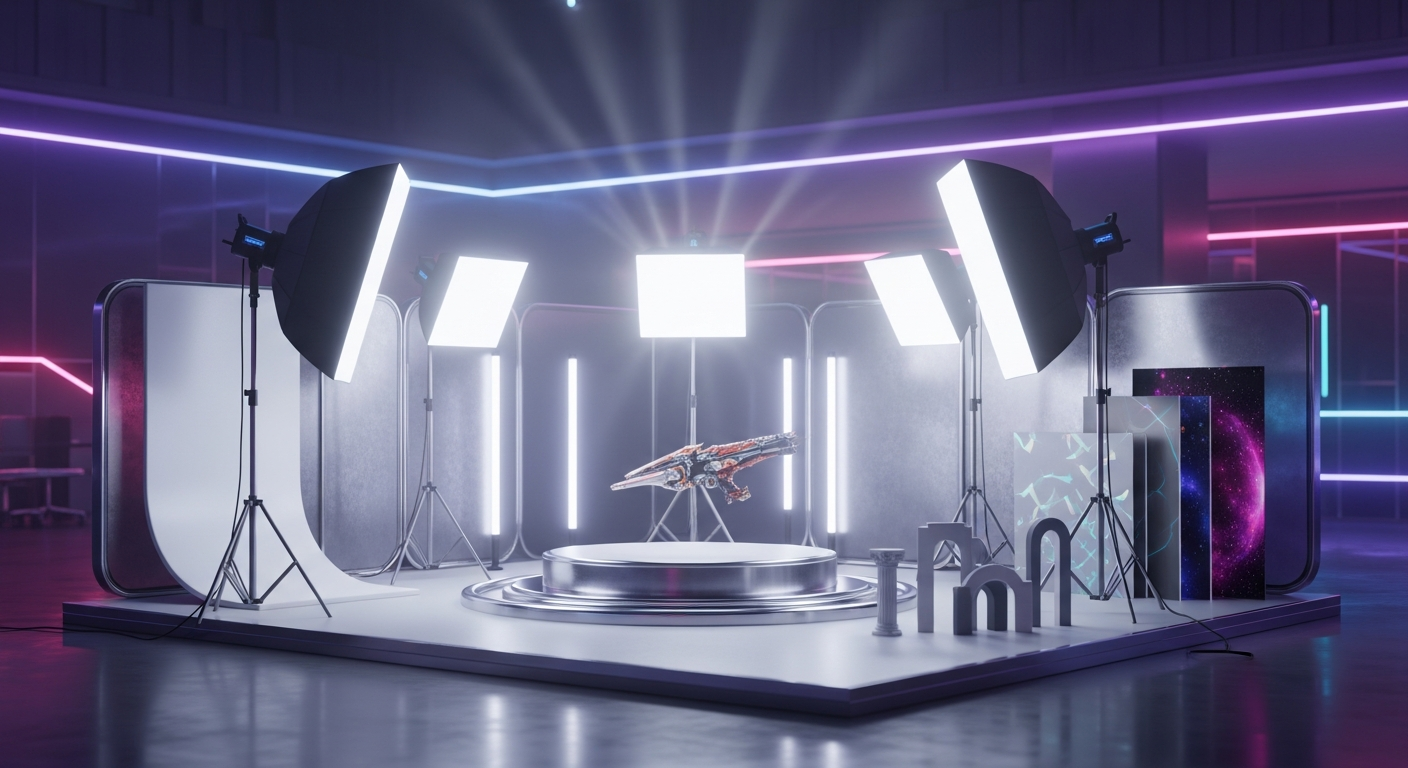
Virtual Photography for Marketplace Marketing — Free class in Alife Virtual School
In the bustling digital marketplaces of the metaverse, your product’s first impression is its last. Before a customer reads your item description or checks its permissions, they see one thing: your product photo. Mastering the art of Virtual Photography for Marketplace Marketing isn't just a creative skill; it's the single most powerful tool you have to stop the scroll, capture attention, and convert your digital creations into a sustainable income. In a free 3D world like Alife Virtual, where the barrier to entry for creators is zero, professional-grade product imagery is what separates hobbyists from top-selling merchants in our vibrant virtual economy.
This comprehensive workshop will guide you through the technical and artistic processes of shooting stunning product photos for your Alife Virtual marketplace listings. We'll move beyond simple snapshots and dive deep into professional techniques, transforming your product pages from amateur to irresistible and helping you thrive in the best Second Life alternative available today.
The Alife Advantage: Building a Professional Studio for FREE
In other virtual worlds, the cost of setting up a professional photo studio and business is a significant financial barrier. Creators often face hundreds of dollars in setup costs and recurring monthly fees just for the space to work. In Alife Virtual, we believe your creativity shouldn't come with a price tag. Here’s how building your business in Alife compares:
| Feature / Cost | Alife Virtual | Other Platforms (e.g., Second Life) |
|---|---|---|
| Private Workspace (Full Region) | $0 / month. Your 65,536 sqm private island is free, for one month. Perfect for a large, private photo studio. | ~$300 / month for a full region. Smaller, costly parcels are the only other option. |
| Uploading Assets (Textures, Mesh, etc.) | $0. Unlimited uploads are completely free. Upload all the backdrops, textures, and props you need. | ~L$10 (~$0.04 USD) per upload. This adds up to hundreds of dollars for active creators. |
| High-Quality Model Avatar | $0. Every resident receives a free, professional-grade mesh avatar ready for modeling. | Variable, but often $50 - $200+ for a complete mesh head, body, and skin. |
| Total Startup & Monthly Cost | $0 | $350+ initial cost, plus $300+ monthly fees. |
With Alife Virtual, you can invest your time and energy into honing your skills, not your wallet. Let's get started.
What You Will Learn
- Studio Construction: How to build a simple, effective photo studio on your free private island.
- Mastering EEP Lighting: Demystifying the Environment Enhancement Project (EEP) to create professional 3-point lighting setups from scratch.
- Posing & Composition: How to choose and use poses that flatter your product and apply fundamental composition rules like the Rule of Thirds.
- Camera Control: Leveraging viewer tools for high-resolution captures, perfect angles, and dramatic depth of field.
- Post-Processing Workflow: Essential, non-destructive editing techniques in common photo software to make your images pop.
Prerequisites
- An Alife Virtual account with your free private island set up.
- The Firestorm Viewer installed (our platform is fully compatible).
- Basic familiarity with viewer controls: camera movement, object rezzing, and inventory management.
- A desire to create high-quality products and build a business in a thriving metaverse.
Step-by-Step Tutorial: From Studio to Storefront
Step 1: Constructing Your Photo Studio
Your free 65,536 sqm island is the perfect blank canvas. For product photography, you need a controlled environment. The easiest way is to build a "photo cyclorama" or "cyc wall," which creates a seamless, infinite-looking background.
- Teleport to a quiet corner of your island.
- Create a large, flat prim for the floor. A good starting size is
20m x 20m x 0.1m. Texture it with a neutral grey (RGB128, 128, 128) and set it toFull Brighttemporarily so you can see. - Create a back wall prim (e.g.,
20m x 0.1m x 10m) and a side wall prim. Position them to form a corner. - The secret to the seamless effect is the curved piece. Rez a
Tubeprim. In the Object tab, setHollow ShapetoCircleand setProfile Cut Beginto0.25andEndto0.5. This creates a perfect quarter-curve. - Resize and rotate this tube piece to fit snugly between the floor and the back wall, creating a smooth transition. Duplicate and rotate it for the corner where the two walls meet.
- Link all the pieces together. You now have a basic studio set! You can texture it white, black, or any neutral color.
Step 2: Mastering EEP 3-Point Lighting
Forget default environments. Professional lighting creates depth, shape, and mood. We will replicate the classic 3-point lighting setup used by real-world photographers using EEP Projectors.
Open the lighting editor by going to World > Environment Editor > Personal Lighting. Make sure you are using a base sky that is very dark or black to ensure your lights are the only thing affecting the scene. A good starting point is the default [TOR] Night setting.
-
The Key Light (Main Light): This is your primary light source. It's the strongest and defines the look of the subject.
- In the Personal Lighting window, click the
+icon to add a new lighting object and selectProjector. - Rename it "Key Light".
- Position it roughly 45 degrees to the side of your subject and 45 degrees above them, pointing down. You can move projectors just like regular objects.
- Settings:
- Color: A neutral white, or slightly warm yellow.
- Intensity:
1.5-2.0(This should be your brightest light). - Radius:
10m - Falloff:
1.0(Creates softer edges). - FOV:
60-90(A wider field of view for softer light).
- In the Personal Lighting window, click the
-
The Fill Light (Shadow Control): This light is placed opposite the Key Light. Its job is to "fill in" the harsh shadows created by the key light, revealing detail in the darker areas.
- Add a new
Projectorand name it "Fill Light". - Position it on the opposite side of the Key Light.
- Settings:
- Color: Neutral white or slightly cool blue to contrast the warm key.
- Intensity:
0.5-0.7(It must be significantly less intense than the key light). - Radius:
15m - Falloff:
1.5 - FOV:
120(A very wide, soft light).
- Add a new
-
The Back Light (Rim/Hair Light): This light is placed behind the subject, pointing towards their back or the camera. It separates the subject from the background by creating a subtle, bright outline (a "rim").
- Add a final
Projectorand name it "Back Light". - Position it behind your subject, high up and pointing down at their head and shoulders.
- Settings:
- Color: Neutral white.
- Intensity:
1.0-1.2 - Radius:
8m - Falloff:
0.5(A harder edge is okay here). - FOV:
45
- Add a final
Finally, enable Ambient Occlusion (SSAO) in your graphics preferences (Me > Preferences > Graphics > Advanced Lighting Model must be on). This will add contact shadows where objects meet, creating a massive boost in realism.
Pro Tip: Save your hard work! In the Personal Lighting window, click the gear icon and choose Save As. Name your lighting setup something like "Product Studio - 3 Point". You can now load this instantly for any future photoshoot.
Step 3: Posing Your Model & Product
A great product on a stiff, default "T-pose" avatar will not sell. Posing breathes life into your product, showing how it fits, drapes, and feels.
- For Clothing: Use a mix of static poses. You need at least one front, one back, and one 3/4 view. Look for poses that create elegant lines and show off the tailoring. Avoid poses that obscure the product with crossed arms or dramatic angles.
- For Accessories (Jewelry, Shoes): Use close-up, hand, or specific body part poses. A pose that showcases a necklace should have the avatar's hands away from the chest.
- For Furniture/Decor: Pose your avatar interacting with the item. Sitting on the chair, lying on the bed, or placing an object on the table shows scale and intended use.
- Acquiring Poses: The Alife Marketplace has many free and commercial poses. You can also find pose stands that allow you to fine-tune your avatar's position joint-by-joint for a custom look. Since uploads are free, creators are constantly adding new animations and poses.
Step 4: Composition, Angles, and Capturing the Shot
Now that your scene is lit and your model is posed, it's time to become the director.
- Enable the Grid: Press Ctrl + Shift + R in Firestorm to toggle the composition grid. Use the "Rule of Thirds" lines to position your subject off-center for a more dynamic image.
- Choose Your Angles:
- Full Body / Eye Level: The standard, essential shot. Shows the entire outfit.
- Medium Shot (Waist Up): Good for showing detail on tops and jackets.
- Close-Up/Detail Shot: Absolutely critical. Zoom in on the texture, buttons, jewelry clasps, or wood grain. This builds customer confidence.
- Low Angle: Shooting from slightly below your subject makes them look powerful and heroic. Great for dramatic fashion shots.
- Use the Phototools: Don't just press the "snapshot" button. Go to
Avatar > Photo & Video > Phototools.- Set Resolution: In the Phototools window, click the
...button next to "Size". Set the width and height. A good minimum is1920x1920, but for the main marketplace image, 1024x1024 is often ideal. We recommend shooting larger and cropping down. - Interface: Check the
Freeze world and UIbox to ensure nothing moves while you're setting up the perfect shot. - Depth of Field (DoF): For more advanced shots, enable DoF to blur the background, forcing focus onto your subject. Use this subtly for a professional touch.
- Save to Disk: Always use the
Save to Diskbutton. Choose thePNGformat for the highest quality. Saving to inventory compresses the image and reduces its quality.
- Set Resolution: In the Phototools window, click the
Common Mistake: A busy or distracting background. Your cyclorama wall is perfect for clean, catalog-style shots. If shooting in an outdoor environment, use Depth of Field to blur the background so the focus remains entirely on your product.
Step 5: Essential Post-Processing
Your raw shot is the clay; post-processing is the sculpting. You don't need to be a Photoshop wizard. A few simple adjustments can make a world of difference. We recommend free software like GIMP or the web-based Photopea.
- Crop & Straighten: Crop your image to the desired aspect ratio (e.g., a 1:1 square for the main marketplace image). Ensure any horizontal or vertical lines are straight.
- Levels or Curves Adjustment: This is the most important step. In your software, find the "Levels" or "Curves" tool. You'll see a histogram (a graph of the tones in your image). Adjust the black and white point sliders inward until they just touch the "mountain" of data. This will instantly deepen your blacks, brighten your whites, and add contrast and punch to the image.
- Color Correction: Does the image look too yellow or blue? Use the "Color Balance" or "Photo Filter" tools to make subtle corrections. Your goal is a clean, natural white balance.
- Sharpening: The final touch. Use an "Unsharp Mask" filter. Don't overdo it! A small amount will make the details crisp and clear. A common setting is Amount:
50-80%, Radius:0.5-1.0px, Threshold:0. - Watermark: Add a small, semi-transparent text or logo of your brand name in a corner. This protects your work and builds brand recognition.
Advanced Applications
- Atmospherics: In your EEP settings, experiment with the
HazeandDensitysettings to add subtle fog or god-rays for moody, environmental shots. - Scripted Lighting: For those familiar with
LSL scripting, you can create objects that change light colors, intensity, or even move projectors on a timer, allowing for dynamic and creative lighting effects without manual adjustment.
-Animated Ads: Use the viewer's built-in video recorder to capture a short, 5-10 second clip of your avatar in a slow, looping animation. Convert this to an animated GIF for use in social media marketing or on in-world ad boards. This is especially powerful in an open simulator environment where you have full control.
Practice Exercise
It's time to put your new knowledge to the test. Your mission is to create a 3-image ad campaign for a piece of clothing or an accessory from the Alife Virtual starter content.
- Choose an item from your library (e.g., the default jeans, a starter necklace).
- On your free private island, build a simple cyclorama studio.
- Create and save a custom 3-point lighting EEP preset.
- Capture three distinct shots:
- A full-body shot using the Rule of Thirds.
- A medium shot showing the product's fit.
- An extreme close-up detail shot.
- Perform basic post-processing on all three images (Levels, Crop, Sharpen).
- Share your final images in the Alife Virtual forums or Discord for peer feedback!
Frequently Asked Questions (FAQ)
- 1. What is the best image size for the Alife Virtual Marketplace?
- For the main product image, we recommend a square aspect ratio, at least
1024x1024pixels. For additional gallery images, you can use other aspect ratios, but keeping them consistent looks more professional. Always shoot at a higher resolution than you need, then downscale. - 2. My computer lags when I turn on Advanced Lighting and shadows. How can I take good photos?
- You can work in lower graphics settings while you set up your scene, pose, and lighting. When you are ready to take the picture, go into your Graphics Preferences, crank everything up to Ultra, and enable Advanced Lighting and Shadows. Open the Phototools, let the scene render for a few seconds, then take your high-res shot. Afterwards, you can return your graphics settings to their normal, more performant level.
- 3. How can I make my avatar look directly at the camera?
- In Firestorm, go to
Avatar > Camera Controls. This opens a small window. In the "Look At" dropdown, select "Selection". Now, right-click and Edit any object in front of you. Your avatar's head and eyes will now track that object. You can move a small, invisible prim exactly where you want your avatar to look. - 4. Why do my photos look blurry or pixelated even when I save them as PNG?
- This is almost always a resolution issue. Ensure you are using the Phototools (
Avatar > Photo & Video > Phototools) and manually setting the width and height to a large value like1920or higher. Taking a simple "snapshot" often just captures your screen at its current resolution, which may not be high enough for a quality product photo.
Your Creative Empire Awaits
You now possess the foundational knowledge to create marketplace images that command attention and drive sales. In Alife Virtual, the tools are free, the land is yours, and the potential is limitless. You don't need to spend hundreds of dollars a month to compete; you just need skill, creativity, and the right platform to support you.
Ready to stop dreaming and start building?
Join Alife Virtual today. Claim your free private island, start creating with our free pro mesh avatar and unlimited uploads, and turn your virtual passion into a profitable reality. Welcome to the future of the free metaverse.
Click Here to Join Alife Virtual for FREE and Start Your Journey!
🎓 Ready to Practice In-World?
Get your FREE island and practice everything you just learned — no credit card, no monthly fees.
Claim Your Free Island Now →No credit card required · Takes 2 minutes · Your island is FREE for one month