General
45 views
·
0 sold
leo venor Copy unpack
(0 reviews)
C$ 3,000
Item Permissions:
Copy
Modify
Transfer
Use the Login or Register to Shop button at the top of the page first.
Description
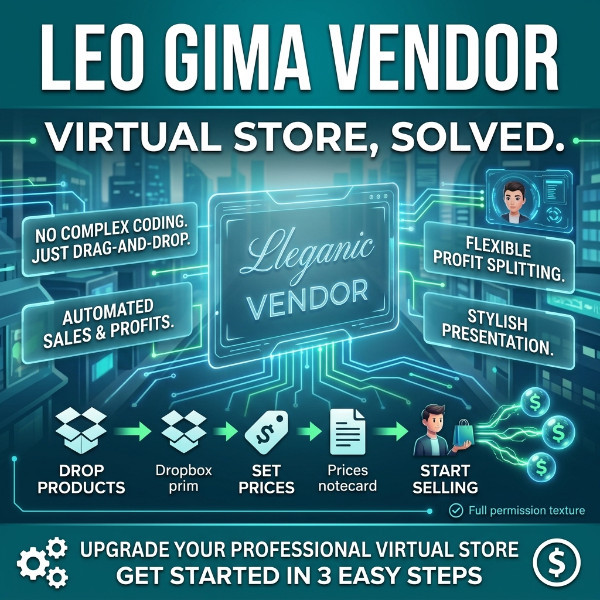
Are you looking for the easiest and most professional way to display and sell your products in the virtual world? Do you want a system that combines elegant presentation, accurate sales management, and absolute ease of setup?
Meet the Leo Gima Vendor – the all-in-one vendor system that will take your store to a whole new level of professionalism! With its smart and flexible design, you will no longer need to spend hours dealing with complex coding. All you have to do is drop in your products, set your prices, and let the system do the rest to provide your customers with a seamless, highly engaging shopping experience.
Here is a simplified guide to start your journey into smart selling in just a few easy steps:
📦 Step 1: Preparing Products & Images (The "Dropbox")
The system relies on a dedicated prim called the Dropbox. This is the storage unit that will hold your actual products and their display textures. To set it up correctly, follow these steps:
Add Your Products: Place all the objects/items you want to sell inside the Contents tab of the Dropbox prim.
Smart Image Naming: Drop in a display texture for each product. The texture's name must perfectly match the product's name, followed by a space and the word Pic.
Example: If your product is named TeleporterPad, its texture must be named TeleporterPad Pic.
Permissions (Crucial): For the screens to be able to read and display the images, the textures MUST be Full Perm (Copy/Modify/Transfer) for the owner.
💡 Important Note: Make sure to place a copy of every product's texture (with its exact matching name) inside the Center (Controller) prim as well, so it can display and manage them properly.
💰 Step 2: Setting Prices (The "Prices" Notecard)
Now, let's move to the main display board (the "Center" or Controller prim). Here, you will tell the vendor how much each product in the Dropbox costs.
Open the notecard named Prices located inside the main Center prim.
Type the name of the product followed by its price, separated by a vertical bar | (with no extra spaces around it).
Put each product on a new line, just like this example:
Plaintext
TeleporterPad|500
BurdsforestSoundeffects|250
OceanSoundeffects|250
⚙️ Step 3: System Settings & Profit Splitting (The "VendorConfig" Notecard)
The Leo Gima Vendor gives you full control over your sales and display preferences through the VendorConfig notecard (also located in the main Center prim).
Open the notecard and adjust the following values to suit your needs:
Profit Splitting & Routing:
You can specify an exact account to receive the profits (via their UUID) and set the percentage they will receive. This is perfect for partnerships or routing money to your main avatar.
Plaintext
AdminUUID=0df2377a-e66a-4942-9d62-505b7c99cc98
AdminPercent=70
(In this example, 70% of every purchase will automatically be paid to the owner of this UUID).
Slideshow Control:
The Leo Gima Vendor features an automatic image slideshow to catch the attention of passersby.
To enable the slideshow, set the value to 1.
To disable the slideshow, set the value to 0.
Plaintext
SlideMode=1
🔍 How Customers Interact & Purchase
To view and buy items seamlessly, customers can follow this simple interaction flow:
💡 Enlarging Thumbnails: If a customer wants to view any product in detail, they can click on its thumbnail image to enlarge it in the center display. To close or minimize the enlarged image, they just need to click it one more time before making their payment. (In short: click twice – once to zoom in, and once to close it before paying).
Congratulations! 🎉
Once you save these notecards, your Leo Gima Vendor is fully operational, displaying your products beautifully, and ready to make its first sale!
Meet the Leo Gima Vendor – the all-in-one vendor system that will take your store to a whole new level of professionalism! With its smart and flexible design, you will no longer need to spend hours dealing with complex coding. All you have to do is drop in your products, set your prices, and let the system do the rest to provide your customers with a seamless, highly engaging shopping experience.
Here is a simplified guide to start your journey into smart selling in just a few easy steps:
📦 Step 1: Preparing Products & Images (The "Dropbox")
The system relies on a dedicated prim called the Dropbox. This is the storage unit that will hold your actual products and their display textures. To set it up correctly, follow these steps:
Add Your Products: Place all the objects/items you want to sell inside the Contents tab of the Dropbox prim.
Smart Image Naming: Drop in a display texture for each product. The texture's name must perfectly match the product's name, followed by a space and the word Pic.
Example: If your product is named TeleporterPad, its texture must be named TeleporterPad Pic.
Permissions (Crucial): For the screens to be able to read and display the images, the textures MUST be Full Perm (Copy/Modify/Transfer) for the owner.
💡 Important Note: Make sure to place a copy of every product's texture (with its exact matching name) inside the Center (Controller) prim as well, so it can display and manage them properly.
💰 Step 2: Setting Prices (The "Prices" Notecard)
Now, let's move to the main display board (the "Center" or Controller prim). Here, you will tell the vendor how much each product in the Dropbox costs.
Open the notecard named Prices located inside the main Center prim.
Type the name of the product followed by its price, separated by a vertical bar | (with no extra spaces around it).
Put each product on a new line, just like this example:
Plaintext
TeleporterPad|500
BurdsforestSoundeffects|250
OceanSoundeffects|250
⚙️ Step 3: System Settings & Profit Splitting (The "VendorConfig" Notecard)
The Leo Gima Vendor gives you full control over your sales and display preferences through the VendorConfig notecard (also located in the main Center prim).
Open the notecard and adjust the following values to suit your needs:
Profit Splitting & Routing:
You can specify an exact account to receive the profits (via their UUID) and set the percentage they will receive. This is perfect for partnerships or routing money to your main avatar.
Plaintext
AdminUUID=0df2377a-e66a-4942-9d62-505b7c99cc98
AdminPercent=70
(In this example, 70% of every purchase will automatically be paid to the owner of this UUID).
Slideshow Control:
The Leo Gima Vendor features an automatic image slideshow to catch the attention of passersby.
To enable the slideshow, set the value to 1.
To disable the slideshow, set the value to 0.
Plaintext
SlideMode=1
🔍 How Customers Interact & Purchase
To view and buy items seamlessly, customers can follow this simple interaction flow:
💡 Enlarging Thumbnails: If a customer wants to view any product in detail, they can click on its thumbnail image to enlarge it in the center display. To close or minimize the enlarged image, they just need to click it one more time before making their payment. (In short: click twice – once to zoom in, and once to close it before paying).
Congratulations! 🎉
Once you save these notecards, your Leo Gima Vendor is fully operational, displaying your products beautifully, and ready to make its first sale!
Gadgets & Tools
Listed Sep 5, 2026
Updated Sep 26, 2026
ID: 448

Reviews (0)
No reviews yet. Buy this item to leave a review.
More from Leo Gima's Store
View Store


Related Items