Configuring Parcel Media and Live Streaming
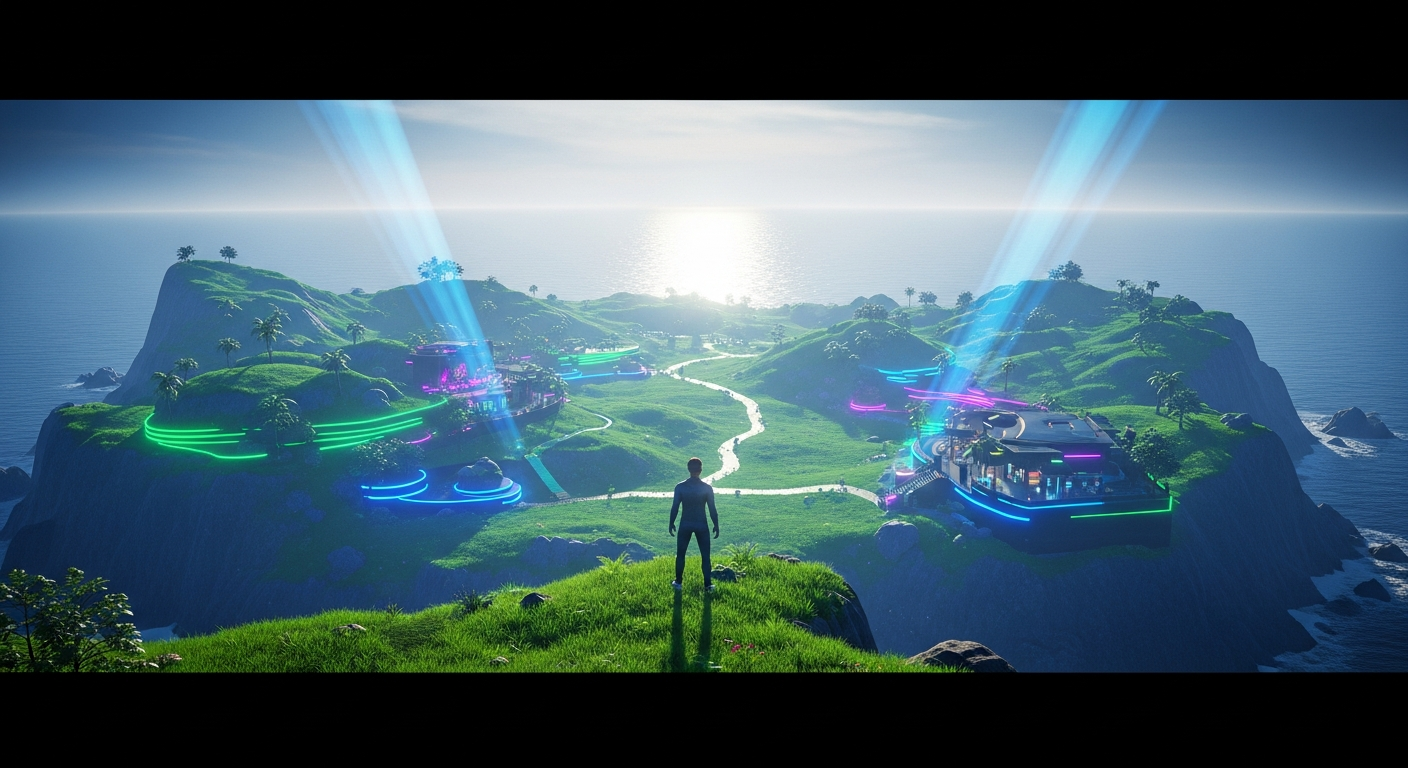
Configuring Parcel Media and Live Streaming — Free class in Alife Virtual School
Welcome, creators and visionaries, to Alife Virtual School! In the sprawling digital landscape of the metaverse, the ability to create immersive, dynamic environments is the ultimate currency. Imagine your club thumping with the beats of a live DJ, your art gallery filled with serene ambient music, or your amphitheater broadcasting a live conference to a global audience. This isn't a far-off dream; it's a core skill. Today's class, Configuring Parcel Media and Live Streaming, is your master key to unlocking this potential. We will dive deep into setting up parcel-wide music, video screens, and live event broadcasts on your very own Alife Virtual island, transforming your static space into a vibrant, multisensory experience. In a free 3D world like Alife, which stands as a powerful second life alternative, mastering these free tools gives you an unparalleled creative edge in the ever-expanding virtual economy.
The Alife Advantage: Why Your Wallet Will Thank You
In other virtual worlds, the dream of hosting a major event or running a bustling club comes with a hefty price tag. The primary cost? Land. Without a parcel, you have no canvas. In Alife Virtual, we've removed that barrier entirely, letting you focus on creation, not subscription fees. Let's break down the staggering difference in cost for the foundational element you need: a full region.
| Feature / Cost | Alife Virtual | Second Life (Competitor) |
|---|---|---|
| Private Island (65,536 sqm) | $0.00 / month. Included for free, for one month, for every resident. | ~$349 USD setup fee + ~$229-300 USD / month. |
| Content Uploads (Textures, Mesh, etc.) | FREE and UNLIMITED. Fuel your creativity without microtransactions. | L$10 (~$0.04 USD) per upload, a cost that quickly accumulates for active builders. |
| Total Cost to Host a Live Stream Event | $0.00. Your free island provides the venue. The tools are built-in. | Hundreds or thousands of dollars per year, just for the land. |
This isn't just about saving money; it's about democratizing creation. In Alife Virtual's 100% free economy, your success is determined by your skill and imagination, not the depth of your pockets. This class will equip you with skills that are not only free to use here but are also highly valuable across any open simulator platform.
What You Will Learn (Learning Objectives)
Upon completing this comprehensive tutorial, you will be able to:
- Understand the difference between parcel audio streams and media-on-a-prim.
- Confidently locate and configure a parcel-wide music stream using
SHOUTcastorIcecastURLs. - Set up a prim surface to display web content, including images and interactive pages.
- Master the process of streaming a live YouTube video onto a virtual screen for events, concerts, or movie nights.
- Troubleshoot common media streaming issues like incorrect URLs, playback errors, and firewall blocks.
- Utilize advanced LSL scripting functions to control media programmatically.
Prerequisites
- An Alife Virtual account with your free private island.
- The Firestorm Viewer installed and configured for Alife Virtual.
- Basic competency in moving your avatar, camera controls, and interacting with the world.
- Familiarity with the
Build/Editmenu (right-clicking an object to edit it). - You must have land permissions for the parcel you are working on (as the owner of your free island, you have this by default!).
Part 1: Setting Up Parcel Audio (The Music Stream)
The easiest way to add atmosphere to your entire island or a specific parcel is with a continuous audio stream. This is perfect for clubs, stores, and social spaces. The system uses streaming audio technology, primarily SHOUTcast and Icecast, which are protocols for streaming media over the Internet.
Step 1: Finding a Valid Music Stream URL
You cannot use services like Spotify or Apple Music. You need a direct stream URL. These typically end in /stream, /;, or a port number like :8000.
- Internet Radio Directories: Websites like Icecast Directory or SHOUTcast Directory are great places to find thousands of free streams across all genres.
- Your Own Stream: If you are a DJ, you can set up your own
SHOUTcastorIcecastserver (a topic for another class!) and get your own personal stream URL.
Example of a valid URL: http://streaming.radionomy.com/Classical-Music-Masters
Step 2: Configuring the Parcel
With your stream URL in hand, it's time to apply it to your land.
- Stand on the parcel of land you wish to configure.
- In the top menu bar of your
Firestormviewer, navigate toWorld -> Parcel Details. - A new window will open. Click on the SOUND tab.
- You will see a field labeled Music URL. This is where the magic happens.
- Paste the stream URL you found into this field.
- Press
Enter. The viewer will attempt to connect to the stream.
After a few seconds, you should hear the music begin to play. Other visitors to your parcel will also hear this stream automatically. You and your visitors can control playback using the music control icon (often a musical note) on the viewer's interface, allowing them to stop or adjust the volume of the stream without affecting others.
Pro Tip: Use a lower bitrate stream (e.g., 96kbps or 128kbps) for parcel music. It provides good quality and ensures that visitors with slower internet connections can load the stream reliably, preventing a choppy or silent experience.
Part 2: Media on a Prim (Video and Web Content)
While parcel audio fills the air, "Media on a Prim" (or MOAP) lets you designate a specific surface of an object to display web-based content. This is the foundation for everything from simple web pages to live video streams. The technology essentially turns a prim face into a mini web browser.
Step 1: Preparing Your Prim
- Rez a prim in-world (e.g., a simple cube). Right-click the ground and choose
Build, then click to place the object. - Stretch and position the prim to resemble a screen. A flat, wide aspect ratio is usually best for video.
- Right-click your screen prim and choose
Edit. - In the Edit window, go to the Texture tab.
- Select the face of the prim you want to use as the screen by checking "Select Face" and clicking on the desired surface. The selected face will be highlighted.
Step 2: Applying the Media Texture
- With the face selected, click on the texture swatch box. A "Texture Picker" window will appear.
- At the bottom of this window, you'll see a blank white texture with the word
(Media)underneath it. Click this. The texture swatch in your Edit window will now show "Media". - Click the
OKbutton in the Texture Picker. The face of your prim will now turn black with a "Click to load media" message. - Back in the Edit window (still on the Texture tab), you will now see a "Media Settings" section. Click the
Choose...button.
Step 3: Configuring the Media URL
A "Set Media" dialog box will appear. This is the control center for your media prim.
- Home URL: This is the most important field. This is the web page that will load by default. For now, try something simple like
https://alifevirtual.com. - Current URL: This shows the currently loaded page and can be used to navigate to a new page without changing the home URL.
- Controls: You can choose whether to show navigation controls (Back, Forward, Stop) on the media itself. For a clean video screen, you'll usually set this to
None.
Enter a URL, click Apply, and watch as your prim surface loads the webpage. You have successfully created a web-enabled object in a free 3D world!
Part 3: The Main Event — Live Streaming YouTube
This is where we combine the power of MOAP with live streaming services to create truly epic events. The most common use case is streaming a YouTube video or a YouTube Live broadcast.
The Critical Hurdle: Finding the Correct URL
You cannot simply copy the URL from your browser's address bar (e.g., https://www.youtube.com/watch?v=VIDEO_ID). This URL points to the entire YouTube page, with comments, recommendations, and ads, which will not work correctly on a prim. You need the embed URL.
Step-by-Step Guide to Streaming a YouTube Video
- Go to the YouTube video or Live Stream page you want to broadcast.
- Below the video player, click the Share button.
- In the dialog that appears, click the Embed button (it looks like
< >). - You will see a block of HTML code that starts with
<iframe...>. We are only interested in the source URL inside this code. It will look like this:src="https://www.youtube.com/embed/VIDEO_ID". - Carefully copy ONLY the URL inside the quotes. This is your golden ticket. For our Alife Virtual trailer, it would be:
https://www.youtube.com/embed/dQw4w9WgXcQ(example). - Now, let's supercharge this URL with parameters for a better viewing experience. You can add these to the end of the URL. The first parameter starts with a
?and subsequent ones start with an&.?autoplay=1- Makes the video play automatically. Essential for events.&controls=0- Hides the YouTube player controls for a cleaner look.&modestbranding=1- Reduces the YouTube logo visibility.&loop=1&playlist=VIDEO_ID- To make a video loop, YouTube requires you to specify the playlist parameter containing the same video ID.
- A powerful, complete URL for an event would look like this:
https://www.youtube.com/embed/VIDEO_ID?autoplay=1&controls=0&modestbranding=1 - Go back to Alife Virtual. Select your media prim, go to
Edit -> Texture -> Choose...and paste this complete, customized embed URL into the Home URL field. - Click
Applyand thenOK.
Your prim should now burst to life with the YouTube video, playing automatically and without distracting controls. You've just built a virtual cinema screen!
Common Mistake: Pasting the entire
<iframe>code into the URL field. The viewer only needs the URL from thesrc="..."attribute. Anything else will cause it to fail.
Pro Tip: For a major event, always have a backup stream URL ready. If your primary YouTube stream fails, you can quickly edit the prim and paste in the backup URL to keep the event going with minimal disruption.
Advanced Applications: Scripting and Interactivity
For those comfortable with LSL scripting, you can take media control to the next level. Instead of manually editing the prim, you can create scripts that change the media based on triggers, timers, or user interaction.
The key function is llSetPrimMediaParams(). This allows a script to set the media URL, controls, and other properties on the fly.
Here is a very simple LSL script snippet that would change a prim's media to the Alife Virtual homepage when touched:
default
{
    touch_start(integer total_number)
    {
        // The face number to apply the media to. 0 is the first face.
        integer face = 0;

        // Define the media parameters
        list media_params = [
            PRIM_MEDIA_URL, "https://alifevirtual.com",
            PRIM_MEDIA_CONTROLS, PRIM_MEDIA_CONTROLS_STANDARD,
            PRIM_MEDIA_AUTO_PLAY, TRUE
        ];

        // Apply the parameters to the prim
        llSetPrimMediaParams(face, media_params);
    }
}
This opens up endless possibilities: create a multi-channel TV, a scripted presentation system, or interactive information kiosks, all powered by the robust tools in this metaverse platform.
Practice Exercise: Build Your Welcome Center
It's time to put your new skills to the test on your FREE private island.
- Designate a small area on your island as a "Welcome Center".
- Task 1 (Audio): Find a "Chill Ambient" or "Lofi Beats" stream from an online directory and set it as the parcel music for your Welcome Center area.
- Task 2 (Video): Rez a large prim to act as a welcome screen.
- Task 3 (Configuration): Configure the prim to be a media screen and set its Home URL to the YouTube embed link for a video of your choice (perhaps the Alife Virtual trailer or a nature documentary). Ensure it autoplays and has no controls.
- Bonus: Add a second, smaller media prim next to it that loads the Alife Virtual community discord page or website.
This exercise solidifies your understanding of both parcel-wide audio and prim-specific video, the two pillars of media streaming in a virtual world.
Frequently Asked Questions (FAQ)
- 1. Why is my media screen black or showing an error?
- This is the most common issue. Check these things first: 1) Did you use the correct embed URL for YouTube, not the 'watch' URL? 2) Is the stream/website still active? Try pasting the URL into your desktop browser. 3) Some web content uses technology that isn't compatible with the viewer's built-in browser. 4) Your own computer's firewall might be blocking the connection.
- 2. Can I stream from Netflix, Disney+, or other subscription services?
- No. These services use encrypted, protected content (DRM) and do not provide public stream URLs that can be used in this way. Media streaming in-world is for publicly accessible content like YouTube, Vimeo, and direct
Icecast/SHOUTcaststreams. - 3. What's the difference between Parcel Music and a scripted music player object?
- Parcel Music is global to the parcel. Anyone on the land will hear it, and it's controlled via the viewer's UI. A scripted music player is an object (like a jukebox) that plays a stream only when you are near it, and control is typically handled by clicking the object itself. Parcel music is for ambient atmosphere; scripted players are for localized, interactive sound.
- 4. Do I have to pay for a SHOUTcast or Icecast stream?
- There are thousands of free-to-listen streams available on public directories. If you want to broadcast your *own* audio (like a live DJ set), you will typically need to rent a stream server, which does have a monthly cost from third-party providers. However, for adding music to your land, free options are plentiful.
- 5. Why does my YouTube video have ads?
- Even with an embed URL, YouTube may still inject ads, especially at the beginning of a video. This is controlled by YouTube's ad policies and the content creator's monetization settings. There is no way to block these ads from within the Alife viewer.
Your Creative Journey Starts Now
You are now equipped with the technical knowledge to transform any space in Alife Virtual from a silent collection of prims into a living, breathing, sounding experience. The tools are free, your 65,536 sqm island is waiting, and your imagination is the only limit. This is the power of a truly free and open metaverse.
What will you create? A world-class nightclub? An open-air cinema under the virtual stars? A training center with live-streamed tutorials? The choice is yours.
Ready to build your dream in a world with no limits and no fees? Join the most creative and welcoming community in the metaverse.
Join Alife Virtual Today and Claim Your FREE Island!
🎓 Ready to Practice In-World?
Get your FREE island and practice everything you just learned — no credit card, no monthly fees.
Claim Your Free Island Now →No credit card required · Takes 2 minutes · Your island is FREE for one month