CLASS 7: Derender and Asset Blacklist Tools
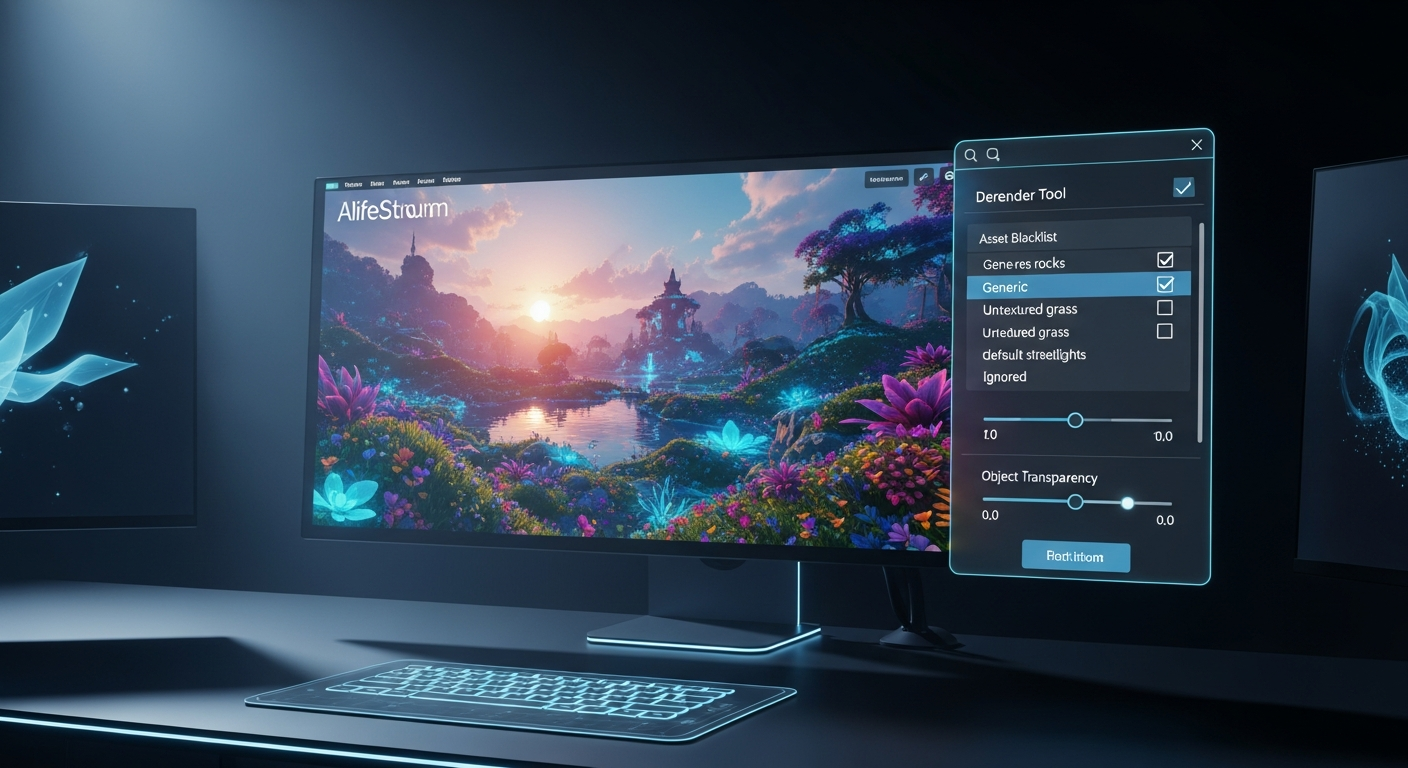
Derender and Asset Blacklist Tools — Free class in Alife Virtual School
Master Your View and Boost Performance in Alife Virtual
Welcome to Alife Virtual School! In today's class, we're tackling one of the most powerful and practical skills you can learn as a resident: mastering your visual environment. Have you ever been to a crowded club, a busy shopping event, or a public sandbox and felt your computer slow to a crawl? Have you ever wished you could just make that one giant, flashing, animated sign disappear so you can enjoy the conversation with your friends? If so, this class is for you.
Alife Virtual is a massive and vibrant world, home to over 1,148,000 members. With so many people building, scripting, and expressing themselves, our virtual spaces can sometimes become visually "noisy." This can lead to sensory overload and, more technically, a drop in your Frames Per Second (FPS), which you experience as lag or choppiness. The good news is that you have complete control over what you see. Using the powerful tools built into the Firestorm Viewer, you can act as your own visual curator, cleaning up your view, hiding unwanted objects, and significantly improving your performance.
This isn't about deleting other people's things; it's about customizing your personal view of the world. What you derender or blacklist is only hidden for you, allowing you to create a smoother, more enjoyable experience without affecting anyone else. This skill is essential for everyone, from those enjoying social events to creators working on their free 65,536 sqm private island.
What You Will Learn
By the end of this tutorial, you will be able to:
- Understand the difference between temporary derender and permanent asset blacklisting.
- Use the Temporary Derender tool to quickly hide objects for your current session.
- Use the Asset Blacklist tool to permanently hide distracting or poorly optimized objects from your view.
- Manage your Asset Blacklist to un-hide items you've previously blacklisted.
- Use object transparency controls to make your own objects see-through.
- Identify which tool to use for different situations to reduce visual clutter and improve FPS.
Prerequisites
Before we begin, please make sure you have the following:
- An Alife Virtual Account: If you don't have one yet, you can register for free and get your own free full-body mesh avatar.
- Firestorm Viewer Installed: Alife Virtual uses the Firestorm Viewer, the most popular and powerful viewer for Alife Virtual and Second Life. The skills you learn here are 100% transferable!
- Logged into Alife Virtual: The best way to learn is by doing. We recommend you follow along with this tutorial in-world.
The Main Tutorial: Your Toolkit for a Cleaner View
We'll break down the process into three main tools: Temporary Derender, Asset Blacklist, and Object Transparency. Think of them as different levels of control, from a quick fix to a permanent solution.
Part 1: Temporary Derender – The Quick Fix
Temporary Derender is your best friend for immediate, short-term relief. It hides an object from your view until you either relog or manually bring it back. It's perfect for things that are only annoying you in the moment, like a particle effect spammer at an event or a vehicle blocking your path.
Step-by-Step Guide to Temporary Derender:
- Identify the Offending Object: Find the object you want to temporarily hide. For this example, let's imagine a large, flashing advertising sign at a welcome hub.
- Right-Click the Object: Move your mouse cursor over the object and right-click it. This will open the pie menu or a context menu.
- Navigate the Menus:
- From the menu, select More.
- In the next menu, select More again. (Yes, it's a few levels deep!)
- Now, select Render...
- Finally, click on Temporarily.
- Poof! It's Gone: The object will instantly vanish from your screen. Remember, it's only gone for you. Everyone else can still see it.
Important Tip: "Temporary" means it lasts only for your current login session. If you teleport away and come back, the object will remain hidden. But if you log out of Alife Virtual and log back in, the object will be visible again.
How to Undo a Temporary Derender:
What if you derender something by mistake? Don't worry! You can get it back. Go to the top menu bar in Firestorm and click World > Asset Blacklist. In the window that opens, click the "Temporary" tab. You'll see a list of everything you've temporarily derendered. Select the item from the list and click the "Remove Selected" button. The object will reappear.
Part 2: Asset Blacklist – The Permanent Solution
Sometimes, temporary isn't enough. There are certain objects in virtual worlds that are notoriously laggy, ugly, or just plain annoying. These might be common "freebie" items that are poorly made with high-impact textures or scripts. For these, you want a more permanent solution. That's where the Asset Blacklist comes in.
When you blacklist an object, you are not just hiding that specific object in that specific location. You are telling Firestorm: "I never want to see the underlying asset (the mesh, the texture, the sound) that this object is made of, ever again, anywhere in Alife Virtual."
Step-by-Step Guide to Asset Blacklisting:
- Identify the Problem Asset: Find an object you truly never want to see again. A good candidate is a specific type of blinking particle jewelry or a common, lag-inducing scripted object you see everywhere.
- Right-Click the Object: Just like before, right-click the object to open the menu.
- Navigate the Menus:
- Select More.
- Select More again.
- Select Render...
- This time, click on Blacklist.
- Confirm Your Choice: Firestorm will pop up a warning, asking if you're sure you want to blacklist the asset. It will show you the asset's name and UUID (its unique identification number). Click "Blacklist" to confirm.
The object will now disappear. And if you ever encounter another object anywhere in Alife Virtual that uses that same core asset, it will also be hidden from you automatically. This is incredibly powerful for cleaning up your world and improving performance, especially since uploads for mesh, textures, and animations are completely free in Alife Virtual, leading to a huge variety of assets in-world.
Warning: Use the Blacklist with care! If you blacklist a common texture (like a basic wood or metal texture), you might find parts of many different builds suddenly become invisible. It's best to use this on specific, identifiable objects rather than generic-looking surfaces.
How to Manage and Undo an Asset Blacklist:
You blacklisted your favorite hair by mistake! It's a rite of passage, and it's easily fixable.
- Go to the top menu bar and click World > Asset Blacklist.
- A window will open. By default, it shows the "Blacklisted" tab. This is your master list of all permanently hidden assets.
- The list can be long. You can use the "Filter" box at the bottom to search for the item by name (e.g., "messy_hair_v2").
- Once you find the asset in the list, click on it to select it.
- Click the "Remove Selected" button at the bottom right.
- The asset is now removed from your blacklist. You may need to refresh the object or relog for it to reappear correctly. A quick way to refresh is to go to Advanced > Rebake Textures (you may need to enable the Advanced menu first via Ctrl + Alt + D).
Part 3: Object Transparency (Alpha Masking) – For Your Own Builds
This last tool is a bit different. It's not for hiding other people's objects, but for modifying your own. It's an essential building tool, especially when you have 10,000 prims to work with on your free private island. Let's say you've built a house but want to make a window see-through or create a one-way mirror.
Step-by-Step Guide to Setting Transparency:
- Select an Object You Own: Right-click and choose Edit on an object you have modify permissions for (like a simple prim you just rezzed on your land).
- Open the Texture Tab: In the build/edit window, click on the "Texture" tab.
- Adjust Transparency: You will see a "Transparency %" field with a slider. It defaults to 0.
- To make the object partially see-through, slide it to a value like 50%.
- To make it almost completely invisible (but still selectable), slide it to 99%.
- Click to Apply: Simply close the edit window. The change is saved automatically.
This is fantastic for creating realistic windows, water effects, or invisible barriers on your land. Since Alife Virtual offers full LSL scripting support (identical to Second Life), you can even write scripts to change an object's transparency on command!
Common Mistakes and How to Avoid Them
As you learn, you might run into a few common hiccups. Here's a quick guide to avoiding them.
| The Mistake | Why It Happens | How to Fix/Avoid |
|---|---|---|
| Blacklisting Your Own Avatar | You accidentally right-clicked on your own hair, skin, or clothing while trying to target an object behind you. | Always be careful what your cursor is on. If it happens, go to World > Asset Blacklist, find the asset (e.g., "MyFavoriteHair"), and remove it from the list. |
| Confusing Temporary Derender with Blacklist | Using Blacklist for a minor, one-time annoyance, which then hides that asset everywhere you go. | Use this rule: If it's only annoying you right now, use Temporary Derender. If it's an object you hate and see often, use Blacklist. |
| Thinking Derender Deletes the Object | A misunderstanding of how the tool works. Derender only affects your personal view. | Remember, you are only hiding it for yourself. Everyone else can still see it, and the object's scripts may still be running on the server. |
Advanced Tips and Tricks
Ready to level up? Here are a few pro-tips:
- Highlight Transparent Objects: Can't find that invisible prim you made? Press Ctrl + Alt + T. This will highlight all transparent surfaces in red, making them easy to see and select. Press the key combination again to turn it off.
- Blacklist Sounds and Gestures: The blacklist isn't just for visible objects! If someone is spamming an annoying sound or gesture, you can right-click on their avatar, go to More > Asset Blacklist... and a window will appear listing recent sounds, gestures, and particles from that avatar. You can blacklist them directly from there.
- Use Area Search to Find Invisible Objects: If you've lost an invisible object on your land, use the Area Search tool (World > Area Search). You can search by name, owner, or description to find it and its location coordinates. This is a lifesaver on your huge free private island.
- Derender Avatars for Max FPS: At a very crowded, laggy event where you just want to listen to the music? You can temporarily derender entire avatars. Right-click an avatar, select Render... > Temporarily. Their avatar will be replaced by a simple gray silhouette, drastically improving performance. This is sometimes called "jellidoting."
Practice Exercise: Clean Up a Crowded Space
Time to put your new skills to the test!
- Visit a Busy Hub: Teleport to a popular public space in Alife Virtual, like a welcome area or a busy club.
- Find an Annoying Sign: Look for a flashing, moving, or overly bright sign. Practice using the Temporary Derender tool to hide it.
- Find a Laggy Object: Look for an object with excessive particle effects or complex movements. Use the Asset Blacklist to hide it permanently. Notice if your FPS improves (you can view your FPS by pressing Ctrl + Shift + 1).
- Practice on Your Own Land: Teleport to your free private island. If you haven't claimed it yet, you can do so here: Claim Your Free Island.
- Rez a simple cube (Build > Build > Cube).
- Practice using the Edit > Texture > Transparency setting to make it 50% transparent.
- Now, try to make it 99% transparent. Use Ctrl + Alt + T to find it again!
Frequently Asked Questions (FAQ)
Does derendering an object affect what other people see?
No, absolutely not. All of these tools only affect your personal view on your computer. Everyone else in Alife Virtual will continue to see the world normally. It's your own personal filter bubble.
Will blacklisting an object always improve my frame rate (FPS)?
Usually, yes. Your computer's graphics card has to "draw" every object, texture, and particle you can see. By telling it not to draw certain things, you free up resources, which typically results in a higher FPS and a smoother experience. The biggest gains come from hiding objects with high-impact textures, complex models (high "poly count"), or heavy scripting/particle effects.
Can I blacklist an entire avatar permanently?
Not in a single click, but you can get close. You can't blacklist the "avatar" itself, but you can blacklist all the assets it's made of: its hair, skin, shape, clothes, and attachments. This is an extreme measure and usually not necessary. A better option is to use the "Block" feature (right-click avatar > Block), which mutes their chat and renders them as a gray silhouette.
Is there a limit to how many items I can have on my blacklist?
There is no practical limit, but a very long list (thousands of items) can theoretically add a tiny bit of loading time when you enter a new area as the viewer checks assets against your list. It's good practice to review your blacklist once every few months and remove entries you no longer feel are necessary, especially if you blacklisted something by mistake.
Summary and What's Next
Congratulations! You've just learned one of the most empowering skills in Alife Virtual. You are now in full control of your visual experience. You can step into the busiest, most chaotic sims with confidence, knowing you can instantly clean up your view and optimize your performance.
You've learned to:
- Use Temporary Derender for quick, session-based hiding.
- Use Asset Blacklist for a permanent "never see this again" solution.
- Manage both lists to undo any mistakes.
- Use Object Transparency on your own builds for creative effects.
With these tools, you can curate a version of Alife Virtual that is perfect for you. Now that you know how to manage your environment, why not learn more about creating it? Check out our other free daily classes on building, scripting, and texturing. You can browse the full curriculum here: Alife Virtual School Classes.
Your Alife Virtual Journey Starts Now – For Free!
Did you know that the 65,536 sqm private island we mentioned is 100% free, for one month, with no monthly fees? In Second Life, an island of the same size costs nearly $300 USD every single month. In Alife Virtual, it's yours to keep, along with 10,000 prims for building your dream home, store, or personal sanctuary.
If you haven't joined our community of over 1.1 million residents, there has never been a better time. It all runs on your desktop computer—no VR headset required.
Ready to begin?
Register for your free Alife Virtual account today!
Claim your FREE private island and start building!
We can't wait to see you in-world!
🎓 Ready to Practice In-World?
Get your FREE island and practice everything you just learned — no credit card, no monthly fees.
Claim Your Free Island Now →No credit card required · Takes 2 minutes · Your island is FREE for one month